Overview
Output Named Destination URLs exports a list of named destinations from the active PDF as full URLs. Each URL is formed by combining a user-supplied base URL with a fragment identifier derived from the destination name.
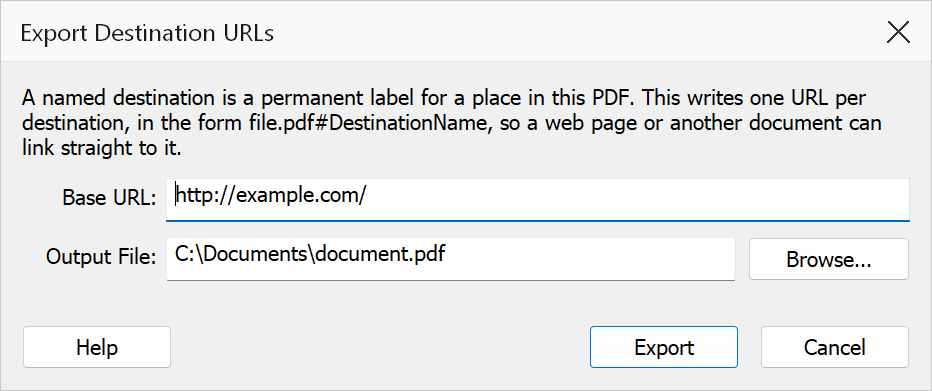
How to use
- Open a PDF that contains named destinations.
- Go to Plug-Ins > Named Destinations > Output Named Destination URLs.
- Enter a Base URL (e.g.
https://example.com/docs/report.pdf). - Click Browse to choose an output text file.
- Click OK to export the destination URLs.
Dialog fields
| Field | Description |
|---|---|
| Base URL | The prefix applied to every named destination. The base URL must start with
http:// or https://. A domain-like value without a
scheme (e.g. example.com/docs) is automatically prefixed with
https://. Trailing slashes are stripped, and each destination name is
appended as a URL-encoded fragment (#DestName). |
| Output file | The text file where the destination URLs are saved, one URL per line. Use the Browse button to select the file location. |
Tip
Use a base URL that points to the hosted location of your PDF so that the output URLs
can be used as direct deep links, for example:
https://example.com/docs/report.pdf#Section1.
Note
If the PDF has no named destinations, no output file is created. The base URL cannot contain spaces or use a non-HTTP scheme.