Overview
Visual Page Index generates one or more index pages containing hyperlinked thumbnail images of your PDF pages. Each thumbnail can act as a clickable link that navigates directly to the corresponding page, providing a visual overview of the entire document at a glance.
This feature is especially useful for large documents, image-heavy PDFs, presentation decks, and scanned documents where a traditional text-based table of contents may not be practical.
A live preview on the right side of the dialog shows how the thumbnail grid will appear on the page as you adjust settings. The preview updates in real time as you change any option.
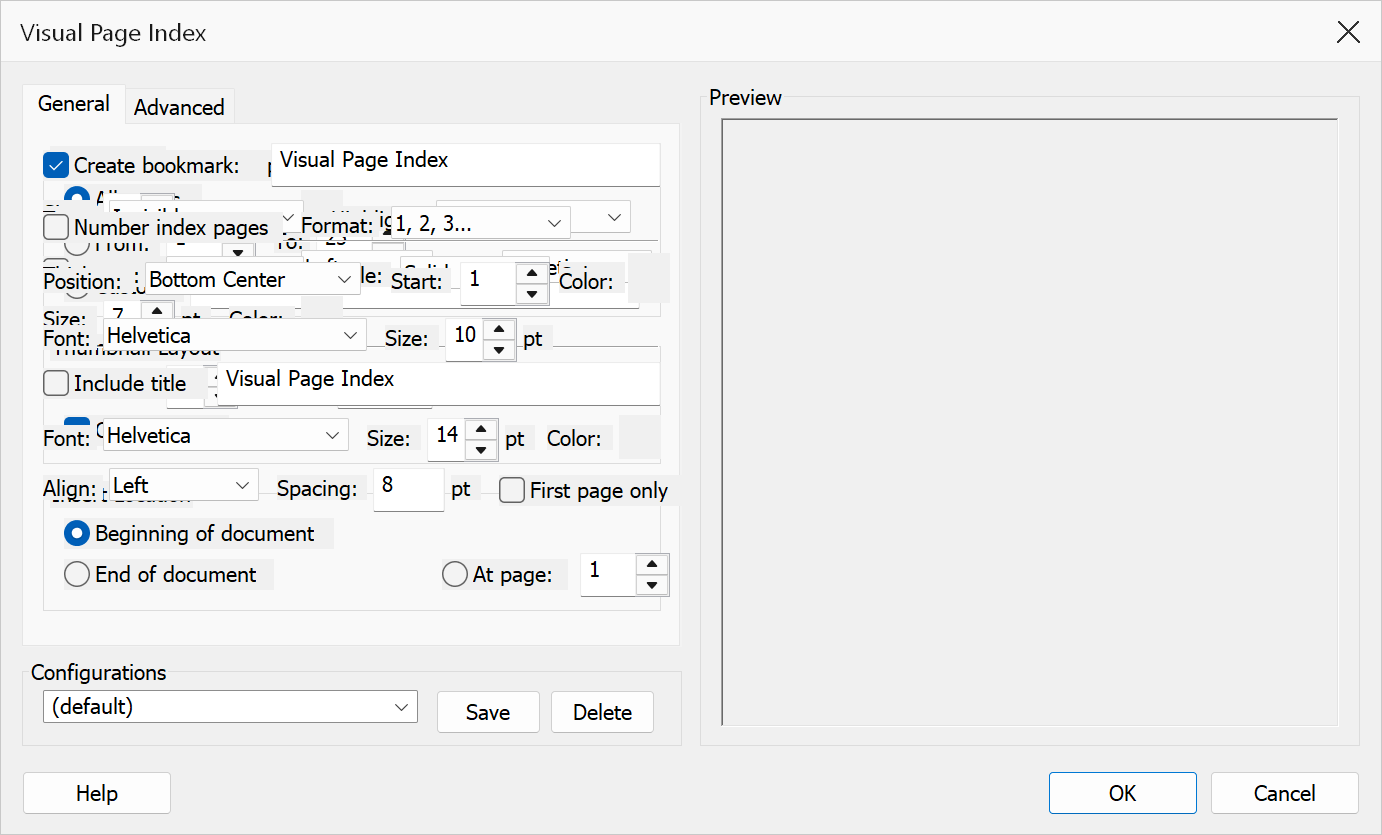
How to use
- Open the PDF document in Adobe Acrobat.
- Go to Plug-Ins > TOC > Visual Page Index.
- Set the page range: all pages, a from–to range, or a custom range (e.g.
1-5,8,10-12). - Configure the thumbnail layout: number of columns, thumbnail width, and whether to center rows.
- Choose labels and title settings: page numbers, bookmark titles, and an optional heading on index pages.
- Optionally configure link appearance: type (visible/invisible), highlight style, line thickness, line style, and color.
- Configure index page options: bookmark creation and page numbering.
- Select where to insert the index pages: beginning, end, or at a specific page.
- Check the preview panel on the right to see how the layout will look.
- Click OK to generate the visual page index.
Page Range
| Option | Description |
|---|---|
| All pages | Include every page in the document. |
| From / To | Specify a start and end page number. |
| Custom | Enter a custom range using commas and dashes, e.g. 1-5,8,10-12. Pages are included in the order specified. Duplicate pages are allowed. |
Thumbnail Layout
| Option | Description |
|---|---|
| Columns | Number of thumbnail images displayed in each row. Valid range: 1–10. More columns fit more thumbnails per page but each thumbnail is smaller. |
| Width | Width of each thumbnail image. Enter the value in the selected units (inches, centimetres, or points). The internal range is 50–500 points. The height is calculated automatically based on the page aspect ratio. |
| Units | Select the measurement units for the thumbnail width: in (inches), cm (centimetres), or pt (points). The default is determined by your Windows locale. Your choice is remembered across sessions. |
| Center rows | When checked, each row of thumbnails is centered horizontally on the page. This is particularly useful when the last row has fewer thumbnails than the column count. |
Labels and Title
| Option | Description |
|---|---|
| Page numbers | When checked, the page number (using the document’s page labels) is displayed below each thumbnail. |
| Bookmark titles | When checked, the first bookmark title targeting each page is displayed below the thumbnail, providing context for what each page contains. Long titles are truncated. |
| Include title | When checked, a heading is rendered at the top of each index page. |
| Title text | The text to display as the heading. Default: “Visual Page Index”. |
| Font | Font for the title text, chosen from the PDF base-14 fonts (Courier, Helvetica, Times–Roman families). Bold and italic variants are available. |
| Size | Point size for the title text. Default: 14. |
| Color | Click the color button to choose the title text color. Default: black. |
| Align | Horizontal alignment of the title: Left, Center, or Right. |
| Spacing | Gap in points between the title and the first row of thumbnails. Default: 8 pt. |
| First page only | When checked, the title is shown only on the first index page. When unchecked, the title appears on every index page. |
Link Appearance
| Option | Description |
|---|---|
| Add links to original pages | When checked, each thumbnail becomes a clickable GoTo link that navigates to the corresponding document page. |
| Type | Invisible creates links with no visible border. Visible draws a colored border around each link. |
| Highlight | Visual feedback when clicking a link: None, Inverted, Outline, or Inset. |
| Thickness | Border thickness for visible links: Thin (1pt), Medium (2pt), or Thick (3pt). |
| Style | Border line style: Solid, Dashed, or Underline. |
| Color | Click the color button to choose the link border color. |
Index Page Options
| Option | Description |
|---|---|
| Create bookmark | When checked, a bookmark is added to the document’s bookmark tree pointing to the first index page. Enter the desired bookmark title in the text field. Default: “Visual Page Index”. |
| Number index pages | When checked, a page number is printed on each generated index page. |
| Format | Page number format: 1, 2, 3 (Arabic), i, ii, iii (Roman lower), or I, II, III (Roman upper). |
| Position | Where the page number appears: Bottom Center, Bottom Left, or Bottom Right. |
| Start | Starting number for index page numbering. Default: 1. |
| Color | Click the color button to choose the page number text color. Default: black. |
Insert Location
| Option | Description |
|---|---|
| Beginning of document | Insert the index pages before page 1. |
| End of document | Insert the index pages after the last page. |
| At page | Insert the index pages at a specific page position. |
Removing an Existing Index
When you generate a new visual page index, any existing index pages (from a previous run) are automatically removed before the new ones are created.
To remove the index without creating a new one, use Plug-Ins > TOC > Remove Visual Page Index. This deletes the index pages and the associated bookmark.
Tip
For large documents, use fewer columns (2–3) with a larger thumbnail width so that page content remains readable. For quick visual overviews, use more columns (4–6) with smaller thumbnails.
Tip
Enable Center rows for a polished look, especially when the total number of pages doesn’t divide evenly into the column count.
Note
The index pages are created at the same page size as the source document’s first page. The original document pages are not modified.
Confirmation
This command changes the document irreversibly, so it asks you to confirm before anything is modified. The prompt states what will be affected — where the command can count the items in advance, it quotes the exact number. Nothing is changed until you accept it, and choosing Cancel leaves the document untouched.