Overview
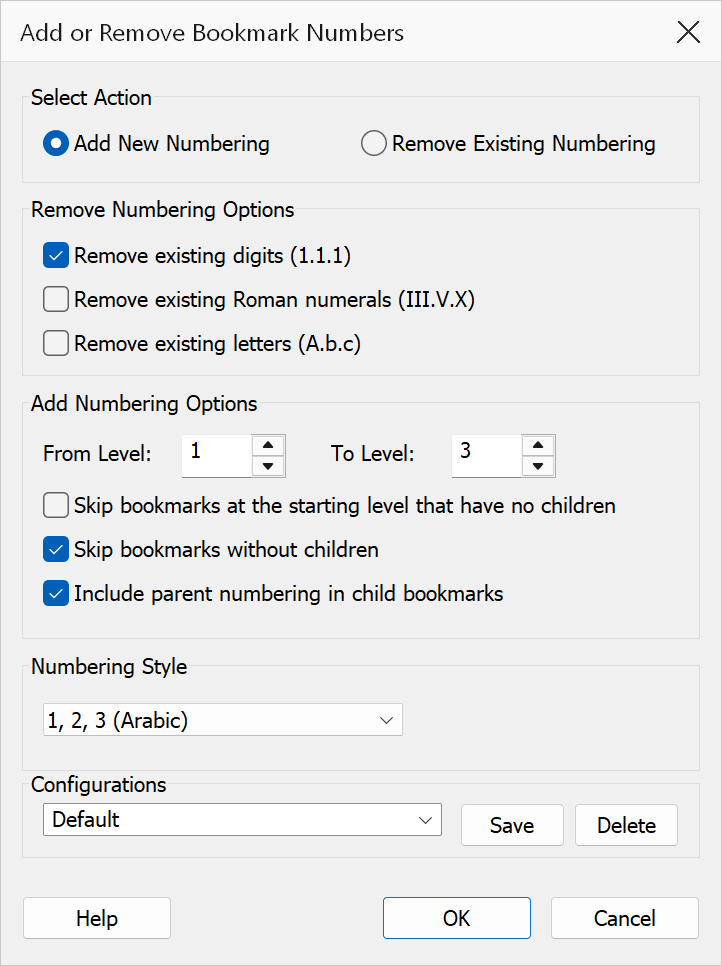
Add/Remove Leading Numbers lets you add structured hierarchical numbering to bookmark titles or strip existing numbering patterns in a single operation. The dialog operates in one of two modes: Add Numbering or Remove Numbering.
How to use
- Open a PDF that contains bookmarks.
- Go to Plug-Ins > Bookmarks > Add/Remove Leading Numbers.
- Select Add Numbering or Remove Numbering.
- Configure the options for the chosen mode.
- Click OK to apply the changes.
Add Numbering mode
Adds hierarchical numbering prefixes to bookmark titles within a specified level range.
| Option | Description |
|---|---|
| Numbering style | Choose from the following styles:
|
| Start level | The first bookmark level to number (1–10). |
| End level | The last bookmark level to number (1–10). Must be greater than or equal to the start level. |
| Include parent numbers | When checked, builds hierarchical numbers that include the parent level
(e.g. 2.3.1 instead of just 1). |
| Skip bookmarks at the starting level that have no children | When checked, does not number bookmarks at the starting (From) level that have no children. |
| Skip bookmarks with no children | When checked, only numbers bookmarks that have child bookmarks beneath them. |
Before writing the new number, Add Numbering replaces an existing numbering label so
that running it twice does not stack numbers. Only an unmistakable label is replaced:
a number or dotted number followed by a space (1 , 1.2 ,
3. , 4) , (5) ), a roman numeral or letter
closed by a period or parenthesis (IV. , A) ,
(b) ), or a dotted letter/roman label (A.B ). Ordinary words
are never taken: A Brief History becomes 1 A Brief History, and
2001: A Space Odyssey keeps its title. A title that starts with a plain
number and a space (24 Hours) is treated as numbered, because that is the
form Add Numbering itself writes. Likewise, the label shape of the style being applied
is replaced even without punctuation, since Add Numbering writes roman and letter labels
bare: numbering with uppercase letters replaces A or A.B ,
and numbering with lowercase roman numerals replaces a valid numeral such as
iv . So with a letters style, A Brief History loses its
A; number it with digits to keep it.
Remove Numbering mode
Strips existing leading numbering from bookmark titles. Select one or more numbering styles to remove; OK stays disabled until at least one style is ticked.
The separator that follows the number is removed with it. Recognised separators are a
period (1.), colon (1:), closing parenthesis (1)
or (1)) and a dash (1 -, 1 –,
1 —). A colon or dash only counts as a separator when a space
follows, so titles such as 1:1 Scale or 3-D Modeling are
left intact.
| Option | What it removes | Examples |
|---|---|---|
| Digits | Arabic digit prefixes | 1., 1.2., 3, 4:, (5) |
| Roman numerals | Roman numeral prefixes | I., iv., IX., III:, (iv) |
| Letters | Alphabetic prefixes | A., b., C), D:, (e) |
Example
Before (add digits, include parent):
Chapter One→1 Chapter OneIntroduction→1.1 IntroductionMethods→1.2 Methods
Before (remove digits):
2.3 Methods→Methods
Warning
Changes are applied immediately and cannot be undone from this dialog. Save your PDF before adding or removing numbering.
Tip
To re-number bookmarks that already have mixed numbering styles, first use Remove Numbering to strip all existing prefixes, then use Add Numbering with your preferred style.
Note
Level values are 1-based in the dialog and are validated to a range of 1 to 10. If the start level exceeds the end level, the dialog will show an error.