Overview
Create Bookmarks From Files In Folder scans a selected folder and creates bookmarks in the active PDF that launch the corresponding files. Each sub-folder becomes a parent bookmark and each file inside it becomes a child bookmark with a launch action. This is useful for building a navigational tree that links to related documents or any file type supported by your system.
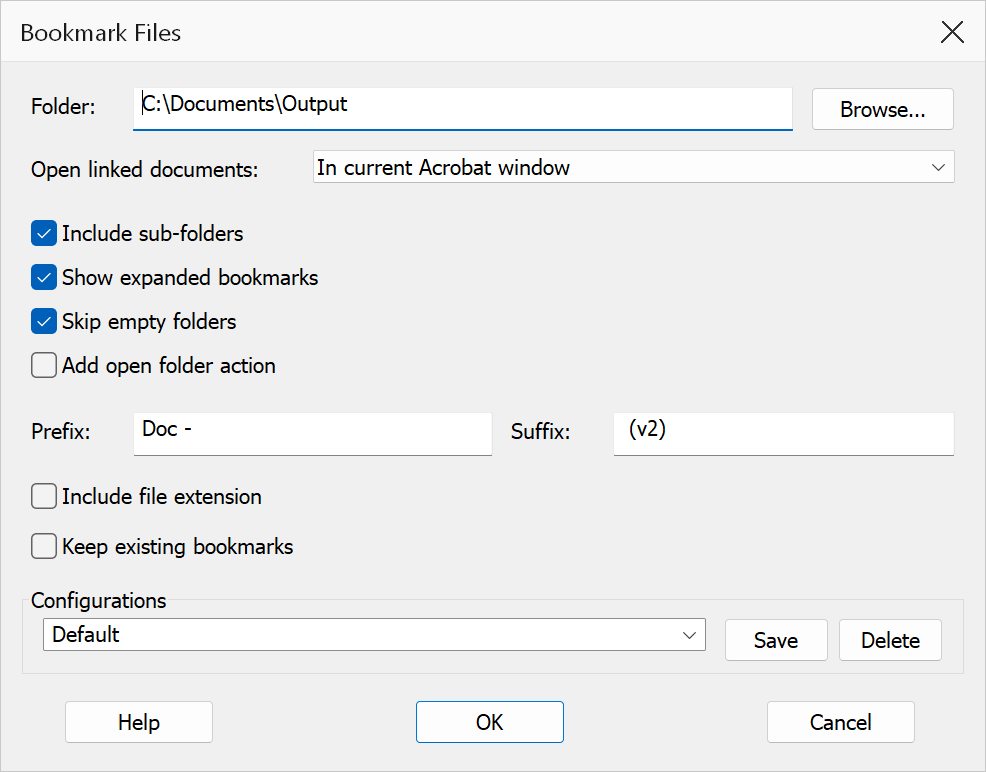
How to use
- Open the PDF document that will receive the new bookmarks.
- Go to Plug-Ins > Bookmarks > Create Bookmarks From Files In Folder.
- Click Browse to choose the folder whose files will be bookmarked.
- Configure the options described below.
- Click OK to generate the bookmarks.
Options
| Option | Description |
|---|---|
| Folder | The folder whose files will be converted into bookmarks. Use the Browse button to select a folder. The OK button is disabled until a folder path is provided. |
| Open linked documents in | Controls how linked documents open when a bookmark is clicked. Choices are In current Acrobat window, In new Acrobat window, or With default application. |
| Include sub-folders | When enabled, the scan traverses into sub-folders and creates parent bookmarks for each sub-folder. |
| Show expanded bookmarks | When enabled, folder bookmarks are created in an expanded state in the bookmark tree. |
| Skip empty folders | When enabled, folders that contain no files are skipped and do not receive a parent bookmark. |
| Add open folder action | Adds an action to each folder bookmark that opens the corresponding folder location on disk. |
| Prefix | Optional text prepended to each file bookmark title. |
| Suffix | Optional text appended to each file bookmark title. |
| Include file extension | When enabled, filenames retain their extensions in the bookmark title
(e.g. Report.pdf instead of Report). |
| Keep existing bookmarks | When disabled, the existing bookmarks are replaced by the new ones once the run finishes. If you cancel the run, nothing is changed and the existing bookmarks are kept. Enabled by default. |
Tip
Use Prefix and Suffix fields to add context to bookmark
titles — for example, a prefix of Appendix: turns a file named
Budget into the bookmark title Appendix: Budget.
Note
All files in the selected folder are bookmarked, not just PDFs. Each file bookmark uses a launch action that opens the file with its default application.