Overview
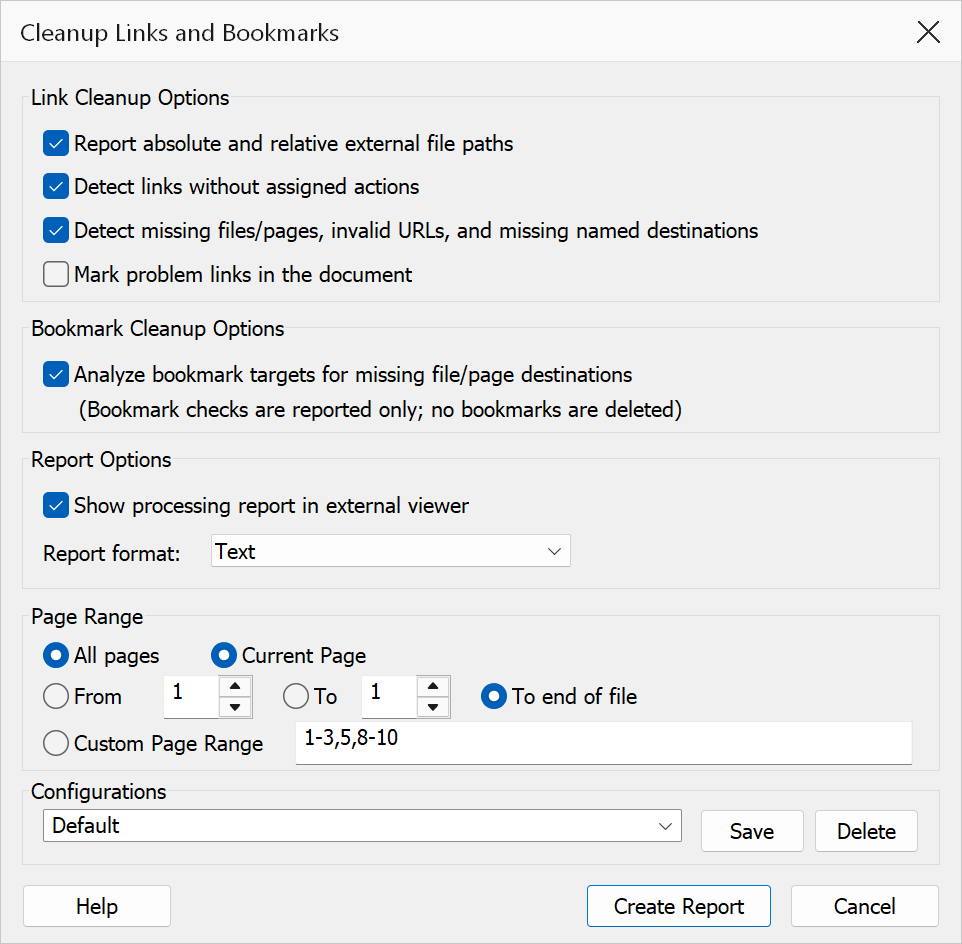
Cleanup Links And Bookmarks scans the active PDF to detect and fix broken or invalid links and bookmarks. You can convert file paths, remove bad entries, and generate a report of what was found and fixed. The same dialog is also used in Report Only mode (Create Link Report), which detects issues without deleting anything.
How to use
- Open the PDF you want to clean up.
- Go to Plug-Ins > Links > Cleanup Links And Bookmarks.
- Select the cleanup actions you want to perform.
- Choose the page scope and reporting options.
- Click OK to run the cleanup.
Cleanup actions
| Option | Description |
|---|---|
| Convert absolute paths to relative | Rewrites absolute file references in link actions to be relative to the PDF’s location. |
| Delete links without actions | Removes link annotations that have neither an action nor a destination. A link
that carries a direct destination (/Dest) instead of an action is
recognised as valid and is not touched. |
| Delete links to missing targets | Removes link annotations that point to non-existent pages or named destinations,
links to external files that cannot be found, and web links with an empty
address. Web links whose address merely has unusual formatting (for example
www.example.com with no http://) are reported as
warnings but never deleted. |
| Delete bookmarks to missing targets | Removes bookmarks with invalid destinations (missing files or pages). Only leaf
bookmarks are deleted. Bookmarks that use a direct destination
(/Dest) are validated properly and kept when the destination
resolves. |
| Mark problem links in the document | Off by default. When enabled, problem links that are kept (because the matching delete option is off) are painted red and given a note comment describing the issue, so you can find them on the page. Leave it off for a purely non-visual cleanup. |
Page scope
| Option | Description |
|---|---|
| All pages | Process the whole document. This is the default. |
| Custom page range | Process only the pages specified as a comma-separated list with optional ranges,
e.g. 1-3,5,8-10. |
| Current page | Process only the currently viewed page. |
| From page ... to page / end of file | Process a contiguous range of pages. Choose To page to specify an end page, or To end of file to process through to the last page. |
Note
When a page range is selected, bookmark checks apply only to bookmarks whose destination targets one of the selected pages. Bookmarks with file targets, no target, or an unresolvable target are left alone in a scoped run — choose All pages to check every bookmark.
Reporting
| Option | Description |
|---|---|
| Show report in viewer | When enabled, opens the cleanup report in your external viewer after processing completes. The report file is written in the chosen format either way. |
| Report format | Choose between Text or HTML output for the report. |
The report is written next to the PDF as <name>.pdf.fixlinks.txt
(or .html), overwriting any previous report for that document. The
completion message shows the exact path, and tells you if the report could not be
written (for example in a read-only folder). A document that has never been saved
has no folder yet, so no report file can be produced for it. When Acrobat’s
Protected Mode is on, the folder beside the PDF cannot be written: you are asked
where to save the report, and if you cancel it goes to Acrobat’s temporary
folder.
Tip
Use Create Link Report (the report-only variant of this dialog) to audit your document before committing to any deletions. It runs the same checks but never modifies the PDF.
Note
Deleting invalid links or bookmarks is permanent. Consider saving a backup of the document before running cleanup. Invalid page ranges are rejected before processing begins.
Confirmation
This command changes the document irreversibly, so it asks you to confirm before anything is modified. The prompt states what will be affected — where the command can count the items in advance, it quotes the exact number. Nothing is changed until you accept it, and choosing Cancel leaves the document untouched.