Overview
Extract by Text Pattern scans page text for keywords or regular expressions and collects every matching page into separate output files — one file per criterion. Pages collected for a single criterion can be non-contiguous within the source document.
This is useful for pulling all pages that mention a particular client name, project code, or legal term from a large PDF.
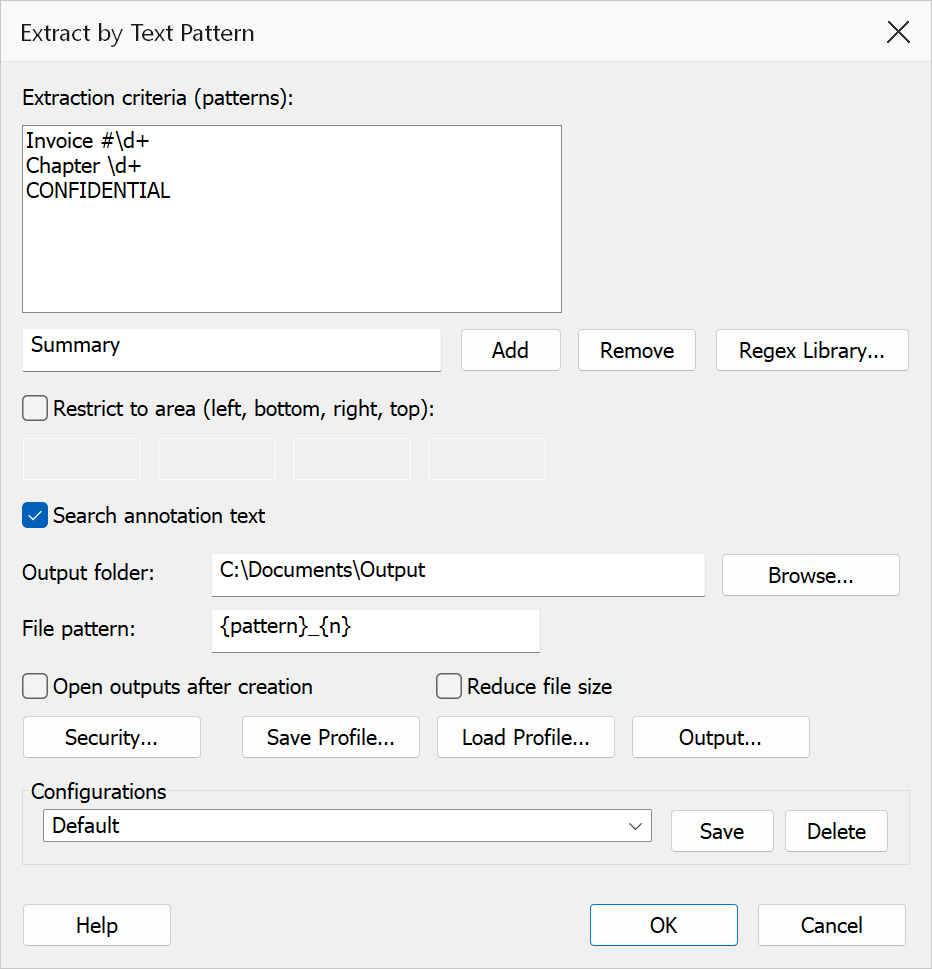
How to use
- Open the PDF you want to search.
- Go to Plug-Ins > Split > Extract by Text Pattern.
- Type a pattern in the text box and click Add to build the criteria list. Repeat for additional patterns.
- Optionally click Regex Library to insert a saved regular expression into the pattern field.
- Choose the output folder and file-name pattern.
- Click OK to run the extraction.
Options
| Option | Description |
|---|---|
| Criteria list | One or more regular expressions (or plain text strings). Each criterion produces a separate output file containing all pages that match it. Use Add to append and Remove to delete the selected entry. |
| Regex Library | Opens the Regex Library dialog so you can insert a saved pattern into the pattern field. |
| Search annotation text | When checked, annotation content (comments, sticky notes, free-text annotations) on each page is also searched in addition to the page body text. |
| Output folder | The destination folder for extracted files. Click Browse to select a folder. |
| File pattern | Controls the output filename. Use {tag} to embed the
criterion's pattern (characters not allowed in file names become
_) and {n} for a sequential index. The default
pattern is {tag}_{n}. The characters
: * ? " < > | cannot be typed into the pattern itself. |
| Open outputs after creation | Opens each generated file in Acrobat after the operation completes. |
Tip
Extract by Text Pattern always ignores capitals — figure 12
and Figure 12 both match, and there is no option to change that. New to
patterns? See Understanding Regular Expressions.
Warning
A pattern beginning (?i) is rejected as invalid. That prefix
works in some other programs but not here. You do not need it: this feature already
ignores capitals. Where a feature does not, put the choice in the pattern itself —
[Ss]ection matches both “Section” and “section”. See
Capitals and matching.
Note
A single page may match multiple criteria and will appear in each corresponding output file. Criteria that match no pages produce no output file. The summary gives the number of files saved and the folder; if no criterion matches any page it says so, and from Watch Folder or the command line such a run is reported as failed.