Overview
Every Split and Extract command carries a shared set of per-output behaviours,
reached through the Output... button on its dialog. They apply to
every file the command produces and are saved with the command's configurations
and .tsp profiles.
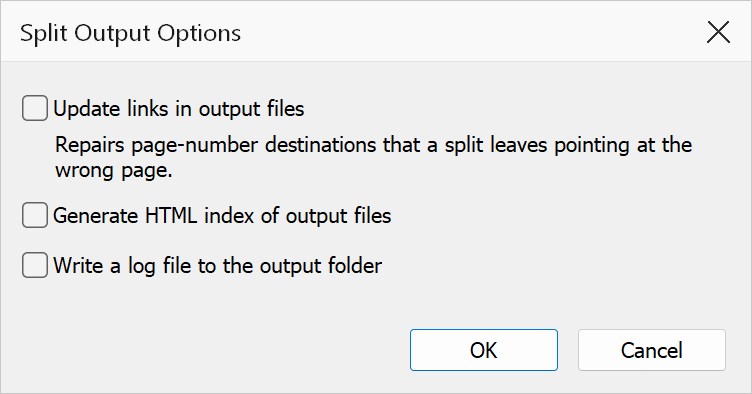
Options
| Option | Description |
|---|---|
| Update links in output files | Repairs GoTo links whose destination is stored as a literal page number. Such links still count pages in the original document, so in a split piece they address the wrong page; this option repoints them at the page they became. Links stored as page references are already correct after a split and are left untouched, as are links whose target did not make it into the piece. |
| Generate HTML index of output files | Writes an index.html in the output folder linking to every file
the command produced — handy when publishing a large split to a web
server or shared folder. (Split by Bookmarks has carried its own HTML index
checkbox for years; it keeps it, and this dialog hides the duplicate.) |
| Write a log file to the output folder | Appends a timestamped entry to split-log.txt in the output folder
listing every file the run produced. |
Note
All three options also work from .tsp profiles run through the
command line (fixupLinks, generateHtmlIndex,
writeLog keys in the profile's settings).
How every Split and Extract command saves its files
- Output folder. A folder that does not exist yet is created when you confirm it. If a file cannot be saved (a folder you cannot write to, a file open in another program), the summary gives the reason for the first failure.
- File name pattern. The characters
: * ? " < > |are not allowed in a Windows file name, so the dialog refuses them. A profile that still contains one has it replaced with_in the typed part of the pattern (text inside a{token}is left alone).\in a pattern creates a subfolder. - Files that already exist. The command works out every file it
will write before it writes any of them. If some already exist in the output
folder you are asked once: Yes replaces them, No
keeps them and gives the new files numbered names (
name (2).pdf), Cancel stops without writing anything. Runs from Watch Folder, the command line or a batch sequence replace existing files without asking. Two outputs of the same run that would get the same name are always numbered, never overwritten. - Opening the results. With Open output files ticked, a run that will create more than 10 files asks first: Yes opens them all, No saves them without opening them, Cancel stops.
- Watermark text. The naming tokens
{n},{tag},{page},{pages},{filename},{title},{author},{subject},{date},{hour},{minute}and{second}are expanded separately for each output file, exactly as in file names ({n}is001,002, ...). - Lists with an Add box. In dialogs where you build a list with an Add button (stamp names, extraction criteria), text still typed in the box when you click OK is used as well, as if you had clicked Add.
- Unattended runs. From Watch Folder or the command line, a run that stops early (invalid settings, an extract that matched no pages, files that could not be saved) is reported as failed, not as processed.