Overview
Add Navigation Buttons creates on-page navigation controls that let readers jump to the first, previous, next, or last page of a PDF document. Buttons can be created as either Link Annotations (simple click regions with optional borders) or Form Buttons (interactive push-button widgets with rich visual states).
Each button is rendered with a visible appearance stream showing an arrow icon, its name, or both. Buttons do not have to be square: with Fit width to label each one widens to hold its own name, so Previous comes out wider than Next. You can choose from preset positions or specify custom X/Y coordinates for each button individually, set the size in points, inches, or centimetres, and configure the visual appearance including colours, border style, and click feedback. Named configurations can be saved for reuse across documents.
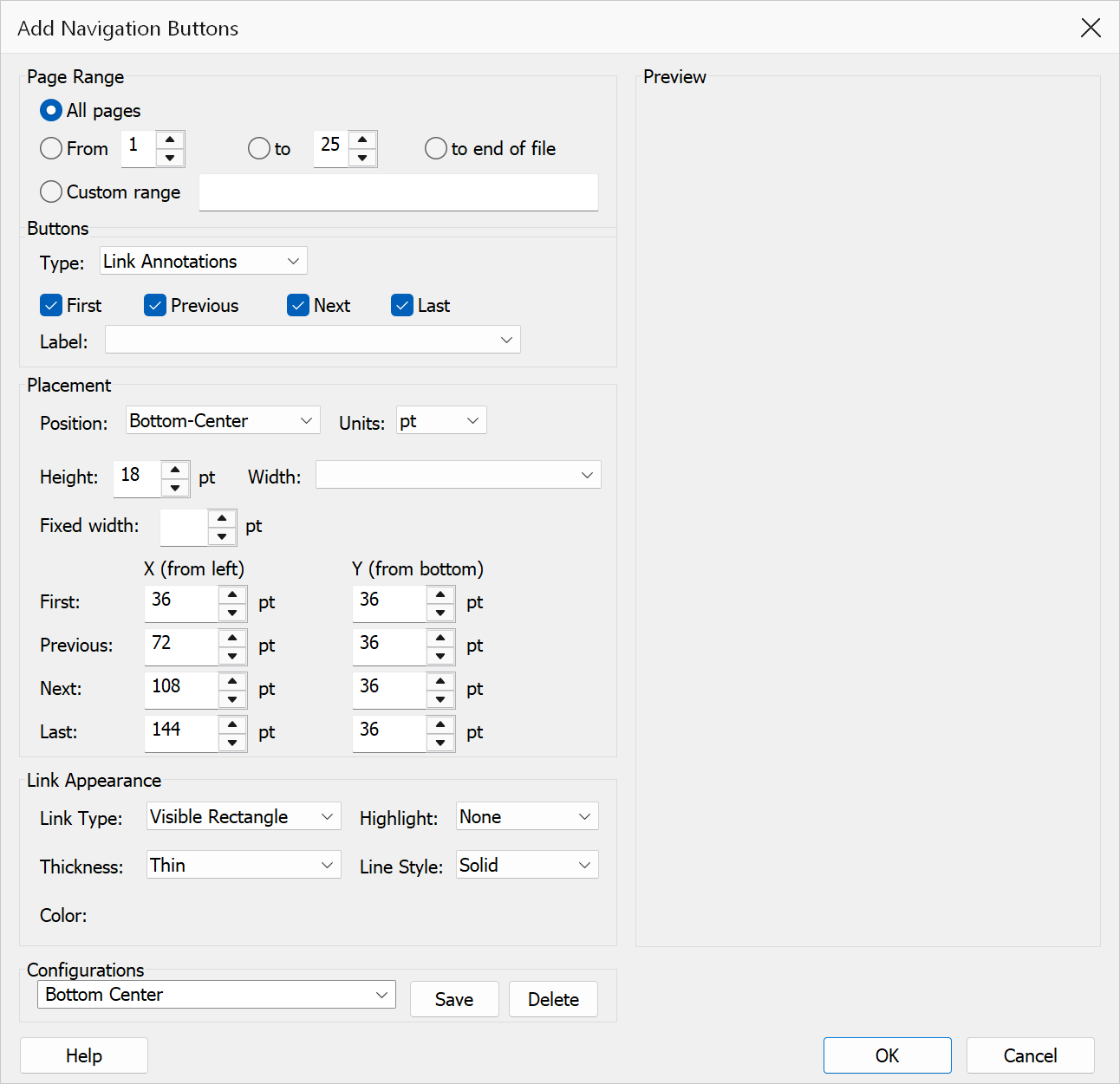
How to use
- Open a PDF document in Acrobat.
- Go to Plug-Ins > Pages > Add Navigation Buttons.
- Select the page range to add buttons to.
- Tick the checkboxes for the buttons you want: First, Previous, Next, Last.
- Choose a Button Type: Link Annotations or Form Buttons.
- Choose the button position on the page. Select Custom to specify individual X/Y coordinates for each button — or just drag a button in the Preview, which switches to Custom for you.
- Choose what each button shows under Label: Icon only, Icon + text, Text only, or None if the page already carries your own button artwork and you only want the clickable regions.
- Set the Units (points, inches, or centimetres) and the button Height. Leave Fit width to label ticked to let each button size itself to its own name, or clear it and set an explicit Width (or tick Square to keep the width equal to the height).
- Configure the button appearance using the Link Appearance or Form Appearance controls (depending on the selected button type).
- Optionally save your settings as a named configuration for reuse.
- Click OK to add the buttons.
Options
| Option | Description |
|---|---|
| Page range | The pages to add navigation buttons to. Choose All pages, specify a From / To range, or enter a Custom range (e.g. 1-5, 8, 12-20). |
| Button Type | Choose Link Annotations (simple click regions) or Form Buttons (interactive push-button widgets). See the comparison section below for details on when to use each type. |
| Buttons | Select which navigation buttons to create: First (go to page 1), Previous (go back one page), Next (go forward one page), Last (go to the final page). At least one must be selected. |
| Label | What each button shows. Icon only draws just the arrow. Icon + text puts the arrow on the left with the button's name ("First", "Previous", "Next", "Last") beside it. Text only shows the name on its own. The caption is sized from the button height, so it stays legible rather than shrinking away on a small button. None draws nothing at all — use it when your page already has its own button artwork and you only want to make those areas clickable. Set the size and position to match your artwork, and nothing is painted over it. |
| Fit width to label | Widen each button just enough to hold its own name and icon, which makes the row non-proportional — Previous is wider than Next. Clear this to give every button the same width. Not available when Label is Icon only. |
| Position | Where to place the buttons on each page. Choose from six presets: Top-Left, Top-Center, Top-Right, Bottom-Left, Bottom-Center, Bottom-Right, or Custom to specify individual X/Y coordinates for each button. |
| Units | Unit of measurement for the size and position values: pt (points), in (inches), or cm (centimetres). Every value already entered is converted when you change this, and the unit shown beside each field updates to match. |
| Height | The height of each button. Accepted range is 8 to 72 points (equivalent values in other units). The caption size follows the height. |
| Width | The width of each button. Available only when the width is neither fitted to the label nor locked square, in which case every button gets this width. |
| Square | Keep each button as wide as it is tall. Ignored while Fit width to label is on. |
| X (from left) / Y (from bottom) | The bottom-left corner of each of the four buttons, measured from the left and bottom edges of the page. These fields are editable when Position is set to Custom. With a preset selected they are read-only and show exactly where that preset puts each button, so switching to Custom starts from those values. If a button would end up outside the page, the preview outlines it in red and you are asked to confirm before the buttons are added. |
Link Appearance (when Link Annotations selected)
Acrobat draws a link annotation from its border and colour and ignores any appearance stream stored on it, so a link button's icon and caption are painted into the page content instead. That means they become part of the page: deleting the link afterwards leaves the artwork behind. Choose Label > None if you would rather the link stayed an empty clickable region, or use Form Buttons, whose appearance belongs to the button and disappears with it.
| Option | Description |
|---|---|
| Link Type | Visible Rectangle draws a border around the button. Invisible Rectangle hides the border (the button icon and text label are still visible). |
| Highlight | Visual effect when the link is clicked: None, Inverted, Outline, or Inset. |
| Thickness | Border line width: Thin, Medium, or Thick. |
| Line Style | Border style: Solid, Dashed, or Underline. |
| Color | The colour used for both the border and the button icon. |
Form Appearance (when Form Buttons selected)
| Option | Description |
|---|---|
| Border Color | Colour of the button border. |
| Fill Color | Background fill colour of the button. |
| Text Color | Colour of the button icon and text label. |
| Thickness | Border line width: Thin, Medium, or Thick. |
| Line Style | Border style: Solid, Dashed, Beveled (3D raised effect), Inset (3D recessed effect), or Underlined. |
Preview
| Option | Description |
|---|---|
| Making the preview bigger | Drag any edge or corner of the dialog. Everything on the left stays where it is and the preview takes all the extra room, so the page — and the buttons on it — get larger. The size is remembered for next time. The dialog cannot be made smaller than its normal size. |
| Dragging a button | Drag any button in the Preview to place it. If Position was set to a preset, dragging switches it to Custom, starting from wherever that preset had put the buttons, so nothing jumps. Each drag moves only the button you grabbed; use the X/Y fields for exact values. Buttons are kept on the page while dragging. |
| Snapping | While you drag, the button is pulled onto whichever guide is nearest — the page margin, the centre of the page, or an edge or centre of another button — and a dotted red line shows which one it caught. Hold Alt while dragging to place the button freely with no snapping. |
| Nudging with the keyboard | Click a button in the Preview to select it, then use the arrow keys to move it one point at a time, or hold Shift for ten points at a time. Tab selects the next button. This is usually easier than dragging for final adjustments, and like dragging it switches Position to Custom. |
| What the preview shows | The preview draws each button as it will actually appear. A form button is shown filled, because its appearance belongs to the button itself. A link button is shown with only the border Acrobat will draw for it, since its icon and caption are painted onto the page. A button that draws nothing — Label set to None, or an invisible link — is outlined with a dashed guide so you can still find and drag it; that guide is not part of the document. A button that falls outside the page is outlined in red. The button the arrow keys will move is shown with a dotted selection rectangle. |
Other
| Option | Description |
|---|---|
| Preview | A live preview panel showing the button positions on the page. Updates automatically as you change settings. |
| Configurations | Save your current settings as a named configuration for reuse. Select a previously saved configuration from the drop-down to load it, or click Delete to remove one. |
Link Annotations vs Form Buttons
The two button types differ fundamentally in how they are represented in the PDF. Link Annotations are simple click regions that trigger a GoTo action pointing to a fixed page number. They are lightweight, universally supported, and add no form infrastructure to the document. Form Buttons are interactive Widget annotations backed by the PDF's AcroForm dictionary. They use Named Actions (FirstPage, PrevPage, NextPage, LastPage) that are evaluated at view time rather than stored as fixed page numbers.
For most simple documents and read-only reports, Link Annotations are the better choice — they are smaller, have no side effects, and work in every PDF viewer. For interactive PDFs, presentations, and kiosk displays where visual feedback and reorder-safety matter, Form Buttons are the better fit.
| Aspect | Link Annotations | Form Buttons |
|---|---|---|
| Navigation method | GoTo action (fixed page number) | Named Action (FirstPage, PrevPage, etc.) |
| Page reorder safety | Buttons may point to the wrong page if pages are reordered after creation | Always correct — Named Actions are evaluated at view time |
| Visual feedback | Subtle highlight on click (None, Inverted, Outline, or Inset) | Push-button effect with a distinct pressed appearance |
| Colour options | Single colour (border and icon) | Separate border, fill, and text colours |
| PDF structure impact | None — no form infrastructure added | Adds AcroForm dictionary and Fields array |
| Form field warnings | No | Some viewers may show "this document contains form fields" |
| File size | Smaller per button | Slightly larger (Widget annotation + appearance streams) |
| Viewer compatibility | Universal — all PDF viewers support links | Most viewers support widgets; lightweight viewers may not |
| Best suited for | Simple documents, read-only reports | Interactive PDFs, presentations, kiosk displays |
Tip
For presentations, use Form Buttons with Previous and Next at Bottom-Center for slide-show navigation with visual feedback on each click.
Note
When using Link Annotations, the Previous button on the first page and the Next button on the last page are automatically omitted, as they would have no valid destination. Form Buttons using Named Actions handle boundary pages automatically — Acrobat simply ignores PrevPage on the first page and NextPage on the last page.
Tip
Use Configurations to save your preferred button setup for quick reuse across documents.
Note
If you have enabled Place under Mapsoft menu in Preferences, the menu path is Plug-Ins > Mapsoft > Pages > Add Navigation Buttons.