Overview
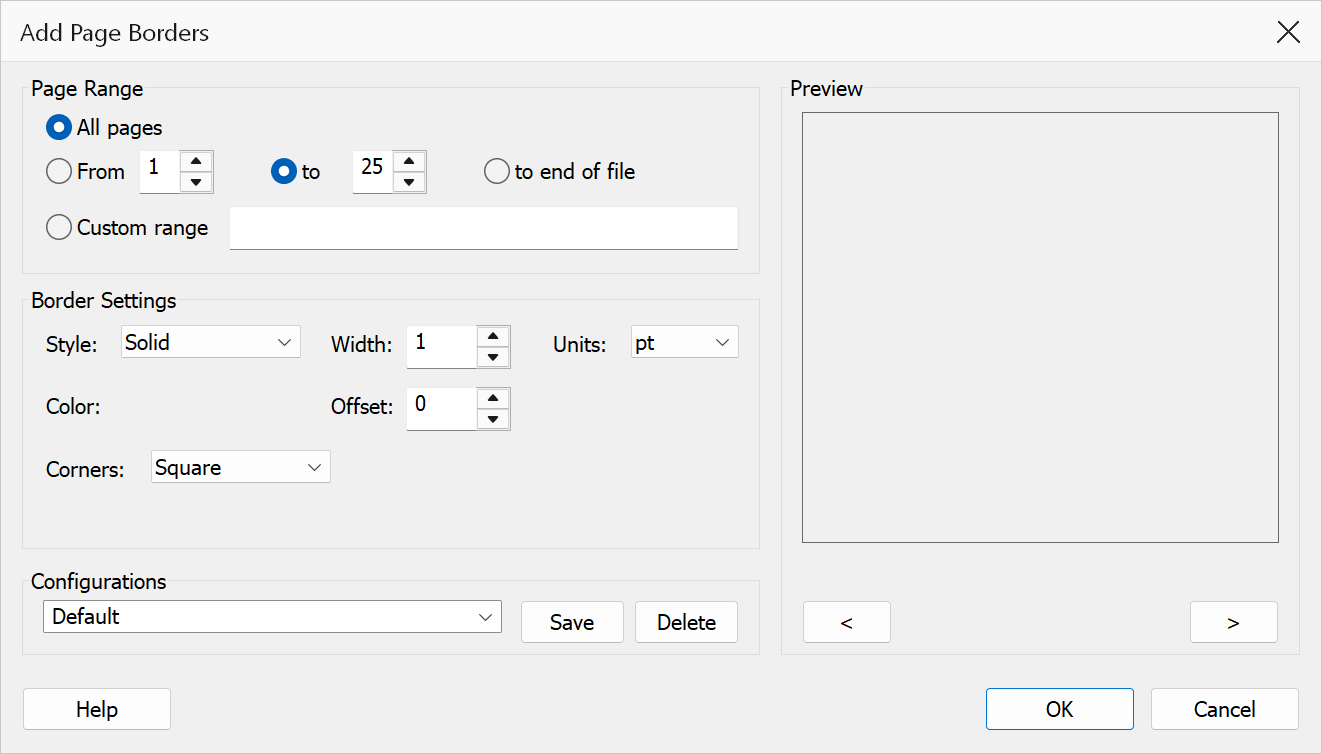
Add Page Borders draws border rectangles on selected pages of a PDF document. You can control the border style, line width, colour, offset from the page edge, and corner appearance. This is useful for framing printed pages, adding visual structure to presentations, or preparing documents for binding.
How to use
- Open a PDF document in Acrobat.
- Go to Plug-Ins > Pages > Add Page Borders.
- Select the page range to apply borders to.
- Choose the border style, line width, and colour.
- Set the offset from the page edge and the corner style.
- Select the unit of measurement.
- Click OK to draw the borders.
Options
| Option | Description |
|---|---|
| Page range | The pages to add borders to. Choose All pages or specify a From / To range. |
| Border style | The line style for the border: Solid, Dashed, or Double. |
| Line width | The thickness of the border line, specified in the chosen unit of measurement. |
| Colour | The colour of the border line. Click the colour swatch to open the colour picker. |
| Offset from edge | The distance between the page edge and the border rectangle. A value of zero draws the border flush with the page boundary. |
| Corner style | Choose Square for sharp right-angle corners or Rounded for smooth curved corners. |
| Units | Choose between Points, Inches, or Centimeters. |
Tip
Use the Double border style with a small offset to create an elegant double-line frame effect around your pages.
Note
Borders are drawn directly into the page content stream. To remove them later, use Undo immediately after applying, or revert to a saved copy of the document.
Preview
The Preview pane shows a real page from the open document with the current settings drawn on it, so the result can be checked before clicking OK.
The pane is not restricted to the first page. Step through the document with the < and > buttons beneath it, or roll the mouse wheel with the pointer over the pane; the caption below reads Page n of N. Pages in one document can differ in size, orientation and content, so it is worth checking several of them before applying a change to the whole file.