Overview
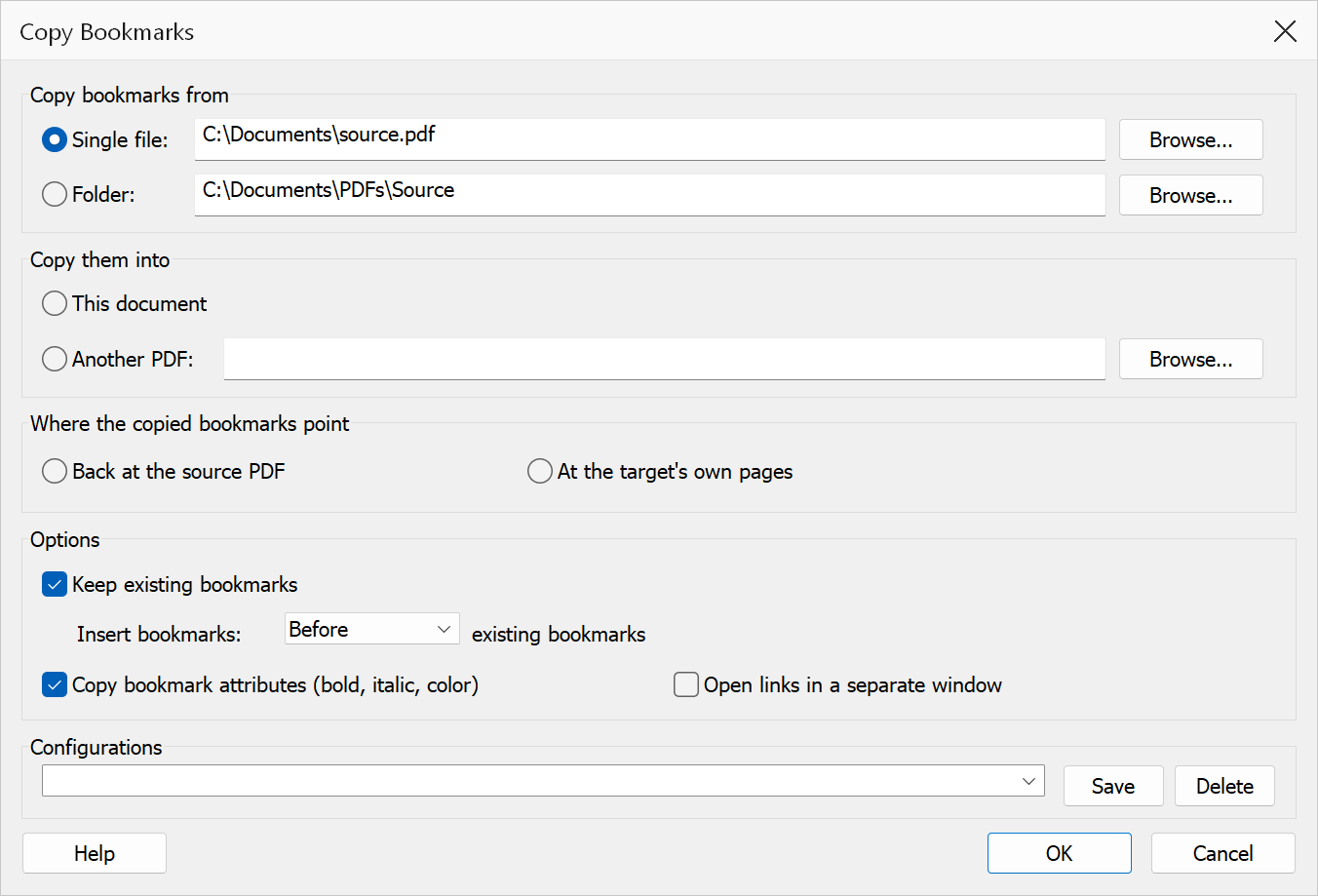
Copy Bookmarks copies the bookmark tree out of one PDF (or every PDF in a folder) and into another. You choose what the copied bookmarks point at: back into the source document, or at the target document’s own pages.
Note
This command replaces Copy Bookmarks from File and Copy External Bookmarks, which shared one engine and differed only in which options they exposed. Everything both offered is here.
How to use
- Open the PDF you want to work with.
- Go to Plug-Ins > Bookmarks > Copy Bookmarks.
- Under Copy bookmarks from, choose a single PDF or a folder of PDFs.
- Under Copy them into, choose this document or another PDF on disk.
- Under Where the copied bookmarks point, choose the source PDF or the target’s own pages.
- Set the options, then click OK.
Copy bookmarks from
| Option | Description |
|---|---|
| Single file | Copy the bookmarks out of one PDF. |
| Folder | Copy from every PDF in a folder, one after another, in the order they are found. PDFs with no bookmarks are skipped silently, so a folder of mixed documents does not interrupt you. |
Copy them into
| Option | Description |
|---|---|
| This document | The PDF open in Acrobat. It is left modified for you to save as usual. |
| Another PDF | A PDF on disk. It is opened, updated and saved for you without being displayed — so the change is committed as soon as you click OK. |
Where the copied bookmarks point
This is the choice that decides whether the result is useful, and it is worth reading.
| Option | Description |
|---|---|
| Back at the source PDF | Each copied bookmark becomes a cross-document link (a PDF GoToR action)
that opens the source PDF at the right page. Use this to build an index or portal
document over a set of other PDFs. The bookmarks stop working if the source files
move. |
| At the target’s own pages | Each copied bookmark points at the same page number inside the target document. Use this when the two PDFs are revisions of the same document and you want the bookmarks to work locally. The pages must line up — nothing checks that the target page holds the matching content. |
Options
| Option | Description |
|---|---|
| Keep existing bookmarks | Keeps the target’s current bookmarks and adds the copied ones alongside. Clear it to delete them first. Enabled by default. |
| Insert bookmarks before / after | Where the copied bookmarks go relative to the ones already there. Only available while Keep existing bookmarks is ticked. |
| Copy bookmark attributes | Carries the bold, italic, colour and expanded/collapsed state across as well as the titles. Enabled by default. |
| Open links in a separate window | Makes the cross-document links open the source PDF in its own window. Only applies to Back at the source PDF, and is disabled otherwise, since a bookmark pointing inside its own document has no window to choose. |
Configurations
Save stores the current settings, including both paths, under a name; picking a saved name from the list restores them. Delete removes the selected configuration.
Warning
Clearing Keep existing bookmarks deletes every bookmark in the target before copying. When the target is another PDF on disk, that file is saved immediately and there is no opportunity to close it without saving.