Overview
Create Bookmarks From Files In Folder scans a selected folder and creates bookmarks in the active PDF that launch the corresponding files. Each sub-folder becomes a parent bookmark and each file inside it becomes a child bookmark with a launch action. This is useful for building a navigational tree that links to related documents or any file type supported by your system.
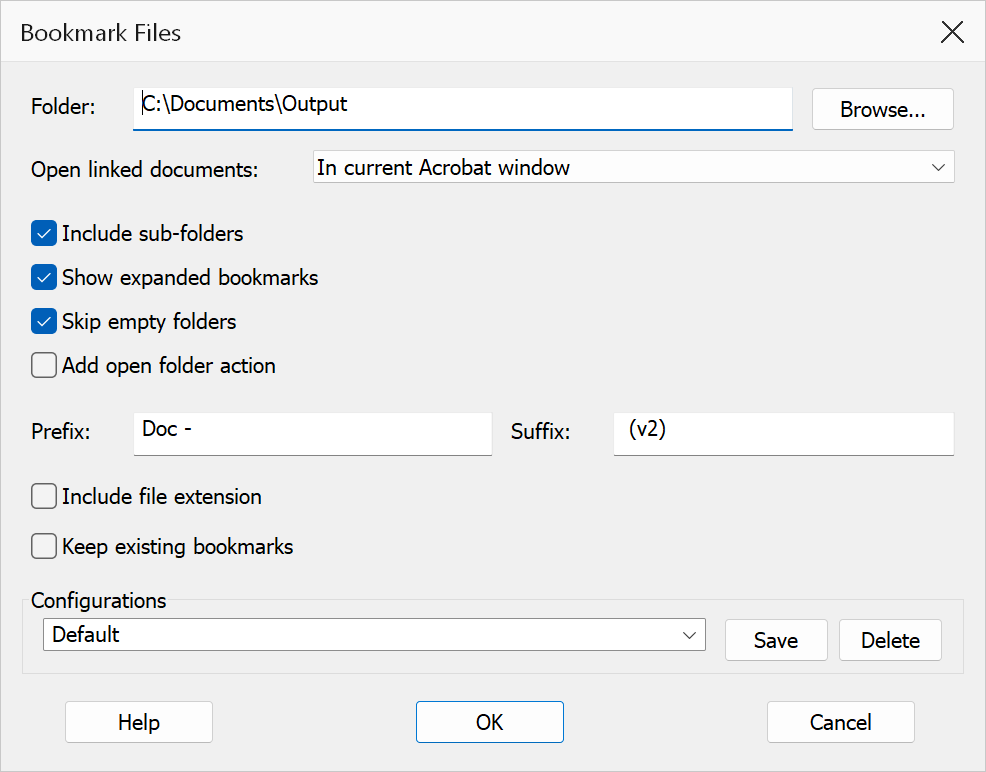
How to use
- Open the PDF document that will receive the new bookmarks.
- Go to Plug-Ins > Bookmarks > Create Bookmarks From Files In Folder.
- Click Browse to choose the folder whose files will be bookmarked.
- Configure the options described below.
- Click OK to generate the bookmarks.
Options
| Option | Description |
|---|---|
| Folder | The folder whose files will be converted into bookmarks. Use the Browse button to select a folder. The OK button is disabled until a folder path is provided. |
| Open linked documents in | Controls how linked documents open when a bookmark is clicked. Choices are In current Acrobat window, In new Acrobat window, or With default application. |
| Include sub-folders | When enabled, the scan traverses into sub-folders and creates parent bookmarks for each sub-folder. |
| Show expanded bookmarks | When enabled, folder bookmarks are created in an expanded state in the bookmark tree. |
| Skip empty folders | When enabled, folders that contain no files are skipped and do not receive a parent bookmark. |
| Add open folder action | Adds an action to each folder bookmark that opens the corresponding folder location on disk. |
| Prefix | Optional text prepended to each file bookmark title. |
| Suffix | Optional text appended to each file bookmark title. |
| Include file extension | When enabled, filenames retain their extensions in the bookmark title
(e.g. Report.pdf instead of Report). |
| Keep existing bookmarks | When disabled, all existing bookmarks are removed before the new ones are created. Enabled by default. |
Tip
Use Prefix and Suffix fields to add context to bookmark
titles — for example, a prefix of Appendix: turns a file named
Budget into the bookmark title Appendix: Budget.
Note
All files in the selected folder are bookmarked, not just PDFs. Each file bookmark uses a launch action that opens the file with its default application.