Overview
Create PDF builds a new, blank PDF from scratch with a chosen page size, orientation, and page count. Use it to generate template PDFs for later editing, create placeholder documents for page-based workflows, or produce blank carriers for merging content.
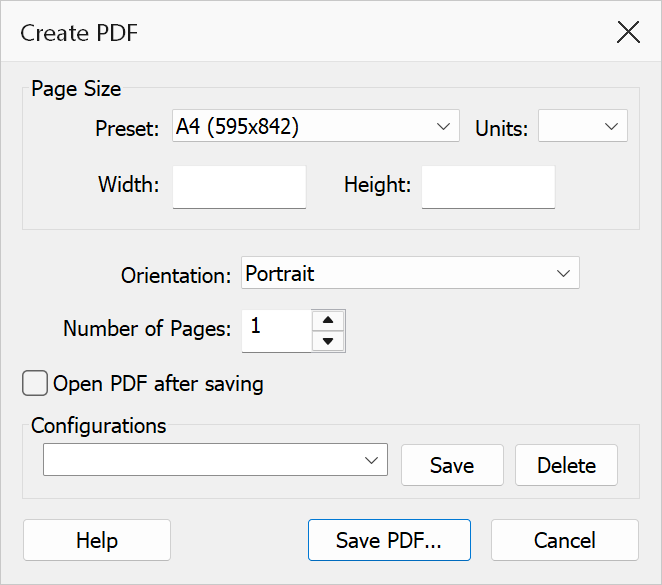
How to use
- Open the Create PDF dialog.
- Choose the Units for the width and height fields — points, inches, or centimetres. Switching units converts the displayed values in place.
- Select a Preset page size (see table below), pick Match open document to copy the page size of the frontmost document, or type a Width and Height directly. Editing the width or height switches the preset to Custom.
- Choose an Orientation — Portrait or Landscape.
- Enter the Number of Pages to create (1–1000). Use the spinner control or type a value directly.
- Optionally check Open PDF after saving to view the new file immediately.
- Optionally save the current settings as a named configuration in the Configurations group for later reuse.
- Click Save PDF... and choose a destination file name.
Page sizes
The preset list offers Custom (type any width and height), Match open document (copy the page size of the frontmost document), and the following 13 standard page sizes. Each side of a custom size must be between 3 and 14,400 points (0.05–200 inches).
| Name | Dimensions (points) |
|---|---|
| A4 | 595 × 842 |
| Letter | 612 × 792 |
| Legal | 612 × 1008 |
| A3 | 842 × 1191 |
| A5 | 420 × 595 |
| Half Letter | 396 × 612 |
| Tabloid | 792 × 1224 |
| B5 | 516 × 729 |
| B4 | 729 × 1032 |
| C5 | 459 × 649 |
| DLE | 312 × 624 |
| Ledger | 1224 × 792 |
| Executive | 522 × 756 |
Dialog options
| Option | Description |
|---|---|
| Preset | Dropdown list of 13 standard paper sizes plus Custom and Match open document. Selecting a preset fills the Width and Height fields. |
| Units | Unit of measurement for the Width and Height fields: pt (PDF points, 1/72 inch), in (inches), or cm (centimetres). Switching units converts the displayed values. |
| Width / Height | The page dimensions used for the new PDF. These fields are always the values that are actually used; presets simply fill them in. Each side must be between 3 and 14,400 points (0.05–200 inches; 0.11–508 cm). |
| Orientation | Portrait (height ≥ width) or Landscape (width > height). If the chosen orientation disagrees with the entered width and height, the two values are swapped. |
| Number of Pages | The number of blank pages to generate. Accepts values from 1 to 1000. |
| Open PDF after saving | When checked, the newly created PDF is opened in Acrobat automatically after it is saved. |
| Configurations | Save the current dialog settings under a name, reload them later from the dropdown, or delete a saved configuration. The dialog also remembers the settings from its last use automatically. |
Tip
To create a 10-page Letter-sized template in landscape, select Letter as the page
size, choose Landscape, set the page count to 10, and click
Save PDF....
Note
The page count must be between 1 and 1000. Values outside this range are rejected with a validation error. The orientation setting swaps width and height based on the selected page size — it does not rotate the content of existing pages.