Overview
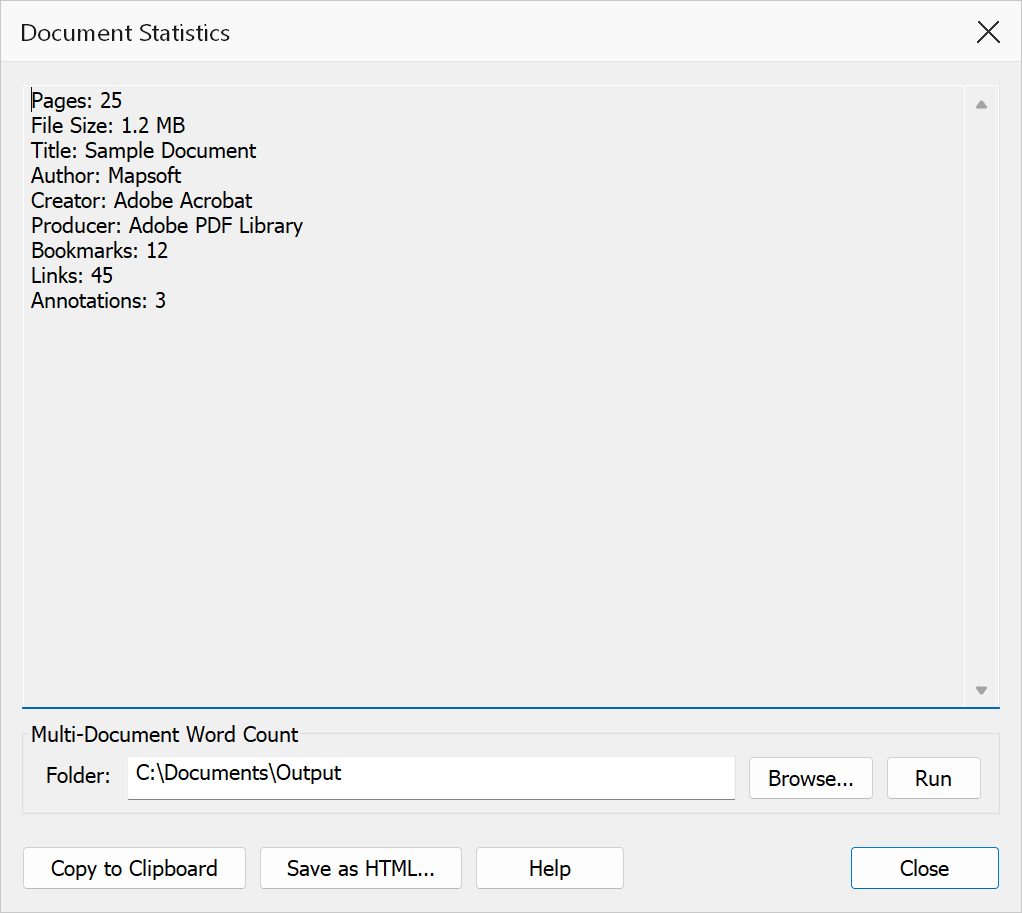
Document Statistics reports what is in the current PDF — how many pages, words, bookmarks, annotations, links and form fields it holds, together with its PDF version, file size and page size. It changes nothing in the document.
The same figures can be copied as text, saved as an HTML file, or — for word counts only — gathered across every PDF in a folder.
How to use
- Open a PDF document in Acrobat.
- Go to Plug-Ins > Utilities > Document Statistics (or press Ctrl+Shift+S).
- The dialog displays statistics for the current document automatically.
- Click Copy to Clipboard to copy the text shown, or Save as HTML to write a formatted report to a file.
- Optionally, use Multi-Document Word Count to scan a folder of PDFs and calculate the combined word count.
Statistics reported
| Statistic | Description |
|---|---|
| Pages | The total number of pages in the document. |
| Words | The total number of words extracted from all pages. |
| Bookmarks | Every bookmark in the tree, at all levels, not just top-level ones. |
| Annotations | All annotations of every type, across all pages. |
| Links | Link annotations only. These are also counted in the annotation total. |
| Form Fields | Widget annotations — the on-page appearance of form fields. |
| Sticky Notes / Highlights / Stamps | A breakdown of three common annotation types, for markup-heavy reviews. |
| PDF Version | The PDF specification version the file claims. |
| File Size | The size of the PDF file on disk. |
| Page Size | The dimensions of the first page. Later pages may differ. |
Saving an HTML report
Save as HTML writes the same figures to a standalone HTML file that opens in any browser and prints cleanly — useful for attaching to a job record or emailing to a client. You are asked where to save it, and then whether to open it.
In earlier versions this was a separate menu command called PDF Summary Report. It has been folded into this dialog, and now carries the full statistics rather than a page and annotation count alone.
Multi-document word count
Type or Browse to a folder containing PDF files, then click Run. The plug-in opens every PDF in that folder, counts the words and pages in each, and lists them with a combined total. This is useful for estimating translation costs or evaluating the scope of a document set.
The folder is not searched recursively, and the report replaces the single-document statistics in the panel above. Re-open the dialog to see them again.
Tip
Use Copy to Clipboard to paste document statistics directly into a spreadsheet or project report.
Note
Word counts are derived from extracting the text content of each page. Scanned documents without OCR text layers will report zero words.