Overview
Create Cross-Reference Links scans the document for specified source text and creates link annotations that point to matching destination text elsewhere in the PDF. You can queue multiple source/destination pairs and process them all in one operation.
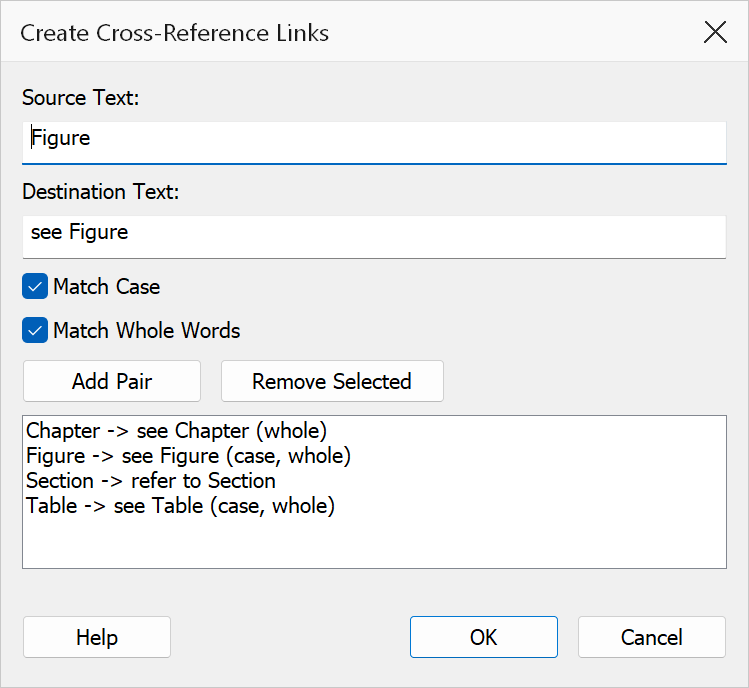
How to use
- Open the PDF in which you want to create cross-reference links.
- Go to Plug-Ins > Links > Create Cross-Reference Links.
- Enter a Source text (the text to find and turn into a link) and a Destination text (the text the link should point to).
- Click Add Pair to add the source/destination pair to the queue. Repeat to add additional pairs.
- Click OK to create all cross-reference links.
Dialog elements
| Element | Description |
|---|---|
| Source | The text to search for in the document. Every occurrence of this text will become a link to the destination. |
| Destination | The text that the created links should point to. The first occurrence of this text in the document is used as the link target. |
| Add Pair | Adds the current source/destination pair to the list and clears the input fields so you can enter another pair. Both fields must be filled in before adding. |
| Pair list | Displays all queued source/destination pairs in the format
Source: ... -> Destination: .... |
| Remove Selected | Removes the currently selected pair from the list. You will be prompted if no pair is selected. |
Tip
Queue all your cross-reference pairs before clicking OK. Each pair is processed in the order it appears in the list, so you can review and reorder by removing and re-adding entries as needed.
Note
Both the source and destination fields must contain text before a pair can be added. The dialog does not close when you click Add Pair — it stays open so you can continue adding pairs.