Overview
Search and Replace Link URLs performs bulk updates on URL actions attached to page link annotations. Use it to update links when domains or paths change, or to correct URLs across all pages of a document.
Nothing is changed straight away. The command first lists every link that matches, showing the current and proposed URL side by side, so you can untick anything you want left alone before applying.
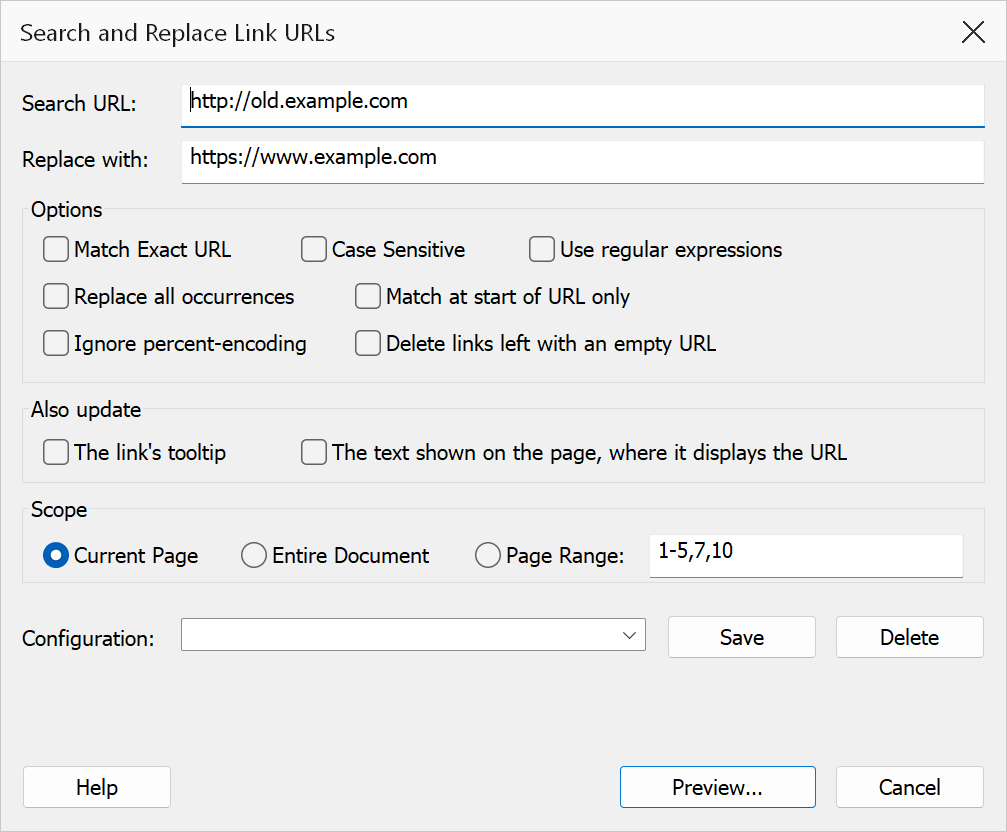
How to use
- Open the PDF that contains link annotations with URL actions.
- Go to Plug-Ins > Mapsoft > Links > Search and Replace Link URLs
(shortcut
Ctrl+Alt+U). - Enter the URL text to search for in the Search URL field.
- Enter the replacement URL in the Replace with field. Leave it empty to strip the matched text from each URL.
- Set matching rules and scope.
- Optionally save the settings under a name using the Configuration box, so you can reload them next time.
- Click Preview... to see the full list of matches.
- Untick any link you do not want changed, then click Apply Changes.
Search options
| Option | Description |
|---|---|
| Match exact URL | Replaces only when the entire URL matches the search string exactly, rather than performing a substring match. |
| Case sensitive | Makes the search case-sensitive so that capitalisation must match. Case is compared correctly for accented and non-Latin characters, not just A–Z. |
| Use regular expressions | Treats the search text as an ECMAScript regular expression. Use $1,
$2 and so on in the replacement to insert captured groups. The
Preview... button is disabled while the pattern is invalid. |
| Replace all occurrences | Replaces every occurrence of the search text within a URL. Turn this off to change only the first occurrence in each link. On by default. |
| Match at start of URL only | Matches only at the very beginning of the URL. This is the safe way to change a
protocol or domain — for example replacing http://old.example.com/
with https://new.example.com/ without touching the same text elsewhere
in a query string. |
| Ignore percent-encoding | Treats percent-encoded and plain text as the same, so searching for
café also finds a link stored as caf%C3%A9, and vice
versa. Turn it off to search for a literal %XX sequence. On by default. |
| Delete links left with an empty URL | When a replacement leaves a link with no URL at all, remove the link annotation rather than leaving one that points nowhere. On by default. |
Scope
| Option | Description |
|---|---|
| Current page | Applies the replacement only to link annotations on the currently viewed page. This is the default. |
| Entire document | Applies the replacement across all pages of the document. |
| Page range | Applies the replacement only within a specified range of pages. Enter page numbers
as a comma-separated list with optional ranges, e.g. 1-3,5,7. The page
range field is only enabled when this option is selected. |
Also update
Changing a link's address leaves anything that displays that address out of date. These two options bring it along.
| Option | Description |
|---|---|
| The link's tooltip | Rewrites the text Acrobat shows when you hover over the link (the annotation's
/Contents), where it contains the search text. On by default: tooltips
nearly always mirror the URL, and changing one cannot affect the printed page. |
| The text shown on the page, where it displays the URL | Rewrites the words printed on the page underneath the link. Off by default, because unlike every other option this one edits the page's contents rather than just its annotations. Only the matched part of the text is changed, so Click here for old.example.com keeps its opening words. |
Page text cannot always be rewritten safely, and when it cannot the link's URL is still updated while the text is left alone. The preview names the reason in every case — the text may not contain the search term, it may be split across two separately drawn pieces, it may use a font encoding that cannot be rewritten character-for-character, or the replacement may need characters the font does not have. Nothing is ever skipped silently.
Note
A replacement that is longer than the text it replaces will occupy more room on the page, and can overrun the surrounding layout. Check the affected pages afterwards.
The preview list
The preview lists one row per matching link, showing its page, current URL and proposed new URL. Every row starts ticked; untick the ones you want to skip, or use Select All and Select None. Rows whose link will be removed are marked (link will be deleted). The Also column shows whether the row carries a tooltip or page-text change with it, or whether a page-text change had to be skipped.
Selecting a row shows, underneath the list, the exact value that will be stored in the PDF, together with any tooltip and page-text change it will make — or the reason the page text is being left alone. Export... saves the whole list as a UTF-8 CSV file, including the rows you have unticked and every skip reason, so the proposed changes can be reviewed or signed off elsewhere.
Tip
Leave the replacement field empty to strip the matched text from every affected link. If that leaves a link with no URL at all, it is removed when Delete links left with an empty URL is ticked.
Note
The Preview... button is disabled until search text is provided. When using Page range scope, a valid range must also be entered, and with Use regular expressions the pattern must be valid, before the button becomes active. Only link annotations with URL actions are affected by this operation.
International URLs
URLs containing accented or non-Latin characters are handled correctly. A link's address is read whether the PDF stored it as plain ASCII, as UTF-8, or as a Unicode text string, and replacements are always written back as percent-encoded ASCII — the form required by the PDF specification and understood by every browser. You can type the accented characters directly; there is no need to percent-encode them yourself.