Overview
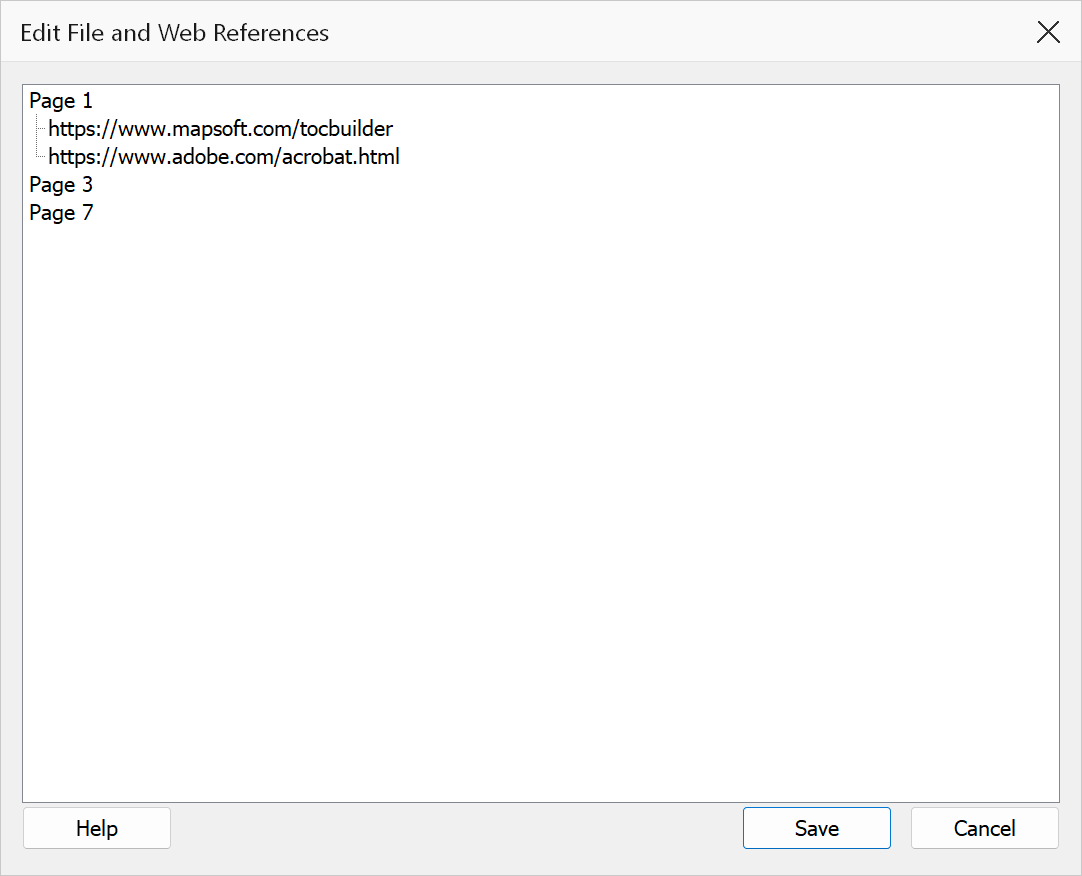
Edit File and Web References scans the active PDF for all web URLs (URI actions), file actions (GoToR and Launch actions), and file attachments, then displays them in a single tree view grouped by page number. You can audit every external reference in the document and edit values directly in the tree.
How to use
- Open a PDF that contains links or file attachments.
- Go to Plug-Ins > Links > Edit File and Web References.
- The dialog scans every page and populates the tree with all references found.
- Expand a page node to see its references. Review the status icons to identify problems.
- To edit a reference, select it and press F2 (or click the text again) to enter in-place editing mode. Type the new value and press Enter.
- When finished, click Save to write all changes back to the PDF, or Cancel to close without applying edits.
Reference types
The dialog collects three types of external references from annotations:
| Type | Source | Description |
|---|---|---|
| Web URL | Link annotations with URI actions | HTTP/HTTPS URLs and other URI strings embedded in link annotations. |
| File Action | Link annotations with GoToR or Launch actions | File paths referenced by cross-document GoTo or Launch actions. |
| File Attachment | FileAttachment annotations | File paths from FileAttachment annotation file specifications. |
Status icons
Each reference node displays an icon indicating its current state:
| Icon | Meaning |
|---|---|
| Information (blue) | Web URL — always treated as valid (no file-system check). |
| Application | File reference with an absolute path that exists on disk. |
| Question | File reference with a relative path that resolves successfully against the PDF’s folder. |
| Warning (yellow triangle) | File reference that does not exist on disk. The path may be incorrect or the file may have been moved. |
Icons update automatically after you edit a reference value.
Editing references
- Select a reference node and press F2 or click the label text to begin editing.
- Type the new URL or file path and press Enter to confirm, or Escape to cancel.
- Empty values are rejected — every reference must have a non-blank value.
- Page header nodes (e.g. “Page 1”) are read-only and cannot be edited.
- After editing, the status icon updates to reflect whether the new path exists and whether it is relative or absolute.
Saving changes
The Save button is enabled only when at least one reference has been
modified. Clicking Save writes all staged edits back to the PDF’s annotation and action
objects. For web URLs, the URI string is updated. For file actions, the /F
file specification is updated. For file attachments, the /FS file specification
is updated. The document is marked dirty so Acrobat will prompt you to save the file.
Tip
Use this dialog to batch-fix broken file paths after reorganising a folder structure. You can quickly see which references are missing (warning icon) and update them in place.
Warning
Relative file paths are resolved against the PDF’s own directory. If the PDF has not been saved to disk yet, relative paths may not resolve correctly.