Overview
The Preferences dialog controls global settings for the TOC Builder & Bookmarker plug-in. Settings are organized into four tabs: General, Shortcuts, Highlights, and Menus.
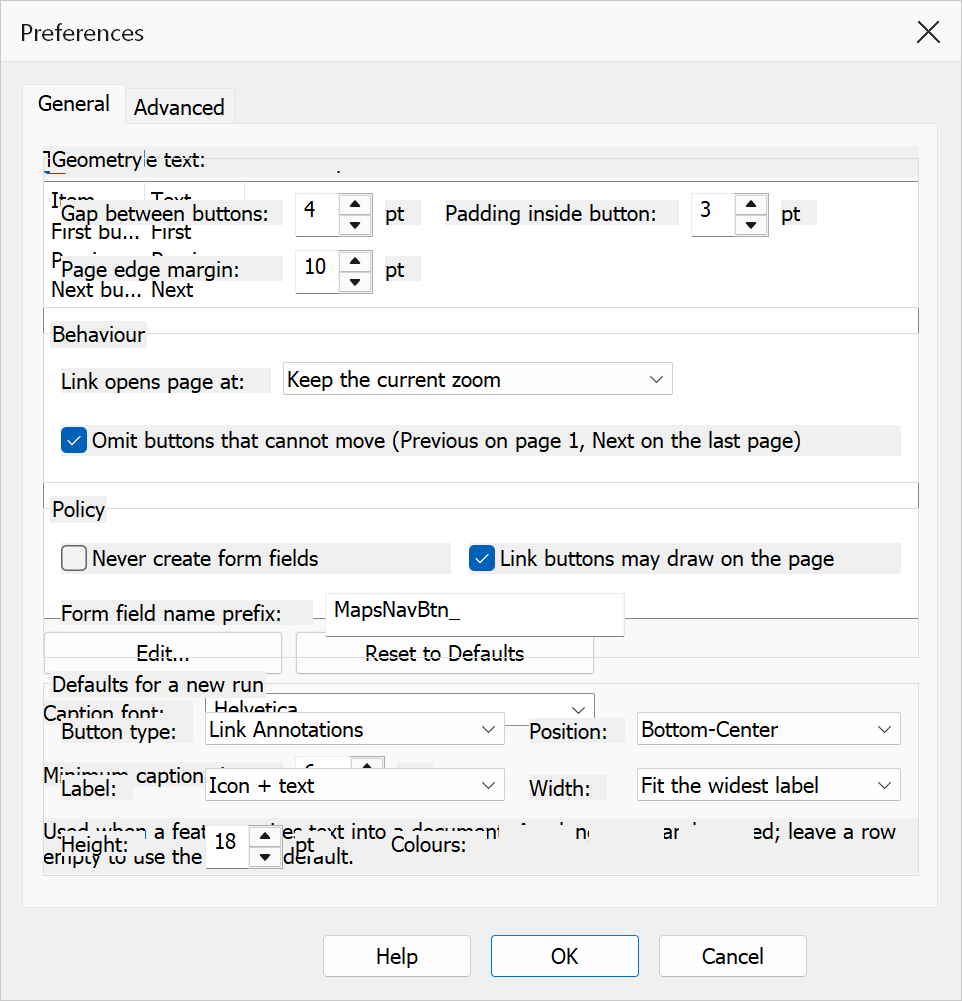
How to use
- Go to Plug-Ins > Preferences (or Plug-Ins > Mapsoft > Preferences if menu placement is enabled).
- Select a tab to configure the desired settings.
- Click OK to save your changes.
General tab
| Option | Description |
|---|---|
| Place menu items under Mapsoft menu | When enabled, all plug-in menu items are nested under a single Plug-Ins > Mapsoft submenu instead of appearing directly under the Plug-Ins menu. Takes effect the next time Acrobat loads the plug-in. |
| Spell-check dictionary | Select which dictionary to use for the Spell Check Bookmarks feature. Choose Use Acrobat default to use the system dictionary, or pick a specific language dictionary from the list. |
| Configuration storage | Controls where saved dialog configurations are stored. Options:
|
| Customize Most Used... | Opens a dialog to select which menu items appear in the Most Used quick-access list. |
Customize Most Used
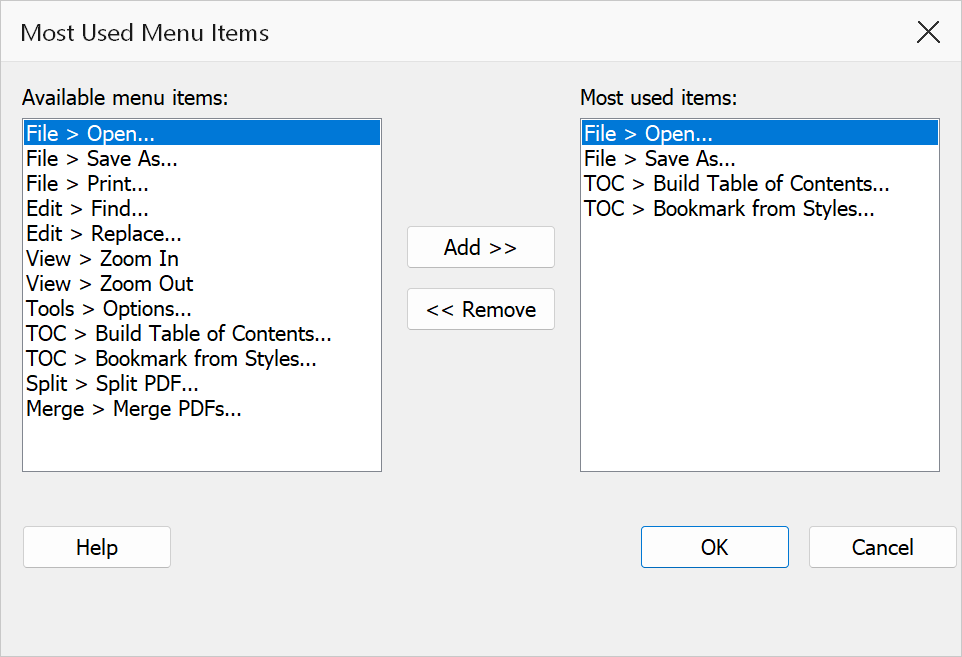
The Customize Most Used dialog lets you pick which menu items appear in the Most Used quick-access list at the top of the plug-in menu. Use the Add >> button to add selected items from the available list, and << Remove to take items off the quick-access list.
Shortcuts tab
Lists all plug-in menu items and their keyboard shortcuts. You can assign custom shortcut keys to any menu item for faster access.
| Option | Description |
|---|---|
| Edit Shortcut... | Assign or change the keyboard shortcut for the selected menu item. |
| Reset Shortcuts | Restore all shortcuts to their default values. |
| Shortcut Report... | Generate a report listing all current shortcut assignments. |
Highlights tab
Manage the annotation highlight presets used by the Highlight Text Patterns feature and the Annotation Highlights toolbar.
| Option | Description |
|---|---|
| Add... | Create a new highlight preset with a custom name, color, and pattern. |
| Edit... | Modify the selected highlight preset. |
| Delete | Remove the selected highlight preset. |
| Move Up / Move Down | Change the display order of presets. |
| Reset Defaults | Restore the built-in default set of highlight presets. |
| Import... / Export... | Import or export highlight presets to share between installations. |
Menus tab
Control which plug-in menu items are visible in Acrobat. Unchecking an item hides it from the menu without removing the feature.
| Option | Description |
|---|---|
| Enable All | Show all menu items. |
| Disable All | Hide all menu items. |
| Export... / Import... | Export or import menu visibility settings to share between installations. |
Note
Menu placement and visibility changes take effect the next time Acrobat loads the plug-in.
Tip
If you use many plug-in features frequently, keep menu items under the Plug-Ins menu for faster access. Use the Mapsoft submenu option when you want a tidier menu structure.