Overview
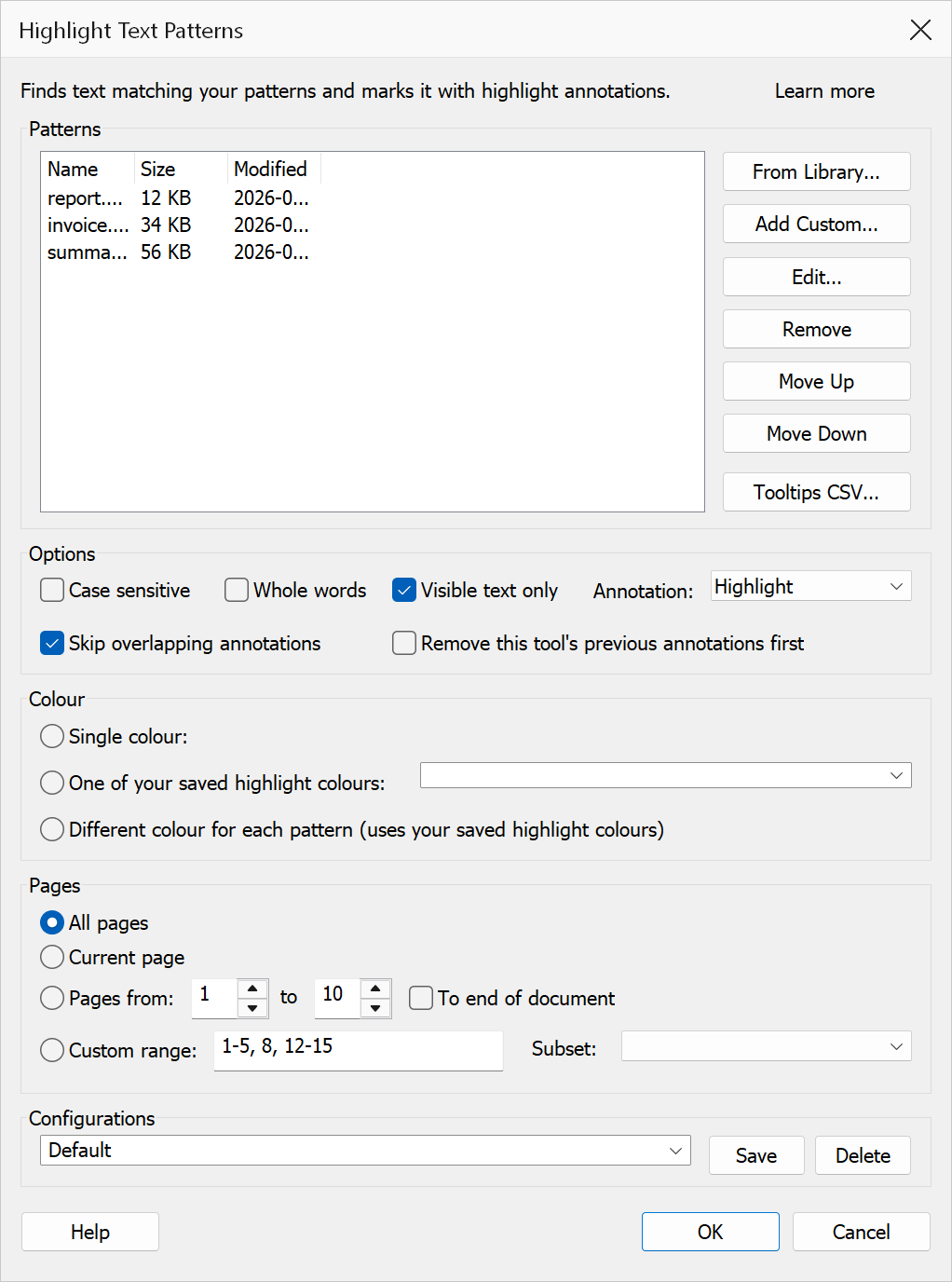
Highlight Text Patterns scans text on selected pages and applies markup annotations wherever your patterns match. You can highlight, underline, cross-out, or squiggle-underline the matched text, with full control over colours, pattern types, and page scope. After each run a summary reports how many annotations were added and on how many pages.
How to use
- Open a PDF document.
- Go to Plug-Ins > Highlights > Highlight Text Patterns.
- Build your pattern list: click From Library... to add a ready-made pattern by name (postcodes, e-mail addresses, dates, and more), or Add Custom... to write your own.
- Select the annotation type and choose how matches are coloured.
- Set the pages to process.
- Click OK to apply the annotations.
The pattern list
Each row in the list is one pattern with its own name, matching type, and (optionally) its own colour. Untick a row's checkbox to skip it without deleting it. Double-click a row to edit it. The row order matters when the "different colour for each pattern" option is on.
| Button | Description |
|---|---|
| From Library... | Adds a pattern from the regular expression library. The library entry's name (e.g. "UK Postcodes") is kept, appears in the list, and is shown in the annotation's popup note instead of the raw expression. |
| Add Custom... | Opens the pattern editor to write your own pattern: give it a name, choose how it is interpreted, optionally give it a colour, and try it against sample text before saving. |
| Edit... / Remove / Move Up / Move Down | Change, delete, or reorder the selected row. |
| Tooltips CSV... | Loads a CSV file whose first column contains search terms and whose additional columns provide popup-note text and colour overrides. Each unseen term is added to the list as a literal-text row. |
Pattern types
Each pattern row is interpreted per its own type, chosen in the editor:
| Type | Description |
|---|---|
| Literal text | Matches the exact text of the pattern. |
| Wildcards (* ?) | Uses * for any sequence of characters and ? for
a single character. |
| Regular expression | Uses C++ ECMAScript regular expression syntax for advanced matching. Library patterns are always regular expressions. |
Options
| Option | Description |
|---|---|
| Case sensitive | When checked, uppercase and lowercase letters must match exactly. |
| Whole words | Only matches complete words, not substrings within longer words. |
| Visible text only | Ignores hidden or clipped text and only annotates visible content. |
| Annotation | The markup style: Highlight, Cross-out, Underline, or Squiggle. |
| Skip overlapping annotations | Skips a match if it would overlap an existing annotation on the page. |
| Remove this tool's previous annotations first | Deletes annotations created by this tool on the selected pages before applying new ones. |
Colour
| Option | Description |
|---|---|
| Single colour | One colour of your choice for every match. |
| One of your saved highlight colours | Pick one of the colour presets saved in the Annotation Highlights toolbar (managed under Preferences > Highlights). The drop-down shows each preset's swatch and name. |
| Different colour for each pattern | Each pattern row gets the next saved highlight colour in turn, so every pattern stands out differently. Rows keep their colours stable: a row with its own explicit colour keeps it and does not consume one of the rotating colours. |
When several colour sources apply to the same row, the most specific wins: a colour set on the row itself beats a Tooltips-CSV colour, which beats the colour option chosen here.
Pages
| Option | Description |
|---|---|
| All pages | Processes the whole document (the default). |
| Current page | Processes only the active page. The label shows which page that is, e.g. "Current page (3 of 11)". |
| Pages from / to | Processes a range of pages (1-based). Check To end of document to run from the start page to the last page. |
| Custom range | Lists the exact pages, e.g. 1-3, 7, 10-12. |
| Subset | Restricts any of the above to odd or even pages (by document position, not page label). Useful for double-sided material. |
Tip
The pattern editor's Try it box checks your pattern as you type: paste a sample of the document text into it and the editor tells you whether the pattern matches before you run anything.
Note
All dialog settings are remembered between sessions, and named configurations
can be saved in the Configurations box. Pattern lists saved by older versions
(one pattern per line, with ; comments and
#RRGGBB: colour prefixes) are converted to list rows automatically
the first time this version opens.