Overview
Remove Navigation Buttons takes back out what Add Navigation Buttons put in: the icons and captions drawn onto the page, the link annotations that made them clickable, and any form push buttons and their AcroForm fields.
Note
Only buttons added by this plug-in are removed. Everything it writes carries a marker — a marked-content tag on the drawn artwork, a private key on the link annotations, and a name prefix on the form fields — so your own links, artwork and form fields are never touched.
Limitation
Buttons added by an earlier version of the plug-in carry no marker. Only their form fields can be found, by the name prefix. Their link annotations and drawn artwork cannot be identified and will be left in place.
How to use
- Open the PDF in Acrobat.
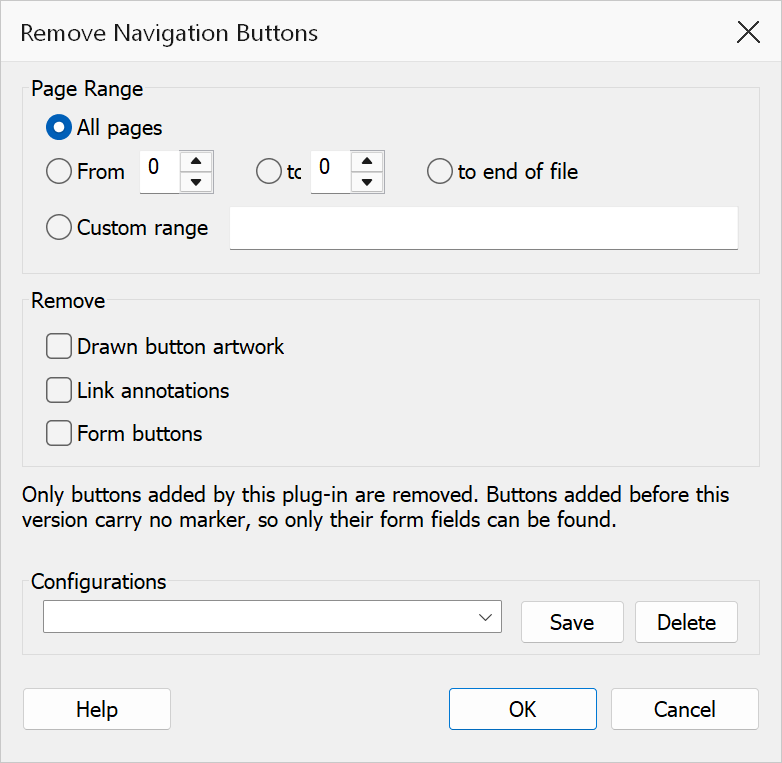
- Go to Plug-Ins > Pages > Remove Navigation Buttons.
- Choose the page range to clean up.
- Tick what you want removed.
- Click OK. You are told how many of each kind were found and asked to confirm before anything is changed.
Options
| Option | Description |
|---|---|
| Page range | The pages to clean up. Choose All pages, a From / To range, or a Custom range such as 1-5, 8, 12-20. |
| Drawn button artwork | The arrow icons and captions painted onto the page for link buttons. Acrobat draws a link annotation from its border and colour and ignores any appearance stream on it, so a link button's artwork has to live in the page content — which is why deleting the link alone does not remove it. |
| Link annotations | The clickable regions themselves. Removing these without removing the artwork leaves the buttons visible but inert, which is occasionally what you want if you intend to re-link them yourself. |
| Form buttons | Push-button widgets and their entries in the document's AcroForm field list. Matched by the field name prefix set in Preferences > Nav Buttons; if you changed that prefix after adding the buttons, set it back before removing them. |
Tip
To restyle existing buttons, remove them first and then add them again. Adding a second set without removing the first leaves both in place, stacked on top of each other.