Overview
Create Link Report scans the active PDF and produces a detailed report on link annotations and bookmark destinations. It detects problems such as links without actions, dead links pointing to missing files or pages, missing named destinations, empty or malformed URLs, and absolute vs. relative file paths.
This command uses the same dialog as Cleanup Links and Bookmarks, but operates in report-only mode — the document is never touched: no links or bookmarks are deleted, nothing is marked or recoloured, and the document is not flagged as changed. The check boxes are shown checked and disabled because every detection always runs and appears in the report.
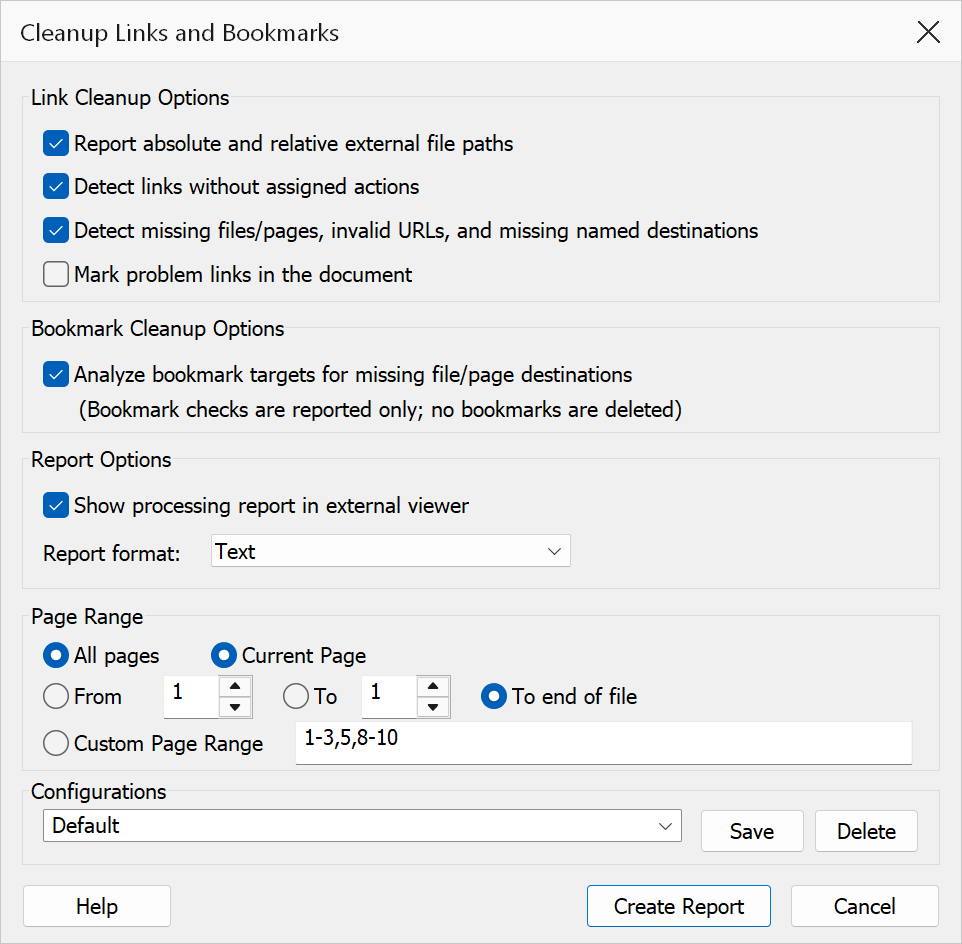
How to use
- Open the PDF you want to analyse.
- Go to Plug-Ins > Links > Create Link Report.
- Choose a page range to limit which pages are scanned (see below).
- Optionally select a report format (Text or HTML) and enable Show report in viewer.
- Click Create Report.
- Review the report file that is generated next to the PDF.
What the report detects
| Check | Description |
|---|---|
| Absolute and relative file paths | Reports whether external file links use absolute or relative paths. |
| Links without actions or destinations | Detects link annotations that have neither an action nor a direct destination
(/Dest). Links carrying a valid direct destination are recognised
as healthy. |
| Missing files/pages, invalid URLs, missing named destinations | Identifies links pointing to pages out of range or named destinations that cannot be resolved, links to external files that do not exist (reported separately), web links with an empty address, and web links with unusual formatting (reported as warnings). |
| Bookmark target analysis | Analyses bookmark destinations for missing file or page targets. Bookmark checks are reported only; no bookmarks are ever deleted. |
Page range options
| Option | Description |
|---|---|
| All pages | Scan the whole document. This is the default. |
| Custom page range | Enter comma-separated page numbers and ranges, e.g. 1-3,5,8-10. |
| Current page | Process only the page currently displayed in the viewer. |
| From page / To page | Specify a start and end page number, or choose To end of file to scan from the start page to the last page. |
Report output
| Option | Description |
|---|---|
| Report format | Choose Text (.fixlinks.txt) or HTML (.fixlinks.html). The report is saved alongside the PDF. When Acrobat’s Protected Mode is on, the folder beside the PDF cannot be written: you are asked where to save the report instead, and if you cancel it goes to Acrobat’s temporary folder. The completion message shows the path. |
| Show report in viewer | When enabled, opens the finished report automatically in your default viewer. The report file is written in the chosen format either way. |
Summary statistics
After generation, a summary dialog shows counts including:
- Pages checked and total link annotations found
- Bookmarks processed
- Links without actions or destinations
- Links to missing pages/destinations and links to missing external files
- Missing named destinations
- Empty web addresses, and addresses with unusual formatting
- Absolute and relative path link counts
- The full path the report file was written to
Note
Create Link Report never modifies the PDF. It is a safe, read-only operation that produces a diagnostic file you can review at your convenience.
Tip
Run a link report before using Cleanup Links and Bookmarks so you can review the issues first and decide which cleanup actions to enable.