Overview
Create Links from Dictionary scans every page of the document and
creates link annotations using entries from a dictionary file (.ald).
Each dictionary entry maps a word or phrase to the 1-based page number the link
should jump to.
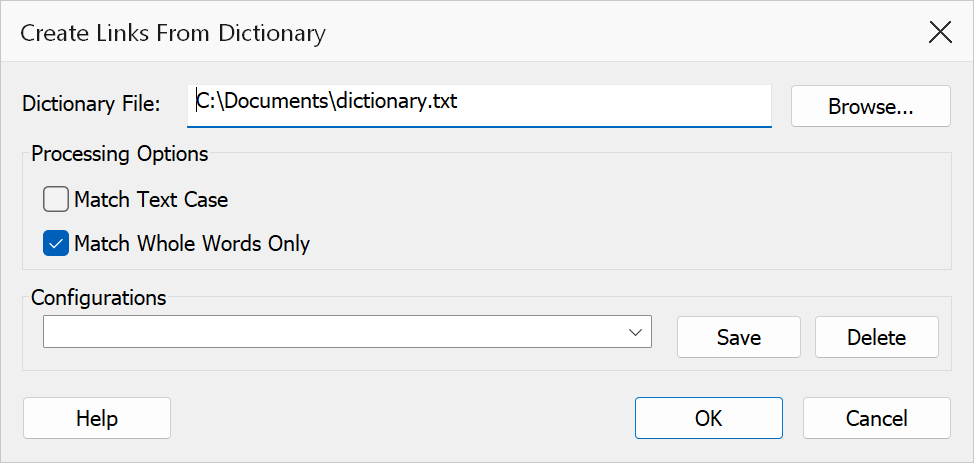
How to use
- Open a PDF in Acrobat.
- Go to Plug-Ins > Links > Create Links from Dictionary.
- Browse for a
.alddictionary file (a plain text file you can create in any text editor — see the format below). - Configure the matching options.
- Click OK to generate the links.
Dictionary file format
A dictionary is a plain text file (UTF-8, with or without a byte-order mark), one entry per line, in the form:
text=>page
- text — the word or phrase to find on the pages. Multi-word
phrases (for example
Chapter One=>12) match consecutive words on the page. - page — the 1-based page number the link should go to. If the destination is not a whole number, or is outside the document, the entry still creates links but they point to the top of the page the match was found on.
Lines without => are ignored, so you can add comment lines freely.
Options
| Option | Description |
|---|---|
| Dictionary file | Path to the .ald file that contains link definitions. Use the
Browse button to select a file. |
| Match text case | Only match text when the letter case is identical to the dictionary entry. |
| Match whole words only | Prevents partial matches inside longer words. |
| Configurations | Save the current dictionary path and options under a name, reload them later, or delete a saved configuration. |
The whole document is always scanned.
Tip
Create a single dictionary file for your organisation and reuse it across multiple documents to maintain consistent cross-referencing links.