Overview
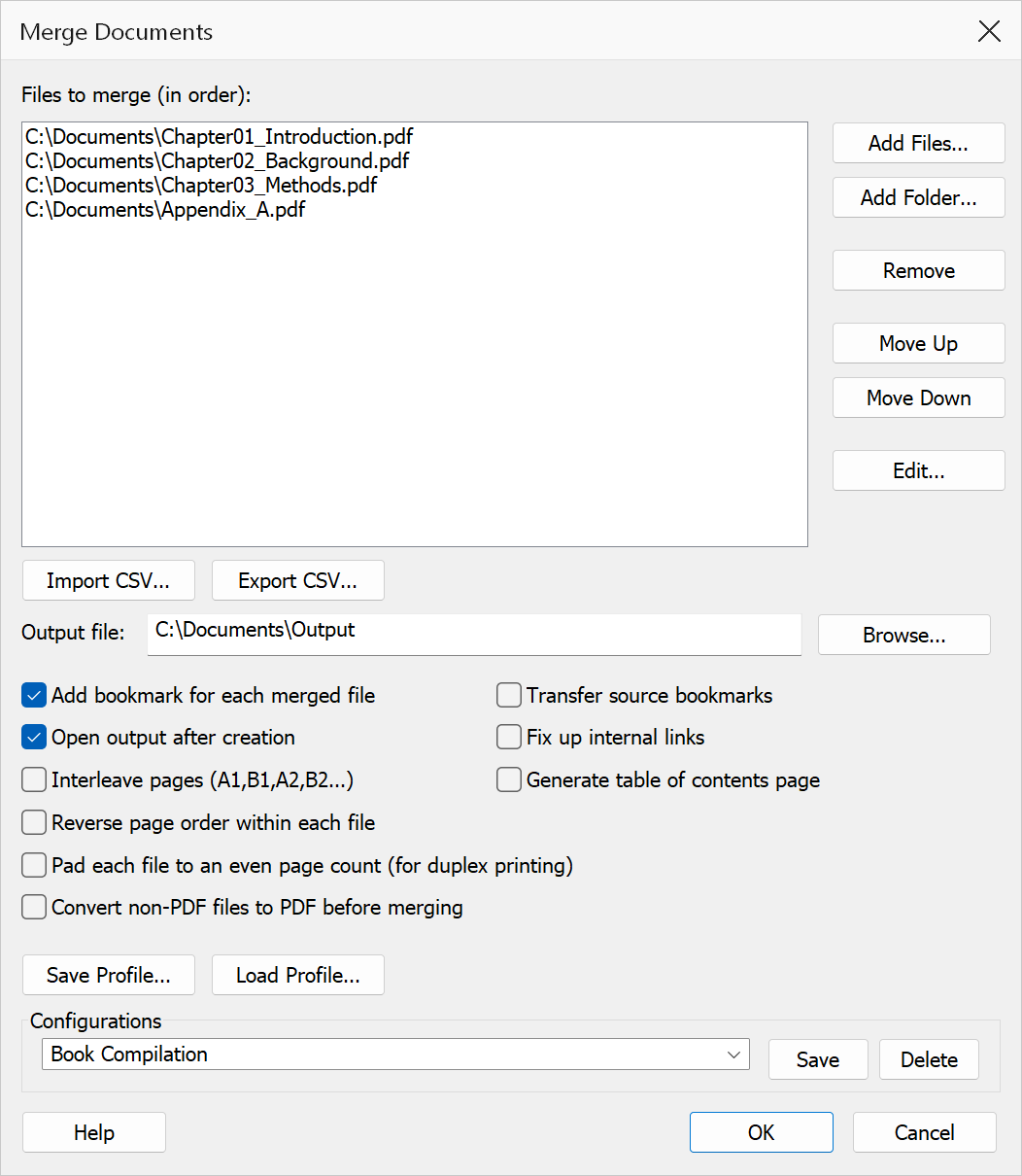
Merge Documents combines multiple PDF files into a single output PDF. You can add files individually or add all PDFs from a folder, reorder them, and optionally create bookmarks for each source document.
The Interleave Pages option provides an alternative merge mode where pages from two documents are interleaved in an alternating pattern (A1, B1, A2, B2, ...). This is particularly useful for reassembling double-sided scans where odd and even pages were scanned separately.
Note
Transfer source bookmarks and Fix up internal links are now on by default. With Interleave the Reverse box becomes Reverse second file: tick it when the back sides of a double-sided scan were scanned last page first, so fronts and backs interleave into the right order. The dialog remembers its options (not the file list).
How to use
- Go to Plug-Ins > Merge & Rename > Merge Documents.
- Build the file list using Add Files or Add Folder.
- Use the Move Up and Move Down buttons to arrange the merge order.
- Set the Output file path for the merged PDF.
- Optionally enable Add bookmark for each merged file to create a bookmark for each source file.
- Optionally enable Interleave Pages to alternate pages from two documents.
- Click OK to perform the merge.
Options
| Option | Description |
|---|---|
| File list | The list of files to merge, in the order they will appear in the output. Use Add Files, Add Folder, Remove, Move Up, and Move Down to manage the list; the Delete key removes the selected entry. A file that is already in the list is skipped when you add it again. Double-click or press Edit to configure per-file settings. |
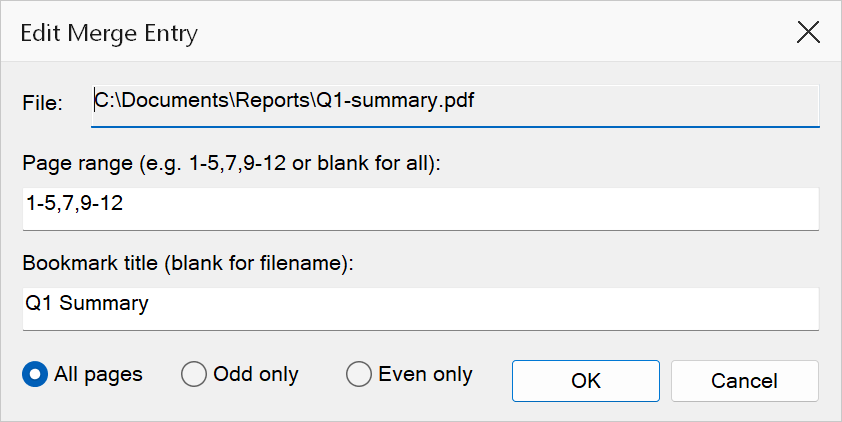
| Edit | Opens the Edit Merge Entry dialog for the selected file, where you
can set a page range (e.g. 1-5,7,9-12), a custom bookmark title, and
an odd/even page filter. |
| Import CSV / Export CSV | Import CSV adds the files a CSV file lists to the end of the list
(it does not replace the list); Export CSV saves the current list.
CSV columns: FilePath,PageRange,BookmarkTitle,PageFilter, where the page
filter is 0 or all, 1 or odd,
2 or even (blank means all pages). Import reads the same
format as Merge from Control File, so a control
file can be imported too: blank lines and lines starting with # are
skipped, and so is the header row Export writes; a relative path is relative to the
folder of the CSV file; put a field that contains a comma (such as the page range
1-5,7) in double quotes. A row whose page range or page filter is not
valid is not imported, so a typing mistake cannot change which pages are merged:
the rows left out are listed with their line numbers (the first ten), and the
other rows are added.
A CSV file that cannot be read, or lists no files, is reported. |
| Output file | Path for the merged output PDF. Click Browse to select a location. The output must not be one of the input files. If the file already exists you are asked whether to replace it when you click OK; a file that is open in Acrobat must be closed first. |
| Add bookmark for each merged file | Creates a bookmark at the start of each source document's pages, using the file name (or custom bookmark title) as the bookmark title. |
| Transfer source bookmarks | Copies existing bookmark trees from each source document into the merged output. When combined with Add bookmark for each merged file, source bookmarks are placed under each file's bookmark as children. Each bookmark keeps the view it had (position on the page and zoom), and a bookmark that opens a named destination, a web address or another file still does. A bookmark whose page was not merged is left out, unless it has bookmarks beneath it that were kept, in which case it stays as a heading; the result message says how many were left out. To keep such bookmarks, select Keep links and bookmarks to pages that are not merged. Named destinations of the source files are carried into the merged file; where two files use the same name, the later one is renamed with _2, _3 and so on. |
| Open output after creation | Opens the merged PDF in Acrobat after the operation completes. |
| Fix up internal links | Adjusts GoTo link destinations within each merged document so they point to the correct pages in the output. Without this option, internal links may point to wrong pages after merging. Works with per-file page ranges and with Reverse page order; a link whose target page is in the merged file is kept pointing at it. A link whose target page was not merged (a page range or an odd/even filter left it out) cannot work in the merged file, so it is removed, with or without this option; the text or picture it sat on stays. The result message says how many links were left out. To keep such links, select Keep links and bookmarks to pages that are not merged. |
| Keep links and bookmarks to pages that are not merged | Decides what happens to a bookmark or link whose target page is left out of the merge by a file's page range or its odd/even filter. Off (the default): it is removed, and the result message says how many were left out. On: it is kept, but with no target, so the bookmark stays in the list as a title and the link stays on its page, and neither opens anything; the result message says how many were kept without a target. Keep them when you mean to point them somewhere yourself afterwards. Not available with Interleave Pages. |
| Interleave Pages | Pages are taken one at a time from each file in turn (A1, B1, A2, B2, ...) rather than appended file after file. Works with two or more files; with two it is the usual way to reassemble a double-sided scan whose sides were scanned separately. If an input cannot be opened or a page cannot be inserted, the operation stops without saving an incomplete output. |
| Generate table of contents page | Inserts a TOC page at the front of the merged output listing all source files and their starting page numbers. |
| Reverse page order within each file | Reverses the page order of each source document's pages in the output. |
| Pad each file to an even page count | Makes each file start on an odd-numbered (right-hand, recto) page of the merged document: a blank page is added before a file whenever the previous one ends on an odd page, so every document begins on a new sheet when printed double-sided. |
| Convert non-PDF files to PDF before merging | Allows merging of Word, Excel, PowerPoint, images, HTML, and text files by converting them to PDF via Acrobat before merging. If the list holds such files while this is unticked, OK says so before the merge and offers to merge the PDF files without them. Interleave Pages merges PDF files only. |
Per-File Settings
Select a file in the list and click Edit (or double-click) to open the Edit Merge Entry dialog with these options:
| Setting | Description |
|---|---|
| Page range | Specify which pages to include from this file, e.g. 1-5,7,9-12.
Leave blank to include all pages. A range that runs past the end of the file is
cut at its last page (1-20 on an 18-page file merges pages 1-18), and
the summary lists every range that was shortened. The file is skipped only if
none of its range exists (for example 30-40 on an 18-page file). |
| Bookmark title | Custom bookmark title for this file. If blank, the filename is used. |
| Page filter | All pages, Odd only, or Even only. Applied after the page range filter. |
Tip
Use Import CSV to batch-configure merge lists with per-file page ranges and bookmark titles. This is especially useful for automated workflows or when merging many files with specific page selections.
Note
Interleave Pages needs at least two files. It uses a separate engine that ignores per-file settings and the other merge options, so those controls are disabled, and the per-file settings hidden, while it is switched on.
Note
A progress window shows the file being merged. Cancel stops the merge and nothing is written.