Overview
Merge Subfolders into PDFs processes a parent directory and merges all PDF files within each subfolder into a single PDF per subfolder. The output file for each subfolder is named after the subfolder. This is useful when you have a folder structure where each subfolder represents a separate document that needs to be assembled from multiple parts.
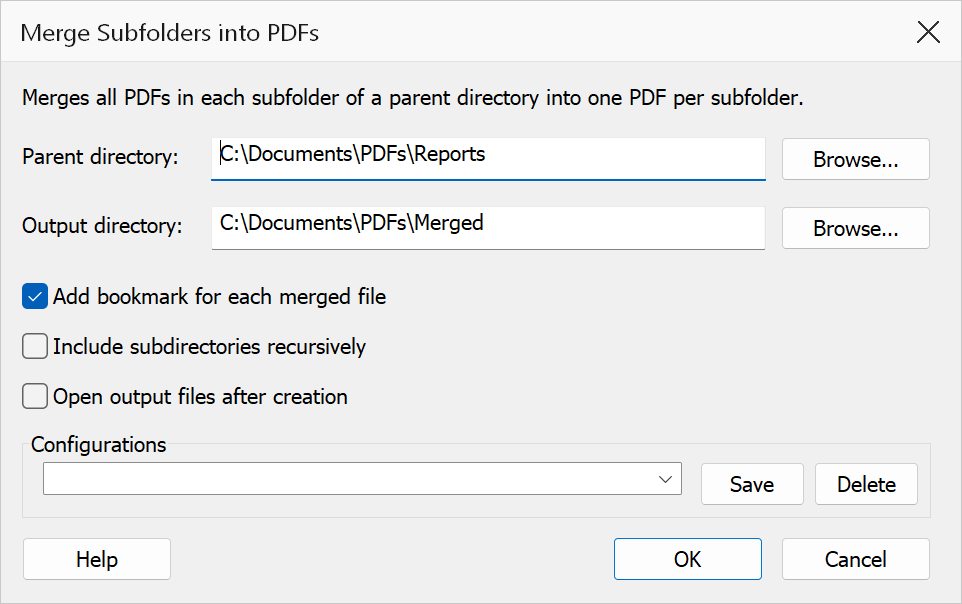
How to use
- Organize your PDF files into subfolders, with each subfolder containing the files for one merged document.
- Go to Extensions > Mapsoft > Merge & Rename > Merge Subfolders into PDFs.
- Set the Parent directory that contains the subfolders.
- Set the Output directory where the merged PDFs will be saved.
- Optionally enable Auto-bookmark and Recursive processing.
- Click OK to perform the merge.
Options
| Option | Description |
|---|---|
| Parent directory | The top-level folder containing subfolders of PDFs. Each immediate subfolder is processed as a separate merge operation. |
| Output directory | The folder where merged output PDFs are saved. Each output file is named after its
source subfolder (e.g. a subfolder named Chapter1 produces
Chapter1.pdf). |
| Auto-bookmark | When enabled, a bookmark is created for each source file within the merged PDF, using the file name as the bookmark title. |
| Recursive | When enabled, PDFs nested any number of levels below each immediate subfolder are included in that subfolder's merge. Output is still one PDF per immediate subfolder — nested subfolders do not produce their own files. |
| Open output files | When enabled, each merged PDF is opened in Acrobat after it is created. |
Tip
Files within each subfolder are merged in alphabetical order. Prefix file names with
numbers (e.g. 01_cover.pdf, 02_intro.pdf) to control the
merge order.
Note
Subfolders that contain no PDF files are skipped. The output directory is created automatically if it does not exist.
Every merge is planned before any file is written. If some of the output files
already exist you are asked once: Yes replaces them, No
keeps them and numbers the new files (name (2).pdf), Cancel
stops. With Open outputs ticked, a run that creates more than 10 files asks
before opening them. A progress window shows the subfolder being merged;
Cancel there stops after the current one, and the summary says how
many were not merged.