Overview
The Preferences dialog controls global settings for the TOC Builder & Bookmarker plug-in. Settings are organized into seven tabs: General, Shortcuts, Highlights, Menus, Updates, Labels, and Nav Buttons.
How to use
- Go to Plug-Ins > Preferences (or Plug-Ins > Mapsoft > Preferences if menu placement is enabled).
- Select a tab to configure the desired settings.
- Click OK to save your changes.
General tab
| Option | Description |
|---|---|
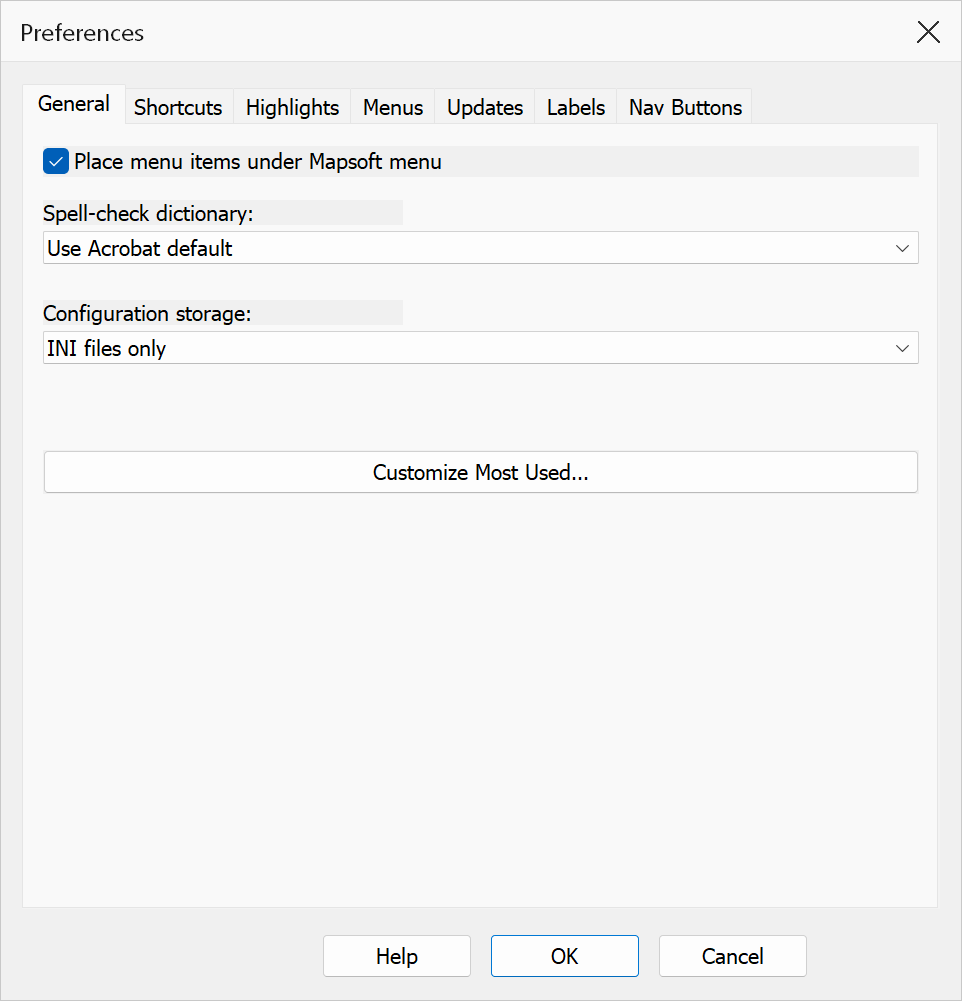
| Place menu items under Mapsoft menu | When enabled, all plug-in menu items are nested under a single Plug-Ins > Mapsoft submenu instead of appearing directly under the Plug-Ins menu. Takes effect the next time Acrobat loads the plug-in. |
| Spell-check dictionary | Select which dictionary to use for the Spell Check Bookmarks feature. Choose Use Acrobat default to use the system dictionary, or pick a specific language dictionary from the list. |
| Configuration storage | Shows where saved dialog configurations are kept. It is always
Registry only: configurations are stored per user in the Windows
Registry, under HKEY_CURRENT_USER\Software\Mapsoft\TOCBuilder2Configs.
INI files are no longer used, so the setting is shown for information and cannot
be changed.
|
| Customize Most Used... | Opens a dialog to select which menu items appear in the Most Used quick-access list. |
Customize Most Used
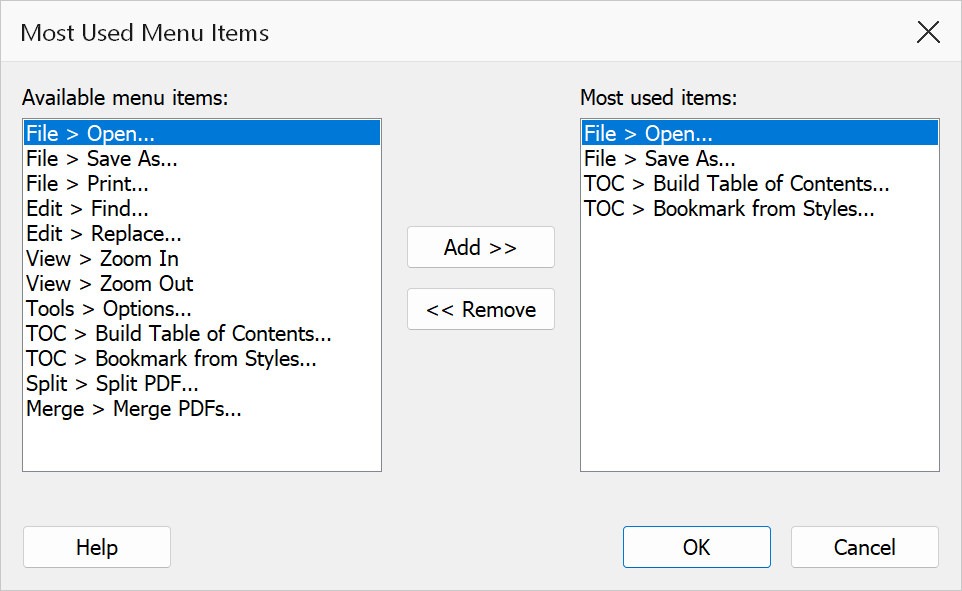
The Customize Most Used dialog lets you pick which menu items appear in the Most Used quick-access list at the top of the plug-in menu. Use the Add >> button to add selected items from the available list, and << Remove to take items off the quick-access list.
Items hidden on the Menus tab are not offered, because a hidden item does not appear in any menu. Your choices are saved when you click OK in the Preferences dialog (Cancel discards them), and the Most Used menu changes after you restart Acrobat.
Shortcuts tab
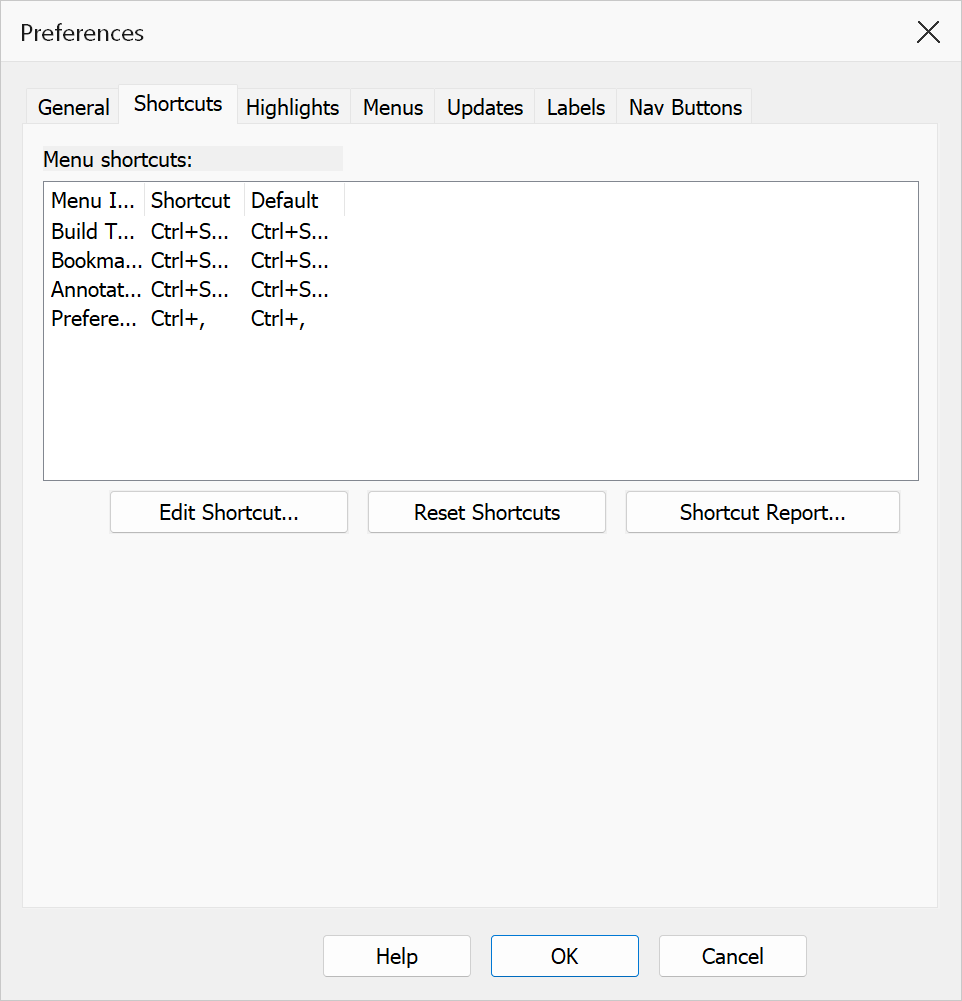
Lists all plug-in menu items and their keyboard shortcuts. You can assign custom shortcut keys to any menu item for faster access.
| Option | Description |
|---|---|
| Edit Shortcut... | Assign or change the keyboard shortcut for the selected menu item. A shortcut is one or more of Ctrl, Shift and Alt followed by a letter or digit. A shortcut that another plug-in item, or one of Acrobat's own menu commands, already uses is refused. Leave the box empty to remove the shortcut. Shortcut changes take effect after you restart Acrobat. |
| Reset Shortcuts | Restore all shortcuts to their default values. |
| Shortcut Report... | Generate a report listing all current shortcut assignments. |
Highlights tab
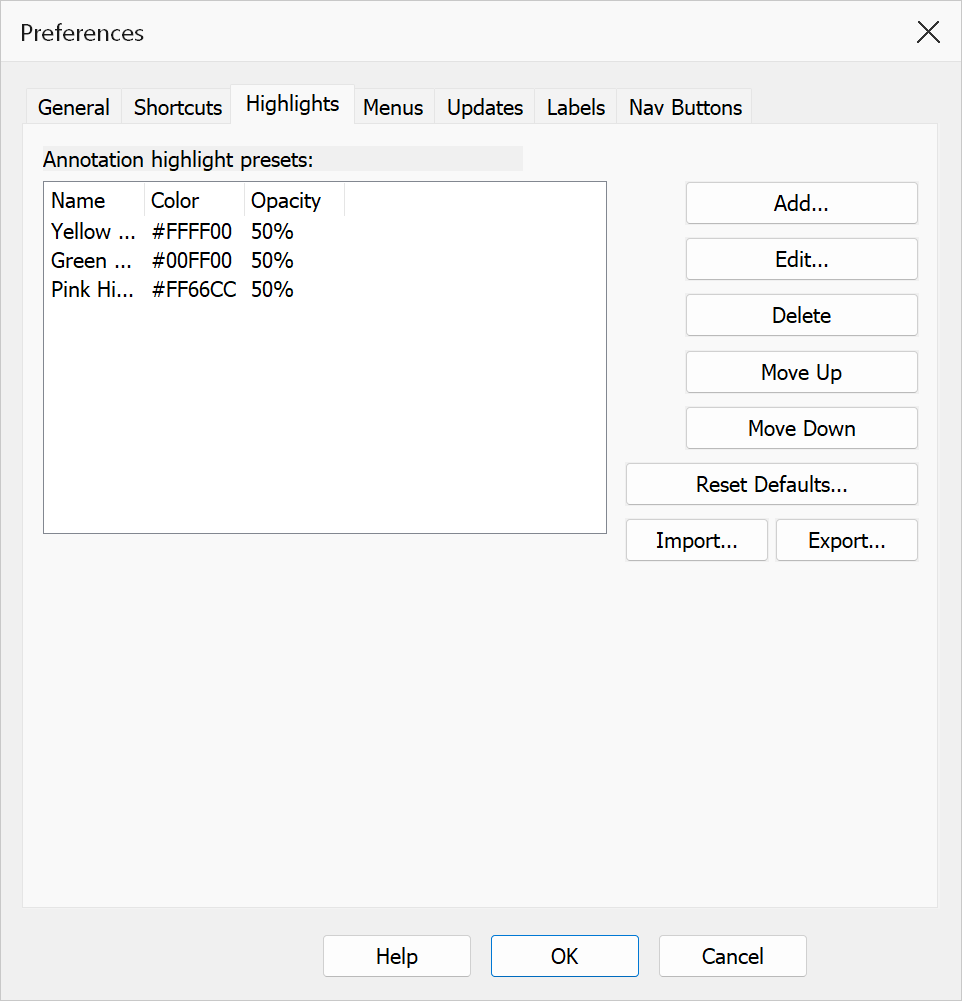
Manage the annotation highlight presets used by the Highlight Text Patterns feature and the Annotation Highlights toolbar.
| Option | Description |
|---|---|
| Add... | Create a new highlight preset with a custom name, color, and pattern. |
| Edit... | Modify the selected highlight preset. |
| Delete | Remove the selected highlight preset. |
| Move Up / Move Down | Change the display order of presets. |
| Reset Defaults | Restore the built-in default set of highlight presets. |
| Import... / Export... | Import or export highlight presets to share between installations. |
Menus tab
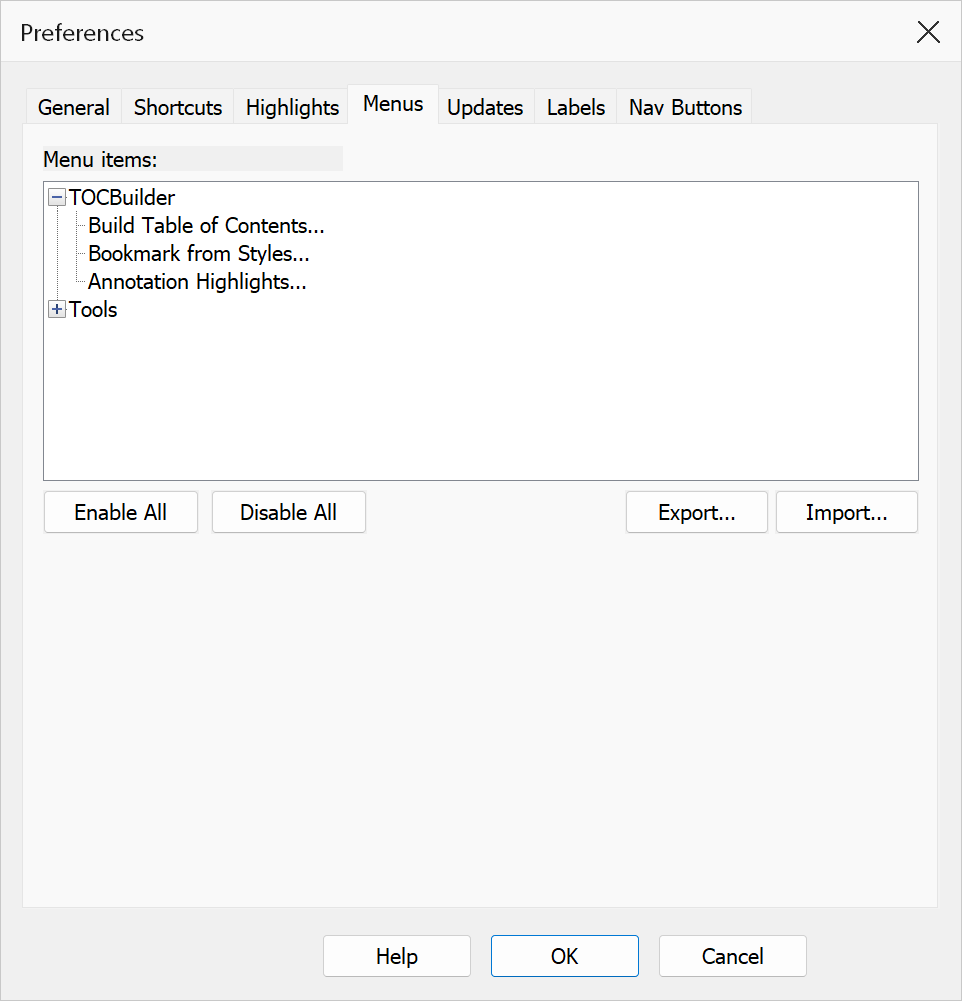
Control which plug-in menu items are visible in Acrobat. Unchecking an item hides it from the menu without removing the feature. Checking or unchecking a category (with the mouse or the Space bar) does the same to every item in it. Changes take effect after you restart Acrobat. If an item you show again has a shortcut that was given to another item while it was hidden, OK warns you before saving.
| Option | Description |
|---|---|
| Enable All | Show all menu items. |
| Disable All | Hide all menu items. |
| Export... / Import... | Export or import menu visibility settings to share between installations. |
Updates tab
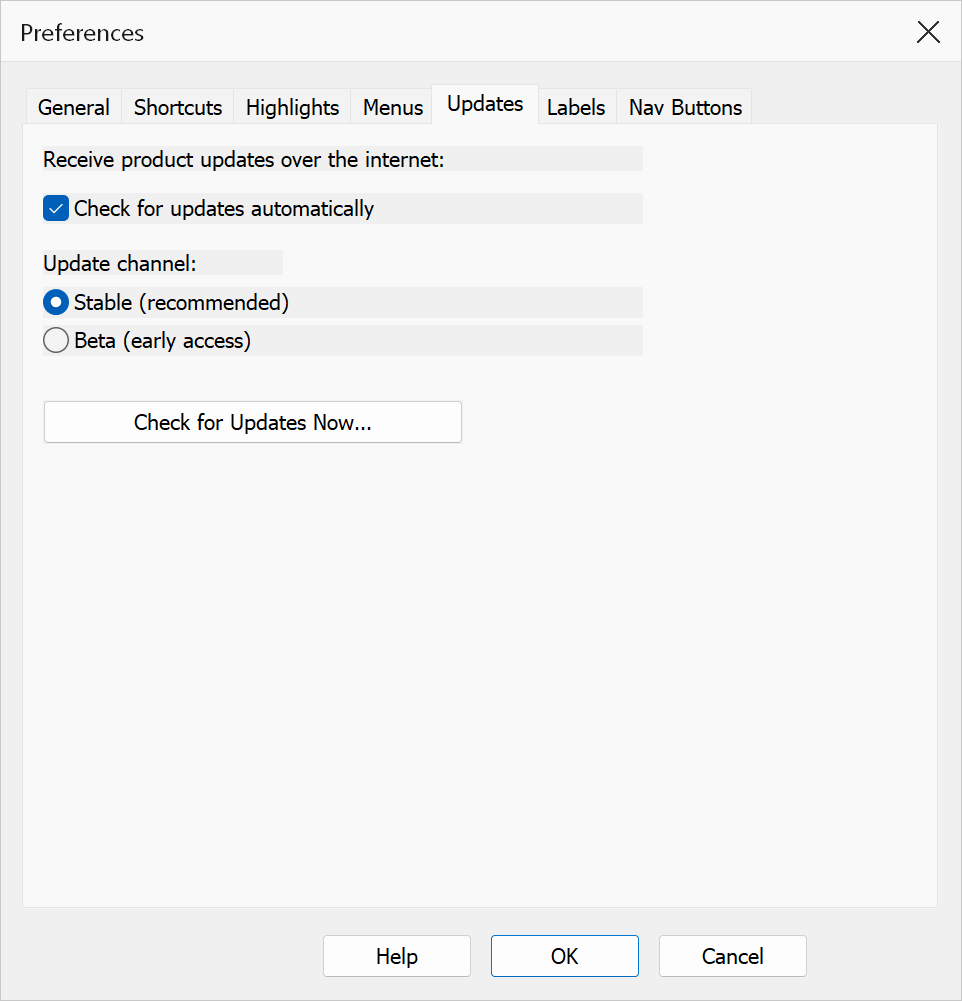
Controls whether the plug-in looks for new versions on mapsoft.com, and which release channel it follows.
| Option | Description |
|---|---|
| Check for updates automatically | When checked, the plug-in periodically checks mapsoft.com for a new version and prompts you when one is available. |
| Update channel | Stable (recommended) receives only fully tested releases. Beta (early access) receives early builds of new features, which may be less stable. |
| Check for Updates Now... | Checks mapsoft.com immediately for a new version, using the channel selected above. See Check for Updates. To check with the chosen settings it saves them straight away; Cancel still puts back the settings the tab had when Preferences opened. |
| Send Beta Feedback... | Opens the beta feedback form on mapsoft.com with your plug-in, Acrobat and Windows versions filled in. See Send Beta Feedback. |
Trial, licence and serial number
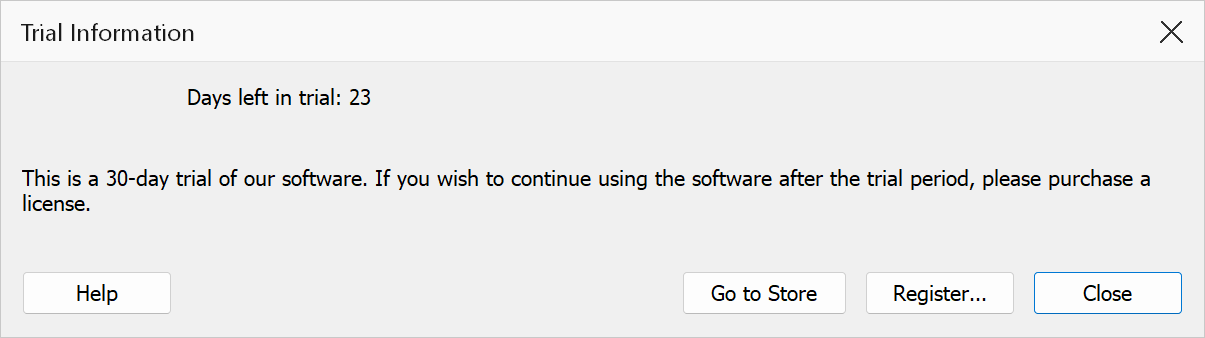
The plug-in runs as a 30-day trial until a serial number is entered. While the trial runs, a notice at most once a day shows how many days are left; after it ends, the notice says the trial has expired, and the plug-in's commands ask for a licence when you choose them.
- Go to Store opens the Mapsoft store, where you can buy a licence.
- Register... (in the notice), or Utilities > Enter Serial Number... (in the plug-in menu, at any time), lets you type the serial number you received. It is checked and stored for your Windows user account.
- Utilities > Check for Updates... and Enter Serial Number... keep working after the trial has ended.
To register the product for every user of the computer, run the installer again and enter the serial number there.
Labels tab
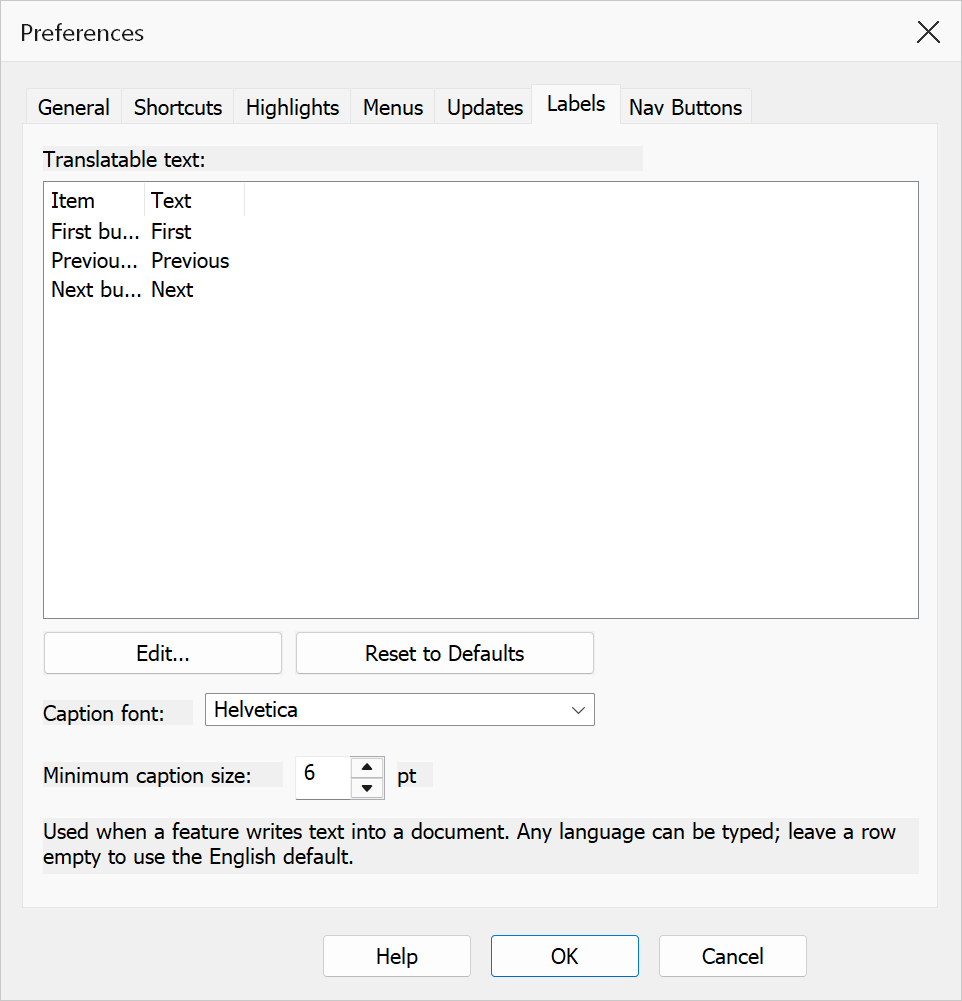
The text the plug-in writes into a document when it adds navigation buttons: the caption of each First, Previous, Next and Last button, and the alternative text a screen reader announces for it. Any language can be typed. Leave a row empty to use the English default.
| Option | Description |
|---|---|
| Translatable text | One row per item. Double-click a row, or select it and click Edit..., to change its text. The alt text is the only description a screen reader gets, and the only text in the file at all when the button label is Icon only or None. |
| Reset to Defaults | Restore the English text in every row. |
| Caption font | The font used for button captions. Type a name or pick one from the list. |
| Minimum caption size | Captions are never drawn smaller than this size, in points, however small the button is. |
Nav Buttons tab
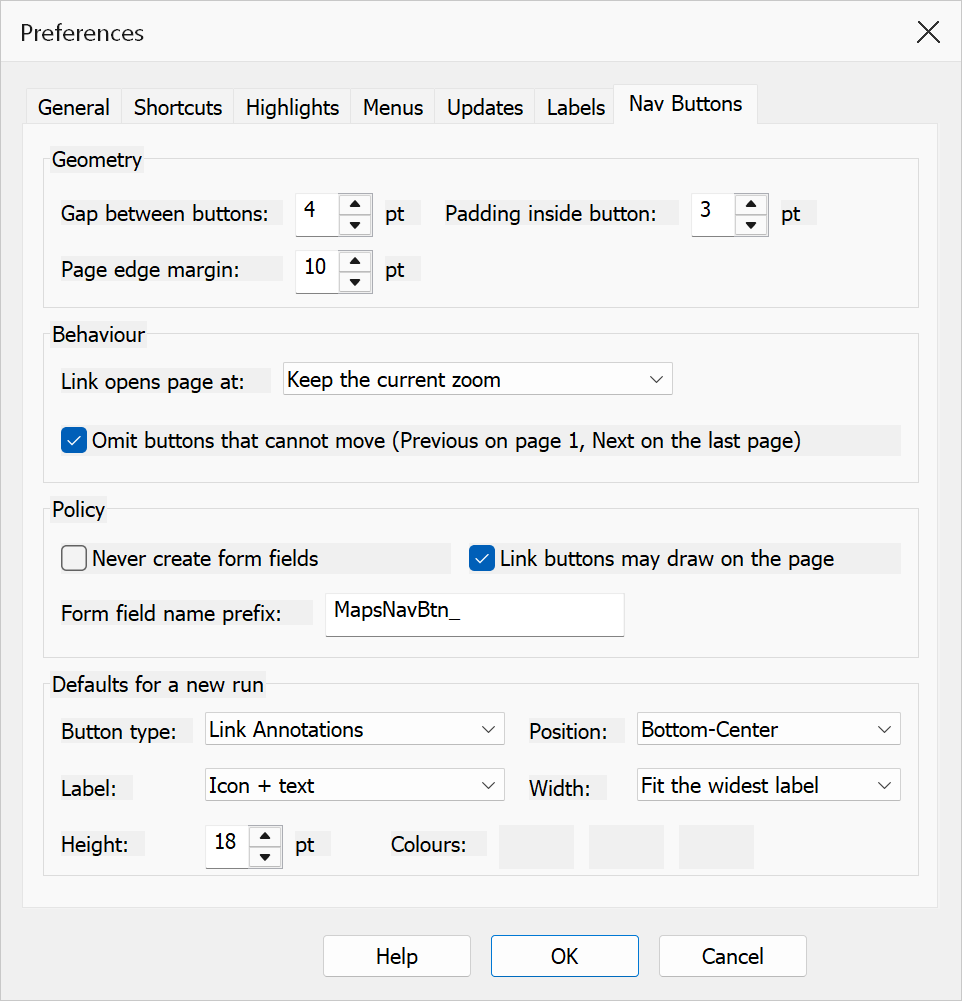
House style and policy for the Add Navigation Buttons feature, plus the settings every new run starts from. Policy settings apply to every run and cannot be overridden by a saved configuration.
| Option | Description |
|---|---|
| Gap between buttons | Space between neighbouring buttons, in points. |
| Padding inside button | Space between a button's edge and its icon or caption, in points. |
| Page edge margin | Inset from the page edge for the preset button positions, in points. |
| Link opens page at | The view a link button navigates to: keep the current zoom, fit the whole page, or fit the page width. |
| Omit buttons that cannot move | Leave out First and Previous on page 1, and Next and Last on the final page, rather than placing buttons that do nothing. |
| Never create form fields | Never add AcroForm fields to a document, whatever button type a run asks for. Useful where forms are not permitted in the output. |
| Link buttons may draw on the page | Allow link-annotation buttons to paint a visible button onto the page. When cleared, link buttons are empty clickable regions. |
| Form field name prefix | Prefix for the field names of form-button navigation buttons, so they can be
recognised and removed later. Default MapsNavBtn_. |
| Defaults for a new run | The button type (Link Annotations or Form Buttons), position, label style, width rule, height and colours that the Add Navigation Buttons dialog starts with. Each can be changed for an individual run and saved in a configuration. |
Note
Menu placement and visibility changes take effect the next time Acrobat loads the plug-in.
Tip
If you use many plug-in features frequently, keep menu items under the Plug-Ins menu for faster access. Use the Mapsoft submenu option when you want a tidier menu structure.