Overview
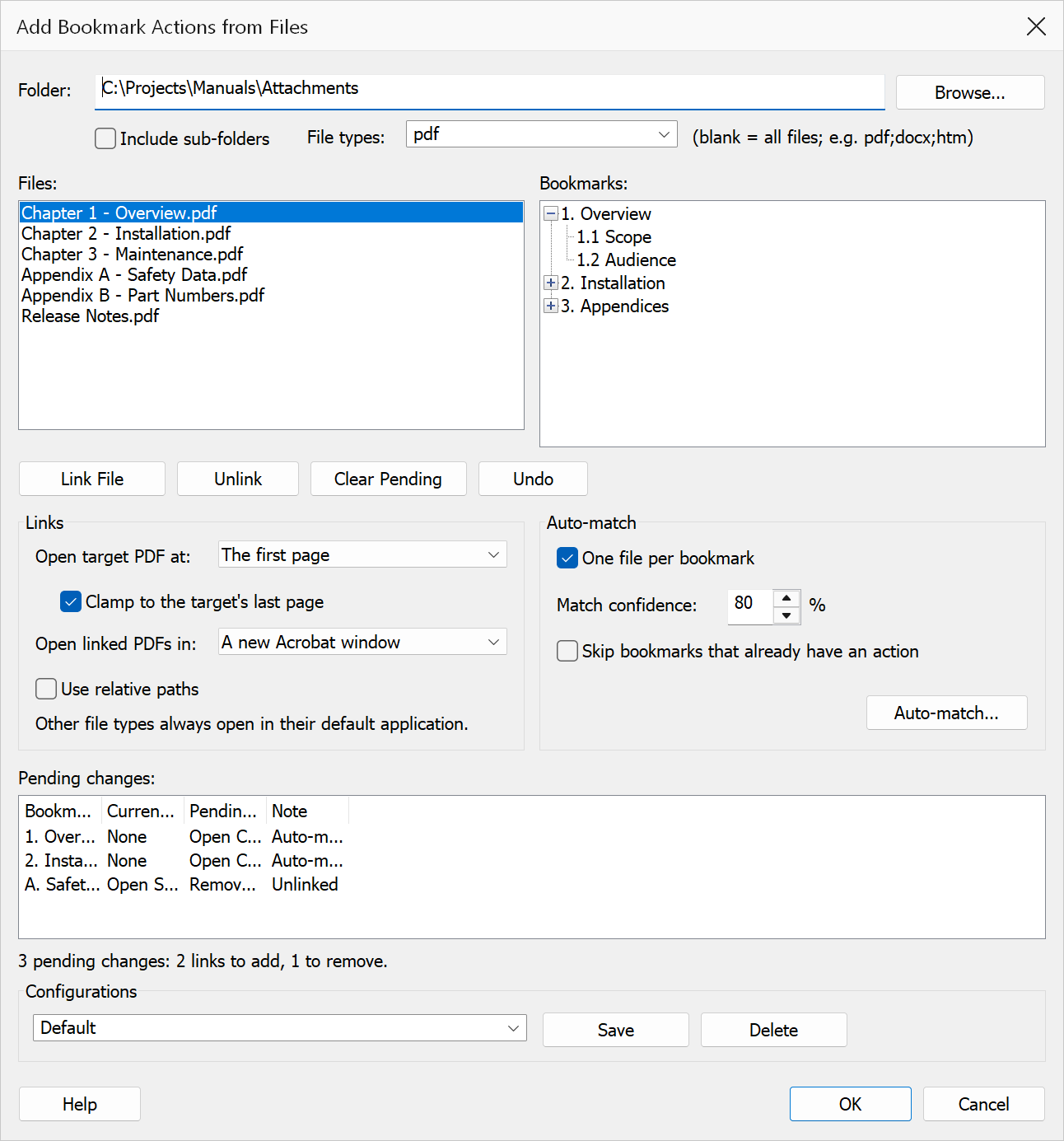
Add Bookmark Actions from Files attaches file actions to the existing bookmarks in the active PDF. The dialog shows the document’s bookmark tree alongside the files in a folder you choose. Link them one at a time, or let Auto-match pair them up by name.
Changes are staged: everything you link appears in the Pending changes list at the bottom of the dialog, and nothing is written to the document until you press OK.
How to use
- Open the PDF that contains the bookmarks you want to update.
- Go to Bookmarks > Create & Add > Add Bookmark Actions from Files.
- Click Browse to choose the folder holding the files. Tick Include sub-folders to search below it, and use File types to narrow the list.
- In the bookmark tree on the right, click the bookmark that should receive the file action.
- In the file list on the left, double-click a file (or click Link File) to stage it. Repeat as needed — or click Auto-match to pair every bookmark with a similarly named file in one pass.
- Review the Pending changes list. Untick any row you do not want.
- Press OK to write the ticked changes, or Cancel to discard them all.
Dialog elements
| Element | Description |
|---|---|
| Folder / Browse | The folder scanned for files. Type a path directly or pick one. |
| Include sub-folders | Also lists files held below the chosen folder. Each file’s sub-folder is shown in brackets after its name. |
| File types | Which extensions to list — see File types below. Leave blank to list every file. |
| File list | The files found. Double-click one to stage a link to the selected bookmark. A file
a staged link already points at is marked + in front of its name
(+2 if two bookmarks point at it). Only the file name is shown —
hover a file to see its full path. |
| Bookmark tree | Every bookmark in the document, each followed by what it does today in brackets
— (Go to page), (Open another PDF) and so on, or nothing at
all if the bookmark does not point anywhere. The heading above the tree counts how
many bookmarks have an action, and what that count becomes once the staged changes
are applied. Staged bookmarks are marked + (link), -
(unlink) or ? (auto-matched, needs review). |
| Link File / Unlink | Stage a link from the highlighted file, or stage removal of the selected bookmark’s existing action. |
| Auto-match | Matches files to bookmarks by name and stages the results. Confident matches are ticked; anything uncertain is staged unticked with a note explaining why. |
| Clear Pending / Undo | Discard all staged changes, or step back through them one at a time. |
| Pending changes | Every staged change, with the bookmark’s current action, the action that will replace it, and any warnings. Only ticked rows are applied. |
| Configurations | Save the current options under a name, reload them later, or delete a saved set. |
File types
The File types box narrows the file list to the extensions you name. It is a drop-down with some common sets ready to pick, but you can type your own list instead.
- List as many as you like. Separate them with semicolons, commas or
spaces —
pdf;docx,pdf, docxandpdf docxall mean the same thing. - Dots and
*are ignored, sopdf,.pdfand*.pdfare equivalent. - Case does not matter.
PDFmatchesReport.pdfandREPORT.PDFalike. - Leave it blank to list every file, including files with no extension at all.
Note
There is no fixed list of “supported” types. Any extension you type is matched literally against the files in the folder, so an extension that nothing in the folder uses simply shows an empty list — the Files heading tells you when that has happened, and how many files the filter is hiding.
Tip
Extensions are matched exactly, so a format with more than one spelling needs all of
them listed: use htm;html to catch both, and likewise
jpg;jpeg or tif;tiff. The drop-down already contains these
groupings.
Action types
| File type | Action created |
|---|---|
| PDF files | A GoToR (Go To Remote) action, opening the PDF at the page chosen under Open target PDF at. |
| All other files | A Launch action, which hands the file to Windows and opens it in whatever application is registered for that file type. Files with no extension are included. Open linked PDFs in has no effect on these — the PDF format only lets that setting apply to a PDF target. |
Options
The Links group governs every change you stage, and is applied when you press OK — changing one of these settings re-costs the rows already in Pending changes. The Auto-match group only steers the Auto-match button and has no effect on links you stage by hand.
Links
| Option | Description |
|---|---|
| Open target PDF at | The first page (the default) always opens the target at page 1. The same page number as the bookmark carries the bookmark’s own page across — a bookmark on page 5 opens the target at its page 5. A named destination matching the bookmark title looks for a named destination inside the target; if none matches closely enough, the link falls back to page 1 and says so. |
| Clamp to the target’s last page | Only applies to the same page number mode. If the bookmark’s page lies beyond the end of the target PDF, open the target’s last page instead of producing a broken destination. |
| Open linked PDFs in | Whether a linked PDF replaces the document in the current Acrobat window, or opens in a new one. This applies to PDF targets only; every other file type opens in its default application, which the PDF format gives no way to override. |
| Use relative paths | Stores each link relative to this document, so the links survive moving the whole folder to another machine. Targets on a different drive always use the full path. |
Auto-match
| Option | Description |
|---|---|
| One file per bookmark | During Auto-match, never offer the same file to two different bookmarks. |
| Match confidence | How close a name match must be before Auto-match ticks it automatically. Lower values stage more matches but leave more of them for you to review. |
| Skip bookmarks that already have an action | Leaves bookmarks that already point somewhere out of the Auto-match pass, so a second run does not disturb work you have already done. An ordinary bookmark that jumps to a page in this document counts as having an action — the bookmark tree shows which ones do. On a normally bookmarked PDF that is nearly all of them, so ticking this can leave Auto-match with nothing to do; it is meant for documents whose bookmarks are placeholders that do not point anywhere yet. |
Note
Linking a file to a bookmark replaces any existing action on that bookmark. Nothing is written until you press OK, so Cancel discards every staged change.
Tip
Auto-match understands section numbering: Chapter 3 Safety will not be matched to Chapter 4 Safety.pdf even though the names are otherwise identical. It also copes with titles copied out of a table of contents, dot leaders and trailing page number included.