Overview
Add Page Backgrounds overlays the content of a source PDF page onto selected target pages, either behind or in front of existing content. This is useful for applying letterheads, watermarks, decorative borders, or branded templates to multiple pages at once.
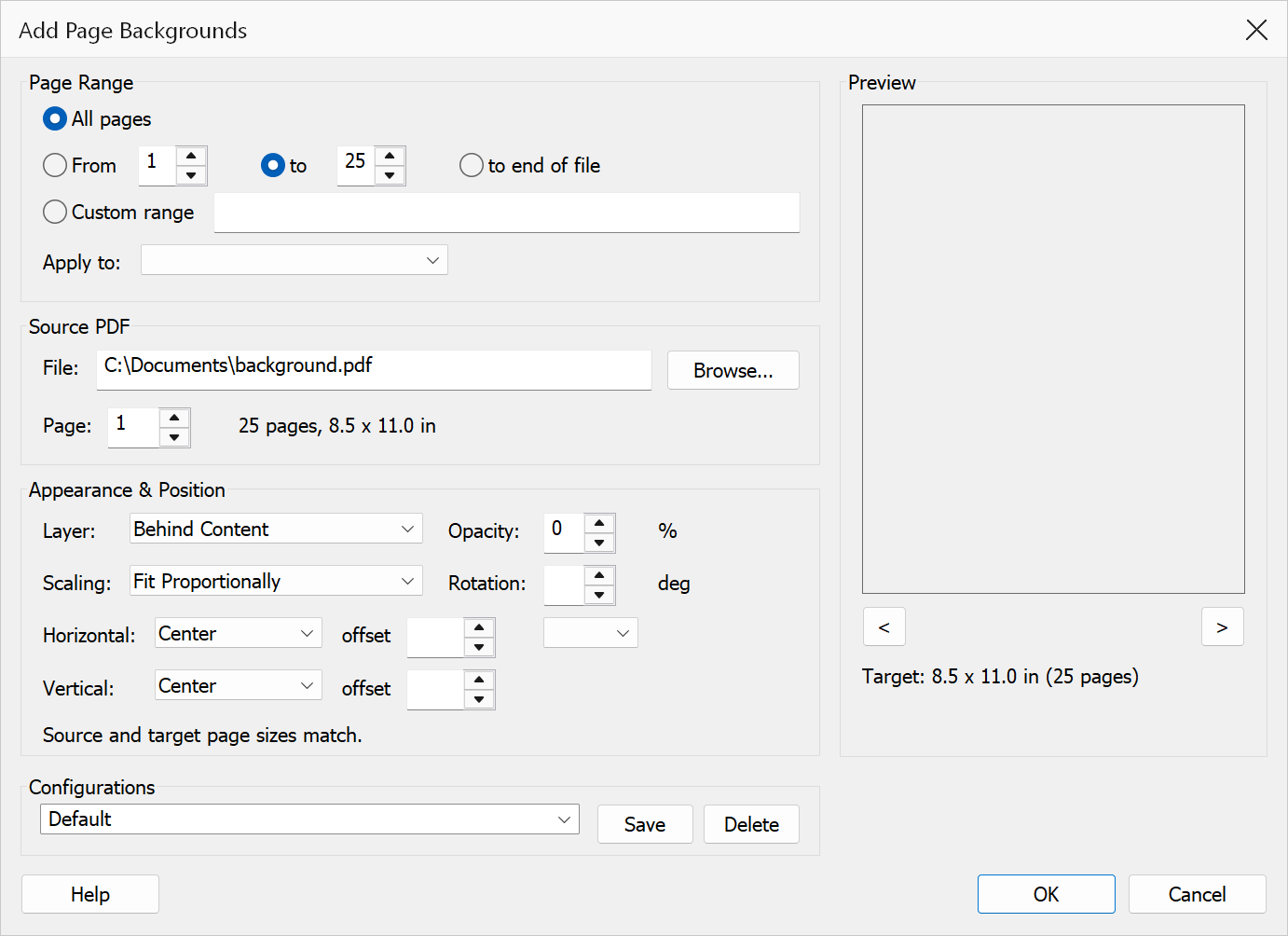
How to use
- Open the target PDF document in Acrobat.
- Go to Plug-Ins > Pages > Add Page Backgrounds.
- Select the page range to apply the background to, and narrow it with Apply to if you want only its odd or only its even page numbers.
- Browse for the source PDF file that contains the background content.
- Enter the page number from the source PDF to use as the background.
- Choose whether to place the source content Behind Content or In Front of Content, and set the Opacity.
- Choose a Scaling mode, then position the result with Horizontal, Vertical and the two offsets.
- Check the Preview, stepping through pages with the arrow buttons.
- Click OK to apply the background.
Options
| Option | Description |
|---|---|
| Page range | The target pages to receive the background. Choose All pages,
a From / To range, or a Custom range such as
1,3,7-9. |
| Apply to | Narrows whatever the page range selected to Odd pages only or Even pages only. Odd and even are the page numbers you see, so "odd" on a range of 4–9 means pages 5, 7 and 9. |
| File | The path to the PDF file containing the background content. Click Browse to select a file. The line beside Page reports how many pages it has, or why it could not be opened. |
| Page | The page within the source PDF to use as the background. Its size is shown under the preview, and the preview redraws as you step through the source pages. |
| Layer | Choose Behind Content to place the source content underneath the existing page content, or In Front of Content to overlay it on top. |
| Opacity | How solid the background is, from 0 (invisible) to 100 (fully opaque). Values around 20–40 are usual for a watermark that must not compete with the text. |
| Scaling | No Scaling places the source at its original size. Fit Proportionally shrinks it to sit inside the target page, which may leave margins. Fill Proportionally covers the target page, which may push the artwork past the edges. Stretch to Fit matches the page exactly and may distort. Fit Width and Fit Height match one dimension and scale the other to suit. |
| Rotation | Turns the background counter-clockwise about its own centre. 45 degrees is the conventional angle for a diagonal watermark. |
| Horizontal / Vertical | Which edge or centre the background is aligned to. Stretch to Fit already covers the page, so these are greyed for that scaling mode. |
| offset | A nudge from the aligned position, in the units chosen beside it. Positive moves the background right and up; negative moves it left and down. |
Mixed page sizes
Scaling and alignment are worked out against each target page in turn, so a document whose pages differ in size still gets a background fitted correctly to each one. The preview can only show one page at a time, so a warning appears under the options when the selected pages are not all the same size — step through the preview to check the ones that differ.
Pages that carry a rotation are handled as they are displayed: a background placed at the top of a rotated page appears at the top as the reader sees it, not at the top of the underlying unrotated page.
Tip
To apply a company letterhead, create a single-page PDF with the letterhead design and use Behind Content placement so the existing text appears on top.
Warning
This operation modifies the page content stream directly. Backgrounds applied here are tagged, so Remove Page Backgrounds can take them out again — but a background applied by another tool, or one that has survived a PDF optimiser that rewrote the page content, cannot be found that way. Work on a copy if the document matters.
Preview
The Preview pane shows a real page from the open document with the current settings drawn on it, so the result can be checked before clicking OK.
The pane is not restricted to the first page. Step through the document with the < and > buttons beneath it, or roll the mouse wheel with the pointer over the pane; the caption below reads Page n of N. Pages in one document can differ in size, orientation and content, so it is worth checking several of them before applying a change to the whole file.