Overview
Add/Remove Margins increases the page size of selected pages by adding white space around the existing content. This is useful for adding printer’s marks, binding gutters, or preparing documents for commercial printing with bleed areas. Margins that were previously added can also be removed to restore the original page dimensions.
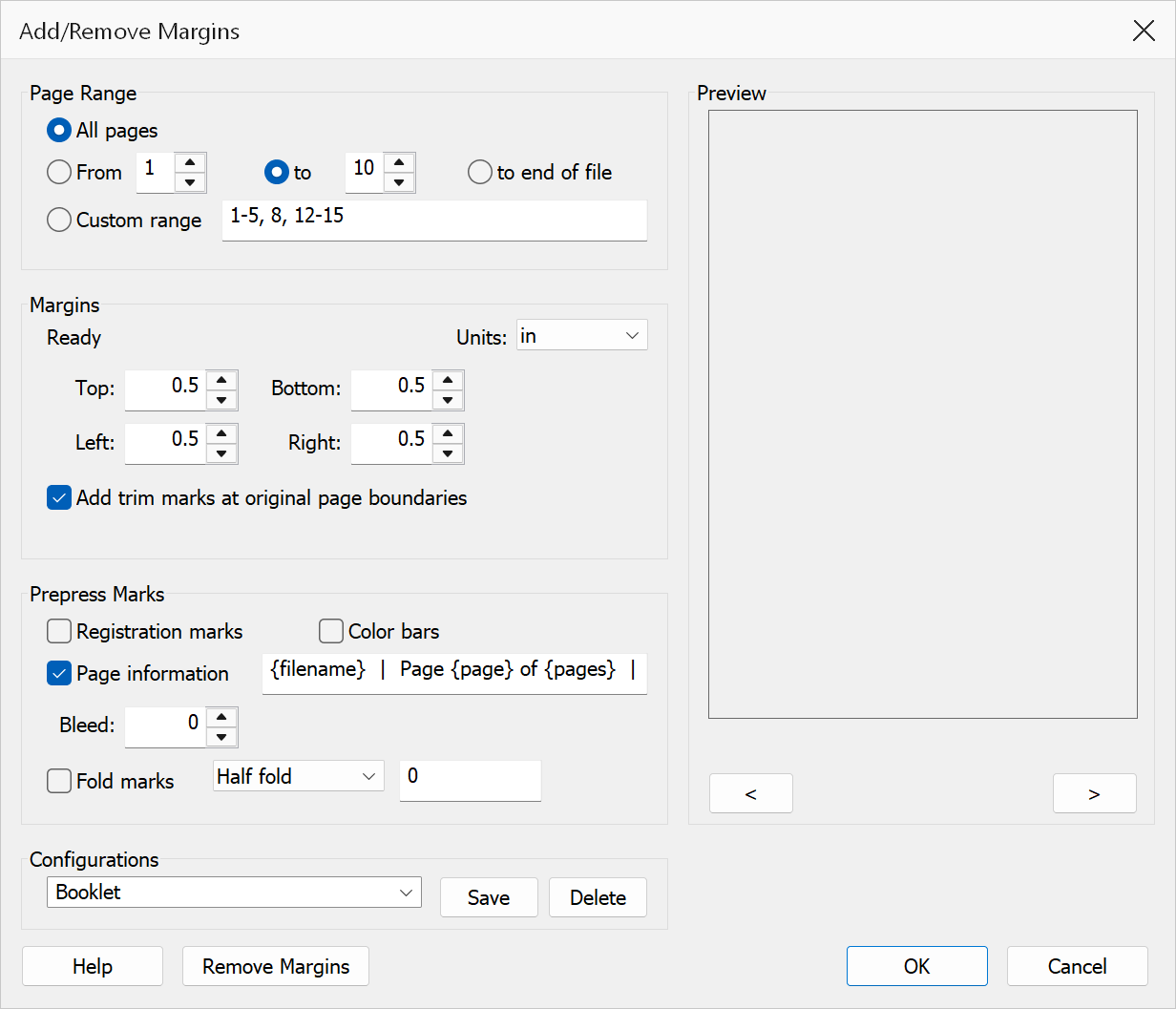
How to use
- Open a PDF document in Acrobat.
- Go to Plug-Ins > Pages > Add/Remove Margins.
- Select the page range to apply margins to.
- Choose your measurement unit (points, inches, or centimeters) and enter the desired margin sizes for each edge.
- Optionally enable prepress marks, bleed, or fold marks.
- Click OK to add margins, or Remove Margins to strip previously applied margins.
Page Range
| Option | Description |
|---|---|
| All pages | Apply margins to every page in the document. |
| From / To | Apply margins to a specific range of pages. Use the spin controls to adjust. |
| To end of file | Apply margins from the start page through the last page in the document. |
| Custom range | Enter a custom page range expression (e.g. 1-5, 8, 12-20). |
Margins
| Option | Description |
|---|---|
| Units | Choose between Points, Inches, or Centimeters. All margin and bleed values use the selected unit. |
| Top / Bottom / Left / Right | The amount of white space to add on each side of the page. The page size grows by the sum of the left + right margins horizontally and top + bottom margins vertically. Existing content is repositioned to sit within the new larger page. |
| Trim marks | Draws small crop marks at the corners of the original page boundary. These indicate where the paper should be cut after printing. |
Prepress Marks
| Option | Description |
|---|---|
| Registration marks | Adds circular registration targets in the margin area. These are used by commercial printers to align colour separations. |
| Color bars | Adds a row of colour swatches (cyan, magenta, yellow, black, red, green, blue, and grey steps) in the top margin. Printers use these to verify ink density and colour accuracy. |
| Page information | Prints a text line in the bottom margin containing the file name, page number, date,
and any custom text you enter in the adjacent field. Placeholders available:
%f (file name), %p (page number), %t (total
pages), %d (date), %c (custom text field). |
| Bleed | Sets the bleed distance (in the selected unit). When a bleed value greater than zero
is specified, two PDF page boxes are written to each page:
0, no TrimBox or BleedBox is written.
|
| Fold marks | Draws dashed fold lines at the top and bottom edges of the margin area. Choose a
fold type from the dropdown:
|
Removing margins
If margins were previously added using this dialog, the status line shows Margins previously applied and the Remove Margins button becomes enabled. Clicking it restores the original page dimensions by reversing the content shift, shrinking the MediaBox and CropBox, removing any TrimBox and BleedBox that were set, and stripping the stored margin metadata.
Tip
For commercial print jobs, a bleed of 3–5 mm (roughly 0.125 inches or 9 points) is standard. Check with your print provider for their specific bleed requirements.
Note
If a page already has margins applied, they are automatically removed and replaced when you add new margins. You do not need to remove existing margins first.
Warning
Only margins added by this plug-in can be removed. If the page size was changed by another tool, the Remove Margins button will not be available.
Preview
The Preview pane shows a real page from the open document with the current settings drawn on it, so the result can be checked before clicking OK.
The pane is not restricted to the first page. Step through the document with the < and > buttons beneath it, or roll the mouse wheel with the pointer over the pane; the caption below reads Page n of N. Pages in one document can differ in size, orientation and content, so it is worth checking several of them before applying a change to the whole file. The marks and margin area are drawn around the page itself, not a stand-in, so a trim mark that would cut through content is visible here.