Overview
Shift Page Content moves all content on selected pages horizontally and/or vertically by a specified distance. The page dimensions remain unchanged — only the content position shifts. This is useful for adjusting binding margins, correcting scanner misalignment, or repositioning content that is off-centre.
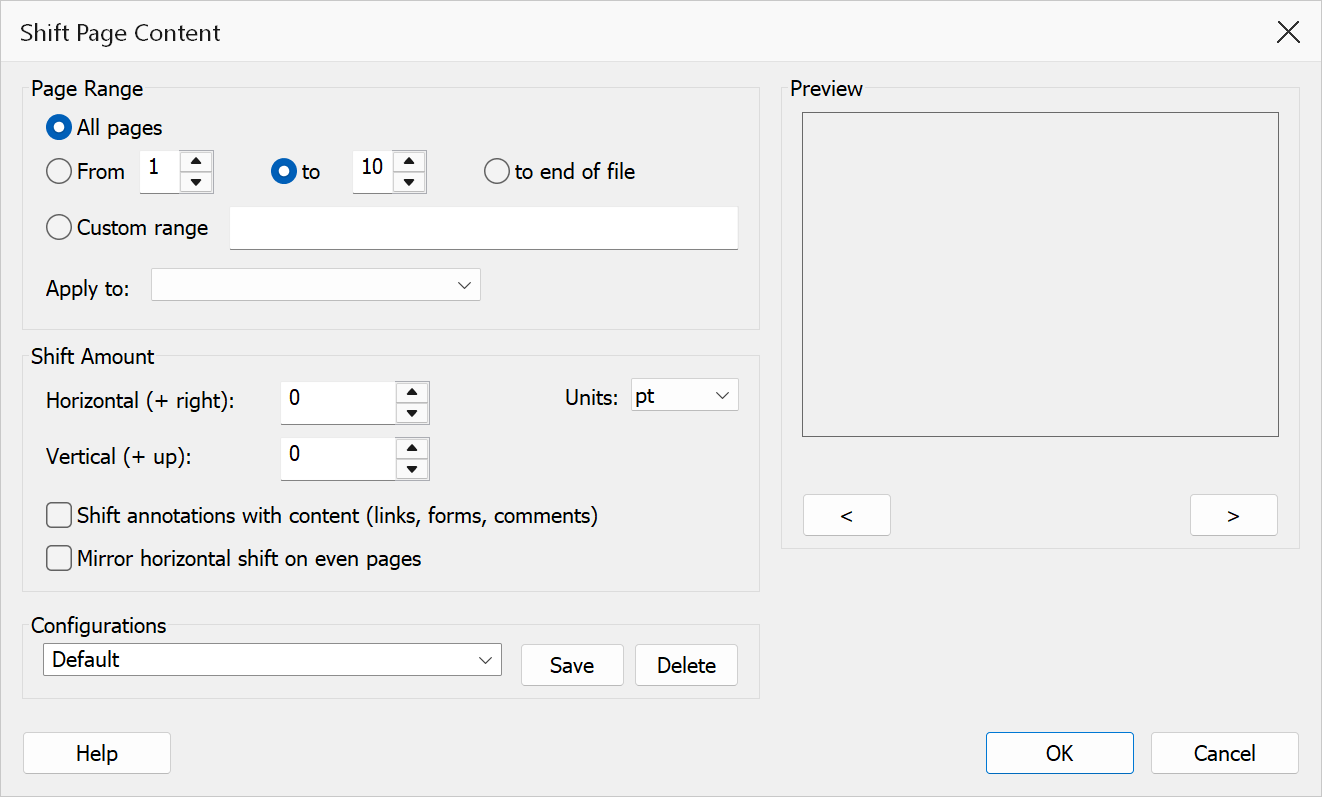
How to use
- Open a PDF document in Acrobat.
- Go to Plug-Ins > Pages > Shift Page Content.
- Select the page range to shift.
- Choose the measurement unit.
- Enter the horizontal and/or vertical shift amounts.
- Click OK to apply the shift.
Options
| Option | Description |
|---|---|
| Page range | The pages whose content should be shifted. Choose All pages,
specify a From / To range, or enter a Custom range
such as 1,3,7-9. |
| Apply to | Restricts the operation within the chosen range: All pages in range, Odd pages only, or Even pages only. |
| Units | Choose between Points, Inches,
Centimeters, or Millimeters. Changing the unit
converts the values already typed, so 36 pt becomes
0.50 in. |
| Horizontal shift | The distance to move content left or right. Positive values shift content to the right; negative values shift to the left. |
| Vertical shift | The distance to move content up or down. Positive values shift content upward; negative values shift downward. |
| Shift annotations with content | Moves links, form fields, comments and drawing markups together with the page content, so a link's hotspot stays on the text it belongs to. When unticked (the default), annotations keep their original positions. |
| Mirror horizontal shift on even pages | Applies the horizontal shift in the opposite direction on even-numbered pages: odd pages move one way, even pages the other. The vertical shift is never mirrored. |
Tip
To add a binding gutter in a single pass, enter the gutter width as a positive
horizontal shift (e.g. 0.5 inches) and tick
Mirror horizontal shift on even pages: odd pages move right, away from
the spine, and even pages move left. In double-sided printing the extra space lands on
the binding edge of every sheet.
Warning
Content shifted beyond the page boundary will be clipped and not visible. The underlying data is still present but will not print or display.
Preview
The Preview pane shows a real page from the open document with the current settings drawn on it, so the result can be checked before clicking OK.
The pane follows the page range: it always shows a page the shift will actually touch. Step through the selection with the < and > buttons beneath it, or roll the mouse wheel with the pointer over the pane; the caption below reads Page n of N. Changing the range, the custom list or the Apply to subset snaps the preview to the first selected page, and the navigation buttons stop at the ends of the selection rather than the ends of the document. If the range selects nothing — or the custom range cannot be read — the caption shows (no pages selected) and navigation is disabled.
With Mirror horizontal shift on even pages ticked, the pane also flips the horizontal direction when it is showing an even-numbered page, exactly as the operation will.