Overview
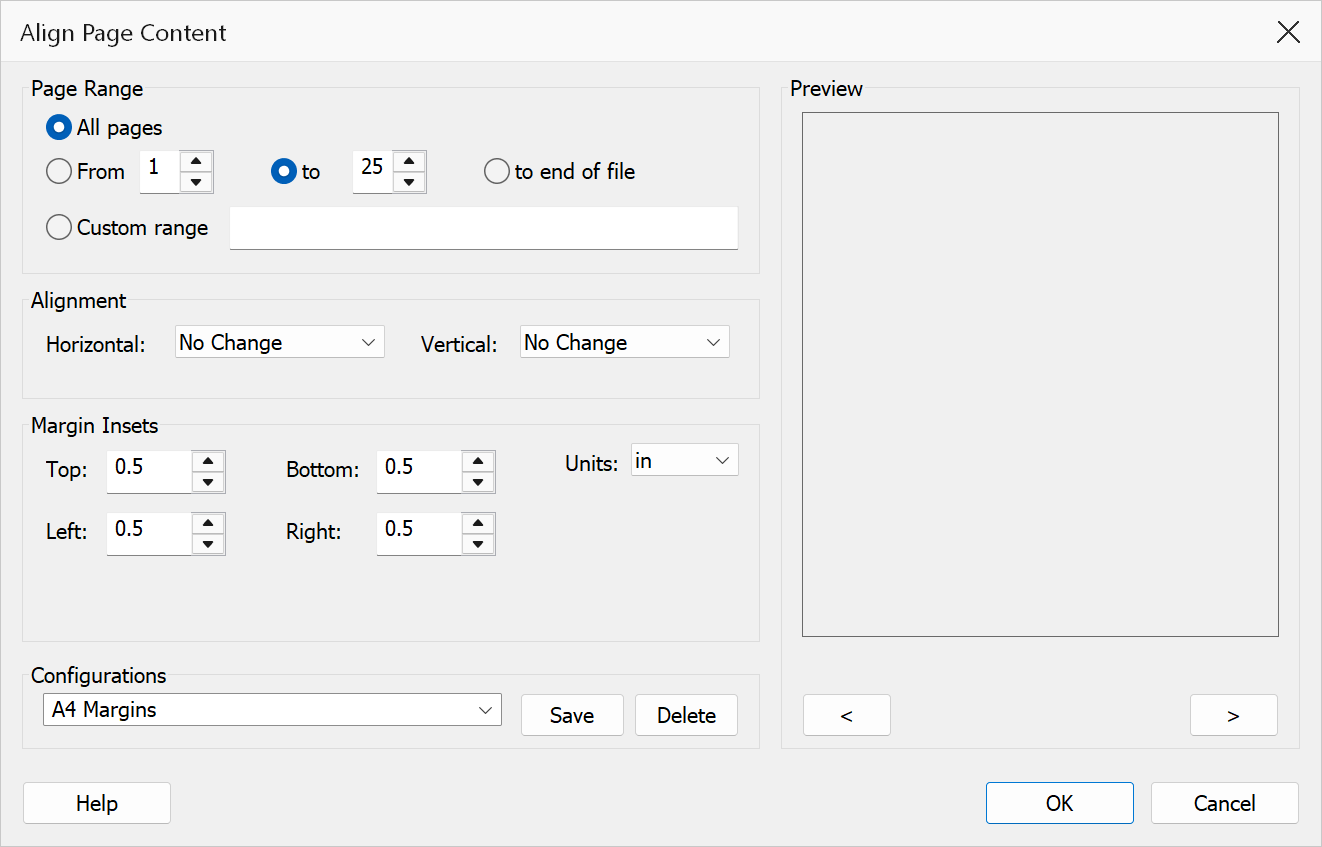
Align Page Content repositions existing page content (text, images, graphics) within the page boundaries. The plug-in computes the bounding box of all content on each page and translates it to achieve the desired horizontal and vertical alignment. This is useful for centring content on pages of varying sizes, or ensuring consistent positioning across a document.
How to use
- Open a PDF document in Acrobat.
- Go to Plug-Ins > Pages > Align Page Content.
- Select the page range to align.
- Choose the desired horizontal alignment.
- Choose the desired vertical alignment.
- Optionally set margin insets to keep content away from the page edges.
- Select the unit of measurement for the margin values.
- Click OK to apply the alignment.
Options
| Option | Description |
|---|---|
| Page range | The pages whose content should be aligned. Choose All pages or specify a From / To range. |
| Horizontal alignment | Choose No Change to leave horizontal position as-is, Left to align content to the left margin, Center to centre horizontally, or Right to align to the right margin. |
| Vertical alignment | Choose No Change to leave vertical position as-is, Top to align content to the top margin, Center to centre vertically, or Bottom to align to the bottom margin. |
| Margin insets | Set Top, Bottom, Left, and Right margins to define the area within which content is aligned. Content will not be placed closer to the page edge than these values. |
| Units | Choose between Points, Inches, or Centimeters for margin values. |
Tip
To centre all content on every page, set both horizontal and vertical alignment to Center with all margins set to zero.
Note
Alignment is computed from the bounding box of all visible content on each page. Pages with different content layouts will each be aligned independently based on their own bounding box.
Preview
The Preview pane shows a real page from the open document with the current settings drawn on it, so the result can be checked before clicking OK.
The pane is not restricted to the first page. Step through the document with the < and > buttons beneath it, or roll the mouse wheel with the pointer over the pane; the caption below reads Page n of N. Pages in one document can differ in size, orientation and content, so it is worth checking several of them before applying a change to the whole file.