Overview
Fit Content to Margins scales and repositions page content so that it fits within specified margins. The plug-in computes the bounding box of all content on each page, then applies a combined scale and translate transform to fill the target margin area. This is ideal for normalising content placement across pages with inconsistent layouts or for ensuring content fills the printable area.
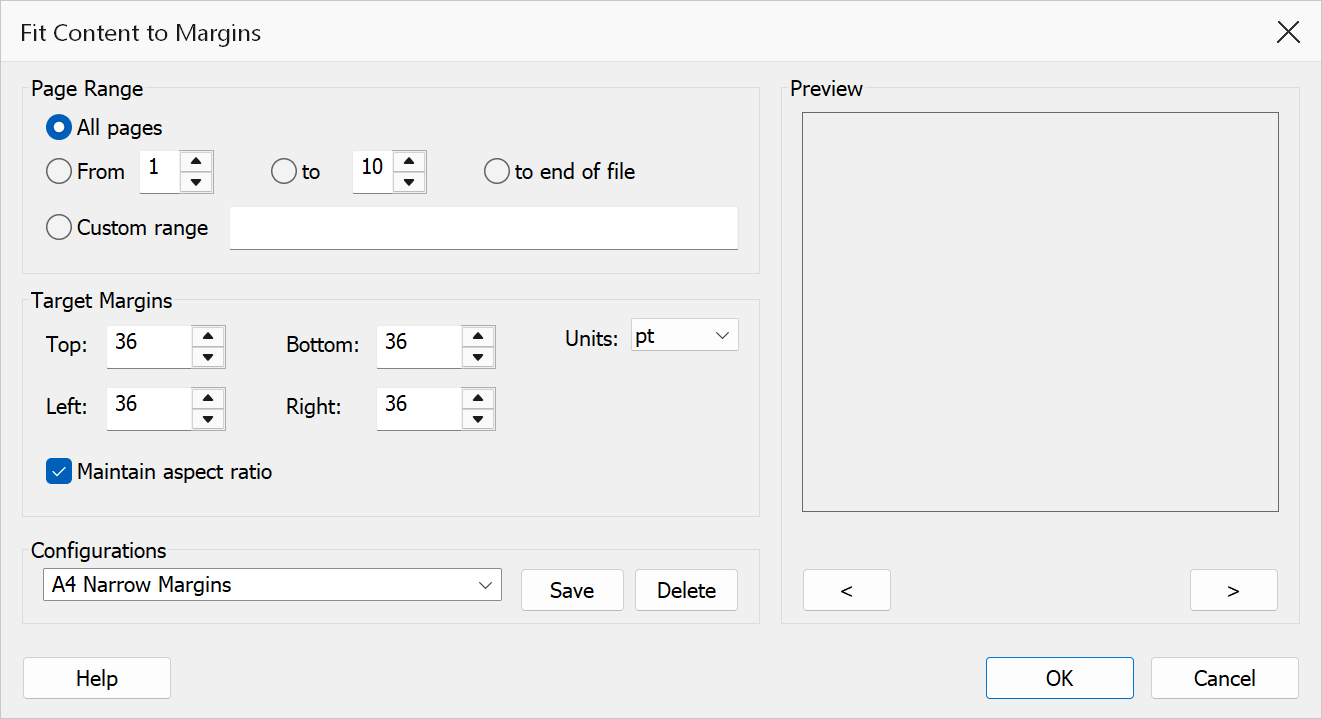
How to use
- Open a PDF document in Acrobat.
- Go to Plug-Ins > Pages > Fit Content to Margins.
- Select the page range to process.
- Enter the target margins (top, bottom, left, right).
- Select the unit of measurement.
- Choose whether to maintain the aspect ratio.
- Click OK to apply the transformation.
Options
| Option | Description |
|---|---|
| Page range | The pages whose content should be fitted. Choose All pages or specify a From / To range. |
| Top margin | The minimum distance between the top of the page and the content. |
| Bottom margin | The minimum distance between the bottom of the page and the content. |
| Left margin | The minimum distance between the left edge of the page and the content. |
| Right margin | The minimum distance between the right edge of the page and the content. |
| Units | Choose between Points, Inches, or Centimeters for margin values. |
| Maintain aspect ratio | When checked, the content is scaled uniformly so that proportions are preserved. When unchecked, the content may be stretched to fill the margin area exactly. |
Tip
Enable Maintain aspect ratio to prevent text and images from appearing distorted. The content will be scaled to fit within the margins while preserving its original proportions.
Warning
This operation modifies the page content stream. Very small margins on pages with large content may result in significant downscaling, which can reduce text legibility.
Preview
The Preview pane shows a real page from the open document with the current settings drawn on it, so the result can be checked before clicking OK.
The pane is not restricted to the first page. Step through the document with the < and > buttons beneath it, or roll the mouse wheel with the pointer over the pane; the caption below reads Page n of N. Pages in one document can differ in size, orientation and content, so it is worth checking several of them before applying a change to the whole file.