Overview
Create Page Labels applies PDF page labels to selected pages. You can choose the target pages, filter by page type, set a prefix, pick a numbering style, and define the starting number. A live preview shows the labels that will be generated.
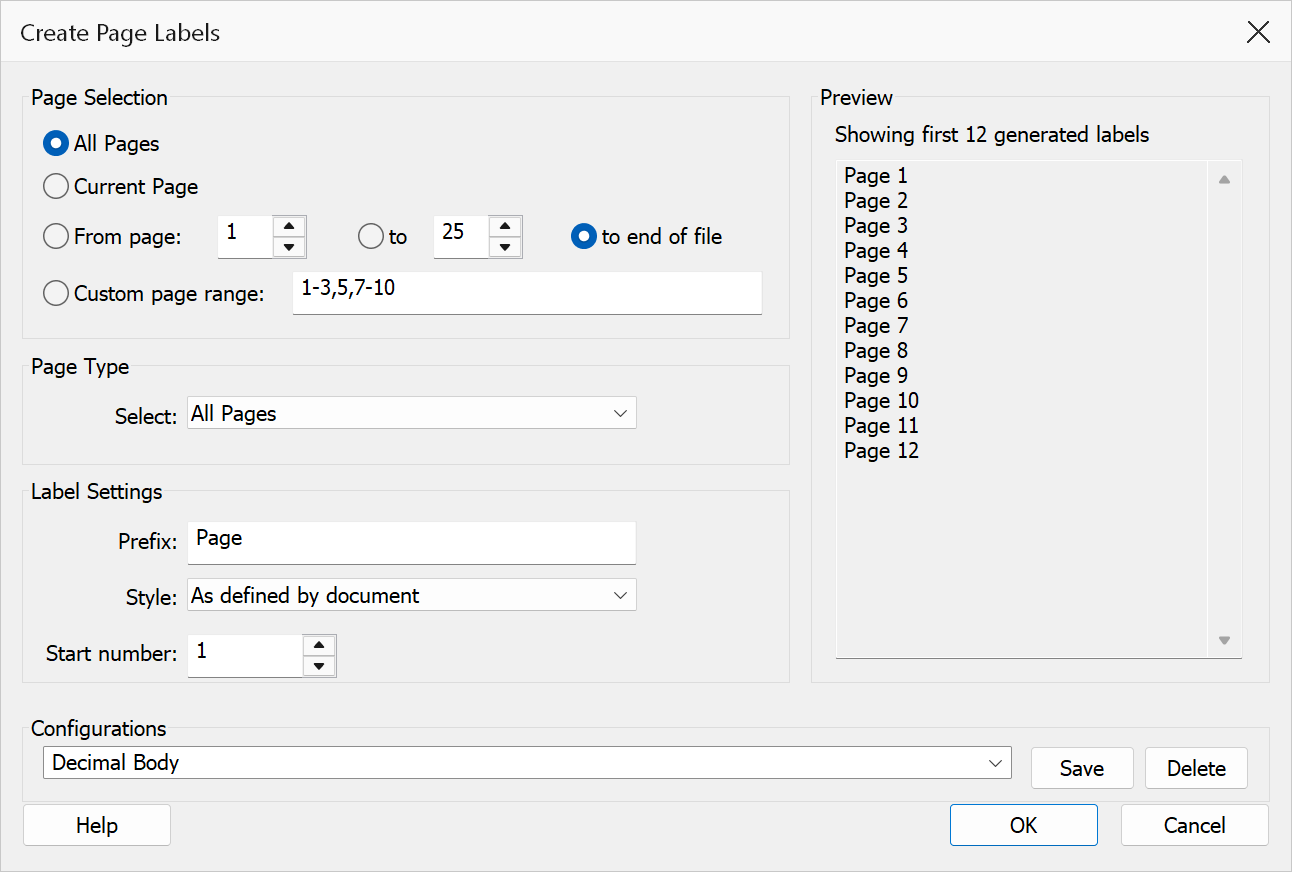
How to use
- Open the PDF and go to Plug-Ins > Page Labels > Create Page Labels.
- Select the target pages using the page selection options.
- Optionally filter by page type (all, even, or odd pages).
- Enter an optional prefix, choose a numbering style, and set the start number.
- Review the live preview, then click OK to apply the labels.
Page selection
| Option | Description |
|---|---|
| All pages | Applies labels to every page in the document. |
| Current page | Applies labels only to the page currently displayed in Acrobat. |
| From page / To | Applies labels to a contiguous range. The “To” field accepts a page number or “End of File”. |
| Custom page range | Enter comma-separated pages or ranges, e.g. 1-3,5,10-12. |
| Page type | Filter the selected pages to All Pages, Even Pages, or Odd Pages. |
Label settings
| Option | Description |
|---|---|
| Prefix | Optional text placed before the number portion of each label. |
| Style |
As defined by document — reuses each page's existing label
style. Decimal — 1, 2, 3Upper Roman — I, II, IIILower Roman — i, ii, iiiUpper Alphabetic — A, B, CLower Alphabetic — a, b, cNo numbers — uses the prefix text only. |
| Start number | The starting value for the label sequence. Must be greater than zero unless No numbers is selected. |
| Preview | A live preview area that updates as you change settings, showing the first several labels that will be generated. |
Note
Applying labels overwrites any existing page labels on the selected pages. When As defined by document is chosen, pages without an existing style default to decimal numbering.
Tip
Use Lower Roman style for front matter (preface, table of contents) and Decimal for the main body to match traditional book numbering.