Overview
Update Page Labels from Margins detects page numbers printed in the margins of each page and converts them into PDF page labels. It is designed for scanned or typeset PDFs where the visible numbering differs from the internal PDF page index.
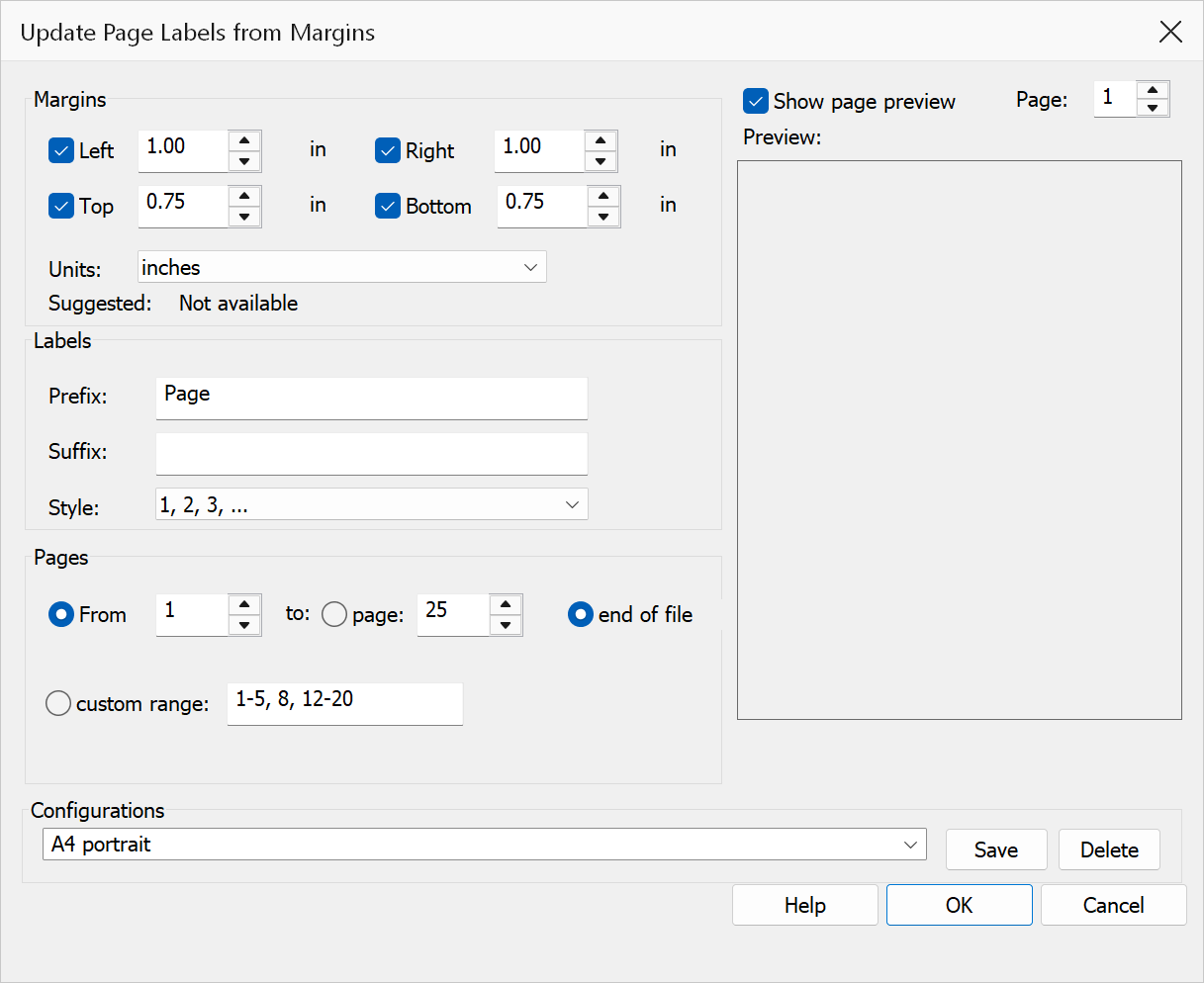
How to use
- Open the PDF and go to Plug-Ins > Page Labels > Update Page Labels from Margins.
- Select which margins to search (left, right, top, bottom) using the checkboxes.
- Set the margin values in the chosen unit (inches, centimetres, or points).
- Optionally enable the page preview and adjust margin guides by dragging them directly on the preview.
- Choose the label style, prefix, and suffix.
- Set the page range and click OK.
Margin settings
| Option | Description |
|---|---|
| Left / Right / Top / Bottom | Check to include a margin in the search area. When a margin is unchecked, its value fields and spin controls are disabled. At least one margin must be selected. |
| Margin values | Numeric values defining how far from the page edge to search. Adjustable via spin controls or by typing directly. |
| Units | Choose inches, centimetres, or points. Changing units converts existing values automatically. The default is based on your Windows locale setting. |
Page preview
When Show page preview is checked, a visual representation of the current page is displayed with red margin guide lines. You can:
- Drag the margin lines directly to adjust margin values interactively.
- Use the page spinner to preview different pages in the document.
- Hatched areas indicate the margins being searched.
Label settings
| Option | Description |
|---|---|
| Style |
As defined by document — keeps the style each number was
detected in, so roman front matter stays roman and decimal body pages stay
decimal. Decimal — 1, 2, 3Upper Roman — I, II, IIILower Roman — i, ii, iiiUpper Alphabetic — A, B, CLower Alphabetic — a, b, cChoosing an explicit style converts every detected number to that style (a detected 5 becomes V under Upper Roman).No numbers — uses prefix/suffix text only. |
| Prefix | Optional fixed text placed before the detected number. |
| Suffix | Optional fixed text placed after the detected number. |
Page range
| Option | Description |
|---|---|
| From page / To end of file | Process pages from the start page through the last page of the document. |
| From page / To page | Process pages within a specific contiguous range. |
| Custom page range | Enter comma-separated pages or ranges, e.g. 1-5,10,15-20. |
Tip
Use the interactive preview to visually confirm that your margin settings capture the printed page numbers. Drag the guide lines until the hatched area covers only the margin region containing the numbers.
Note
OCR is required for scanned pages without selectable text. The tool updates PDF page labels, which affects page thumbnails, the navigation bar, and bookmark page references. If margin suggestions are available from the document, they are displayed automatically.
How numbers are detected
The command recognises decimal numbers (Western, fullwidth CJK, Arabic-Indic and Devanagari digits), canonical roman numerals, and one- or two-letter alphabetic numbering. It searches the margin that reads most like a page-number sequence and trusts numbers that count on from page to page — a stray number that fits no sequence, such as an issue number or year on a title page, is ignored when the rest of the document counts on. Running the command again with the same settings leaves matching labels untouched and reports that nothing needed to change.