Overview
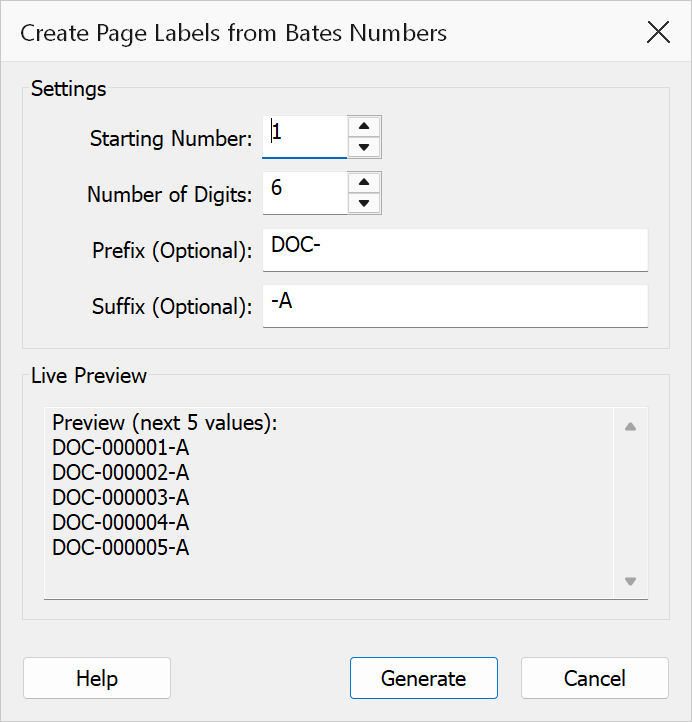
Create Page Labels from Bates Numbers assigns PDF page labels based on Bates numbering settings. This is useful when you want the page label panel and navigation controls to display Bates-style numbering instead of (or in addition to) standard page numbers.
How to use
- Open the PDF that needs Bates-style page labels.
- Go to Plug-Ins > Page Labels > Create Page Labels from Bates Numbers.
- Enter the start number, number of digits, prefix, and suffix.
- Review the live preview showing the next five generated values.
- Click OK to apply labels to all pages in the document.
Options
| Option | Description |
|---|---|
| Start number | The starting Bates value for the first page. Must be 1 or greater. Use the spin control to adjust (range: 1 to 99,999). |
| Number of digits | The total width of the numeric portion. Numbers shorter than this width are padded
with leading zeros (e.g. 6 digits produces 000001). Valid range: 1
to 12. |
| Prefix | Optional text placed before the number (e.g. ABC-). |
| Suffix | Optional text placed after the number (e.g. -CONF). |
| Preview | A live preview area that shows the next five Bates numbers based on the current settings. The preview updates automatically as you type. |
Example
With a start number of 1, 6 digits, and prefix ABC-, the
first three page labels become:
ABC-000001ABC-000002ABC-000003
Note
Existing page labels are replaced by the new Bates sequence across all pages in the document.
Tip
Use a consistent digit width (e.g. 6 or 8 digits) to ensure Bates numbers sort correctly in alphabetical listings.