Overview
Create Bookmarks From Text File imports a plain-text file and creates PDF bookmarks from its contents. Each line in the file becomes a bookmark: the tool takes the title and the page it points at from the line, and builds a nested tree from leading tab characters.
How to use
- Open the PDF that will receive the bookmarks.
- Go to Plug-Ins > Bookmarks > Create Bookmarks From Text File.
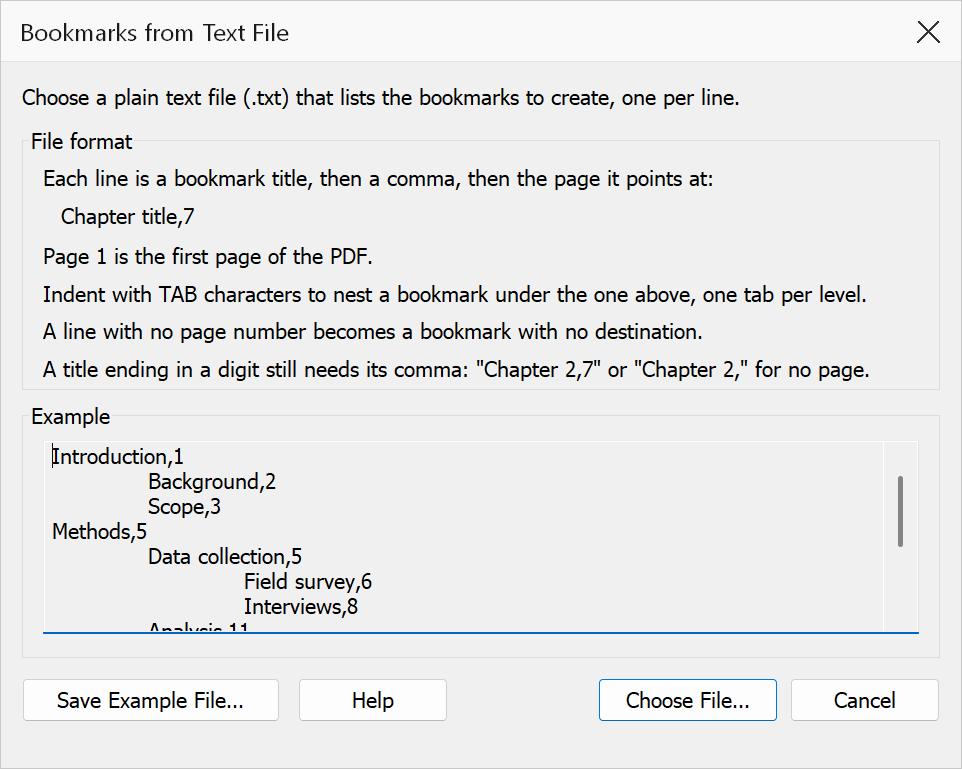
- Read the format summary that appears. Save Example File… writes out the worked example shown there, which you can edit and use as a starting point.
- Click Choose File…, select your
.txtfile and click Open. - The tool reads the file line by line and creates bookmarks immediately.
File format
Each line uses the format:
Title,page
The page number is read from the digits at the end of the line, and the comma before it is stripped from the title. Page 1 is the first page of the PDF. Indented lines below start with real TAB characters:
Introduction,1
	Background,2
	Scope,3
Methods,5
	Data collection,5
		Field survey,6
	Analysis,11
Appendix A,42
Annex 2,
Hierarchy with tabs
Leading tab characters control the nesting level of each bookmark. Lines with no tabs are created at the top level. Each additional leading tab indents the bookmark one level deeper under the previous parent. This lets you build a multi-level bookmark tree from a single text file.
Titles that end in a number
Because the page number is taken from the digits at the end of the line, a title that itself ends in a digit needs the comma to separate them:
| Line | Result |
|---|---|
Chapter 2,7 |
Bookmark “Chapter 2” pointing at page 7. Correct. |
Chapter 2, |
Bookmark “Chapter 2” with no destination. The trailing comma is what protects the digit. |
Chapter 2 |
Bookmark “Chapter” pointing at page 2 — almost certainly not what you wanted. Add the comma. |
Tip
Use a spreadsheet or text editor to prepare the file. Export as tab-delimited text to preserve the hierarchy, and append the page number after a comma at the end of each line. Only the destination page is supported — a line ending in a URL or a file path creates a bookmark with no destination.
Note
Page numbers are 1-based — page 1 is the first page of the PDF. A
page number beyond the end of the document is ignored, and the bookmark is created
without a destination rather than pointing somewhere invalid. Lines with no trailing
number are created as bookmarks with no destination.