Overview
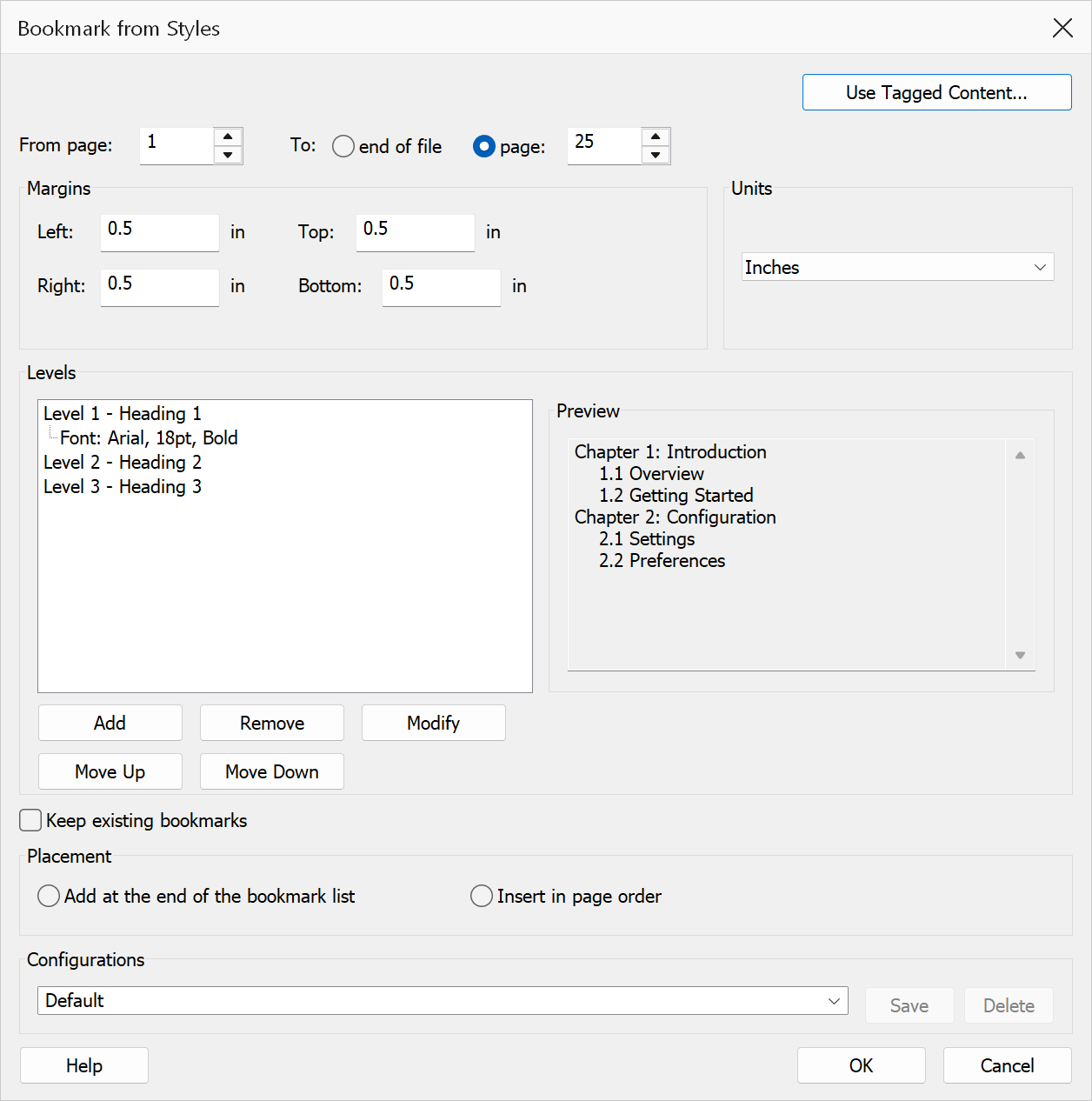
Bookmark By Styles creates bookmarks by scanning the PDF for text that matches specific font names and sizes. You define one or more levels, each with its own font criteria and output formatting. The tool walks through the specified page range, finds matching text, and builds a hierarchical bookmark tree.
This is the primary method for automatically generating bookmarks from a well-formatted PDF where headings use consistent fonts and sizes.
Tagged PDFs
A text style is only a proxy for structure: “18pt bold” means heading right up until the author changes the template, and it says nothing at all when two different kinds of text share a font. A tagged PDF carries its structure explicitly, so the document itself says which text is a heading and at what level.
The dialog therefore checks for tagging as it opens, and reports what it found on the line at the top:
- Tagged, with headings — the notice counts them and names the tags. Use Tagged Content… switches to Bookmarks from Tagged Content, which is usually the better route.
- Tagged, but no standard heading tags — the tag route is still open; its dialog lets you pick whichever tag marks your headings.
- Not tagged — the notice says so and the button is disabled. Styles are the only option, which is what this dialog does.
Note
Cancelling the tagged-content dialog brings you straight back here with everything as you left it, so trying the other route costs nothing.
How to use
- Open the PDF you want to bookmark.
- Go to Plug-Ins > Bookmarks > Bookmark By Styles.
- Set the From page and To page (or choose To end of file) to define the scan range.
- Set margin values to restrict the scan area (optional).
- Choose a Placement option to say whether the new bookmarks are added at the end of the existing list or inserted in page order.
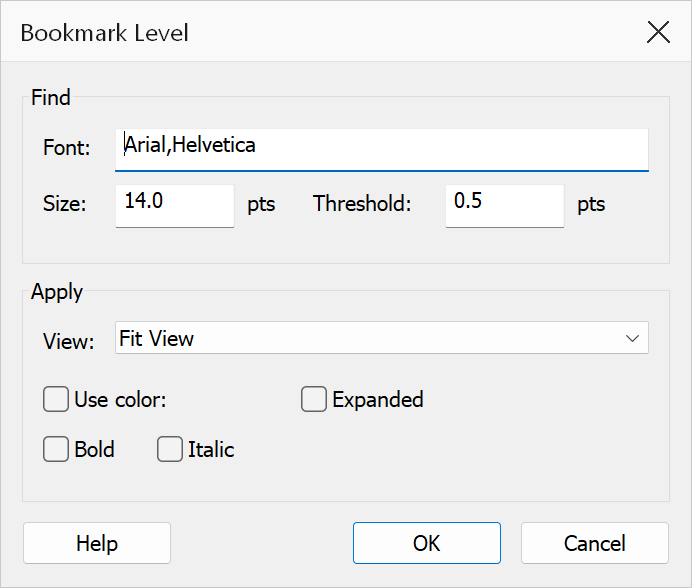
- Click Add to create a bookmark level. Configure the font name, font size, and threshold for each level.
- Set the output formatting for each level: view type, color, bold/italic, and expanded state.
- Repeat for additional heading levels as needed.
- Click OK to generate the bookmarks.
Page range
| Option | Description |
|---|---|
| From page | The first page to scan (1-based). |
| To end of file | Scans from the start page through to the last page of the document. |
| To page | Scans up to and including this page number. |
Level settings
| Setting | Description |
|---|---|
| Font name | The PDF font name to match. Multiple font names can be specified. |
| Font size | The point size to match. |
| Threshold | Allowed deviation from the specified font size. Increase this to accommodate minor size variations in the PDF. |
| Prefixes / Suffixes | Optional text to strip from the beginning or end of matched bookmark titles. |
| View type | The PDF view destination type assigned to the bookmark (e.g. Fit Page, Fit Width). |
| Color | Sets the bookmark text color in the bookmarks panel. |
| Bold / Italic | Sets the bookmark text style. |
| Expanded | When checked, the bookmark node is expanded by default in the bookmarks panel. |
Managing levels
| Button | Description |
|---|---|
| Add | Creates a new bookmark level with the current settings. |
| Modify | Updates the selected level with new settings. |
| Remove | Deletes the selected level from the list. |
| Move Up / Move Down | Reorders levels in the tree. Levels are processed top to bottom, so the order determines the bookmark hierarchy. |
Placement
Controls where the generated bookmarks are attached to the existing bookmark tree. This only applies while Keep existing bookmarks is checked — with it cleared there are no existing bookmarks to position against, and the options are greyed out.
| Option | Description |
|---|---|
| Add at the end of the bookmark list | Appends every generated top-level bookmark after all existing bookmarks, whatever page it points at. This is the default and matches how earlier versions behaved. |
| Insert in page order | Places each generated top-level bookmark next to the existing bookmark nearest its page, so the list stays in page order. Use this when you have inserted pages into a document that is already bookmarked, or when a range of pages needs a different set of level settings: run the tool over just that page range and the new bookmarks land at their page position instead of at the bottom of the list. |
Existing bookmarks that do not point at a page — web links, JavaScript actions, or unresolved named destinations — carry no page position, so they are not used as insertion points and keep their place in the list.
Additional options
| Option | Description |
|---|---|
| Margins | Define left, right, top, and bottom margins to restrict the scan area on each page. Text outside the margins is ignored. |
| Units | Choose between inches, centimetres, and points for margin input. |
| Configurations | Save and load named configurations using the dropdown at the top of the dialog. Click Save to store the current levels and settings, or select an existing configuration to restore it. |
| Keep existing bookmarks | When checked, the current bookmark tree is preserved and new bookmarks are added alongside it. When unchecked, existing bookmarks are removed before creating new ones. |
Tip
Select some heading text in the document before opening the dialog. The tool can read the font name and size from the selection to help you configure the first level quickly.
Tip
Start with the largest heading size (e.g. chapter titles) as Level 1, then add progressively smaller sizes for sub-headings. If headings vary slightly in size, increase the Threshold value to catch near-matches.
Warning
Clearing Keep existing bookmarks removes all current bookmarks before generating new ones. This cannot be undone.