Overview
Create Links from Dictionary scans the selected pages and creates link
annotations using entries from a dictionary file (.ald). Each dictionary
entry maps source text to a destination URL, page, or named destination.
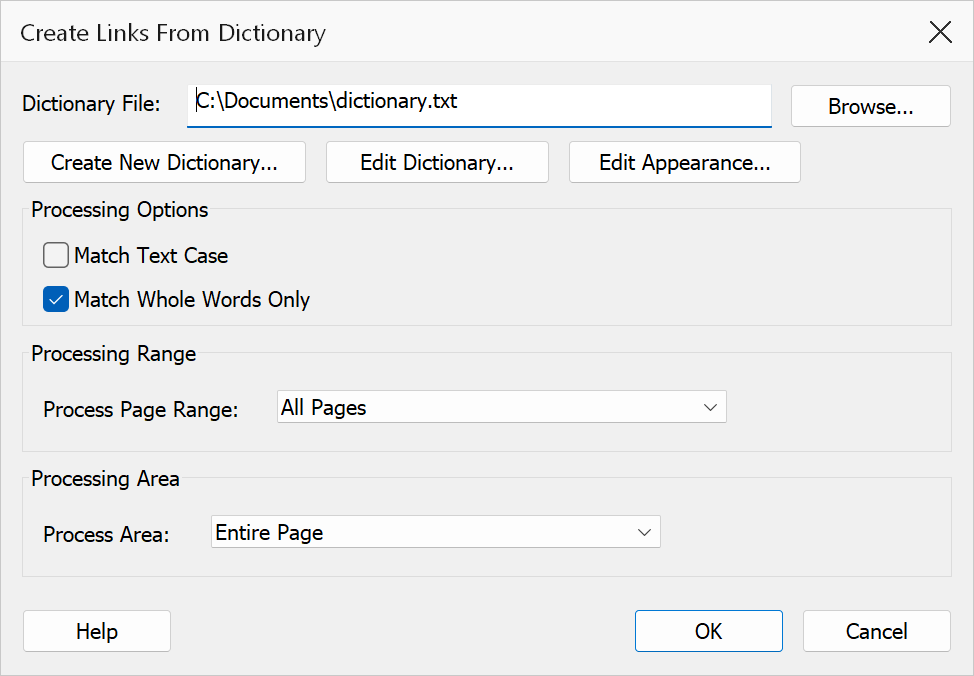
How to use
- Open a PDF in Acrobat.
- Go to Plug-Ins > Links > Create Links from Dictionary.
- Browse for an existing
.alddictionary file, or click Create New Dictionary to build one. - Configure the matching options and page range.
- Optionally click Edit Appearance to customise how the created links look.
- Click OK to generate the links.
Dictionary options
| Option | Description |
|---|---|
| Dictionary file | Path to the .ald file that contains link definitions. Use the
Browse button to select a file. |
| Create New Dictionary | Opens a wizard to build a new dictionary file from scratch. |
| Edit Dictionary | Opens the currently selected dictionary for editing. |
Processing options
| Option | Description |
|---|---|
| Match text case | Only match text when the letter case is identical to the dictionary entry. |
| Match whole words only | Prevents partial matches inside longer words. |
| Page range | Limits link creation to a subset of pages selected from a dropdown. |
| Processing area | Choose whether to scan the page content, annotations, or both. |
| Edit Appearance | Opens the Link Appearance dialog so you can customise the visual style of the created links. |
Tip
Create a single dictionary file for your organisation and reuse it across multiple documents to maintain consistent cross-referencing links.
Note
The dictionary file uses the .ald extension. Each entry in the file maps
a search term to its link destination and action type.