Overview
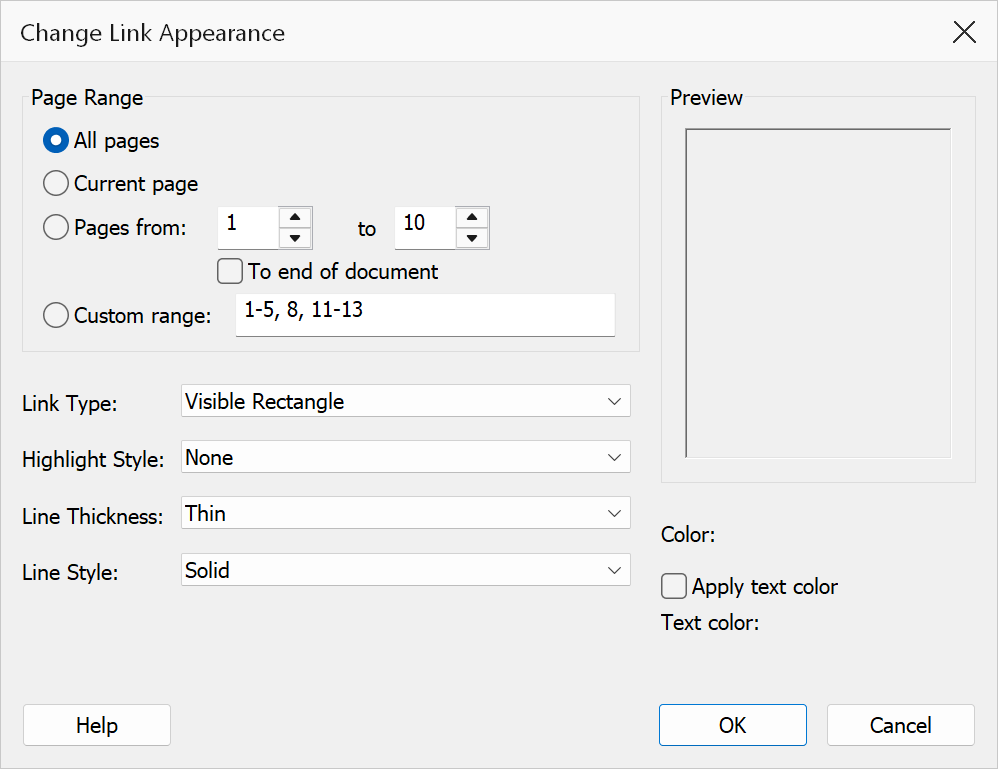
Select Link Appearance defines how link annotations look on the page, including their outline style, highlight behaviour, colour, and optional text colour. You can also specify which pages the appearance settings apply to.
How to use
- Open the Link Appearance dialog from a link creation feature (e.g. Create Links from Dictionary) or from the menu.
- Choose the page range to apply the appearance.
- Set the link type, highlight style, line thickness, line style, and colour.
- Optionally enable Apply text colour and pick a text colour.
- Review the live preview panel, then click OK to apply.
Link appearance options
| Option | Description |
|---|---|
| Link type |
Visible Rectangle — draws a coloured border around the link. Invisible Rectangle — the link area is clickable but has no visible border. Line thickness, style, and colour controls are disabled. |
| Highlight style | Controls the visual feedback when a link is clicked: None, Inverted, Outline, or Inset. |
| Line thickness | Thin, Medium, or Thick. Disabled when the link type is Invisible Rectangle. |
| Line style | Solid, Dashed, or Underline. Disabled when the link type is Invisible Rectangle. |
| Colour | Opens a colour picker to set the border/stroke colour for visible links. |
| Apply text colour | When checked, a separate text colour is applied to the words within the link area. |
| Text colour | Opens a colour picker for the link text colour. Only available when Apply text colour is checked. |
Page range
| Option | Description |
|---|---|
| All pages | Applies the link appearance to every page in the document. |
| Current page | Applies the link appearance to the active page only. The option label shows which page that is, and how many pages the document has. |
| Pages from ... to ... | Applies the appearance to one block of consecutive pages. Both page numbers are included in the range and both are 1‑based, so page 1 is the first page of the document. |
| To end of document | Available when Pages from is selected. Ignores the end page and continues from the start page through to the last page of the document. |
| Custom range | Enter comma-separated pages or ranges, for example 1-3, 7, 10-12.
Only digits, commas, and hyphens are allowed. |
Page numbers must be between 1 and the number of pages in the document; the dialog reports any value that falls outside that range when you choose OK.
Tip
The dialog includes a live preview panel that updates as you change settings, making it easy to compare different appearance combinations before committing.
Note
When Invisible Rectangle is selected, line thickness, line style, and the border colour picker are disabled because invisible links have no visible border.