Overview
Delete Links removes link annotations from the current page or from a specified page range in the active PDF document.
How to use
- Open a PDF that contains link annotations.
- Go to Plug-Ins > Links > Delete Links.
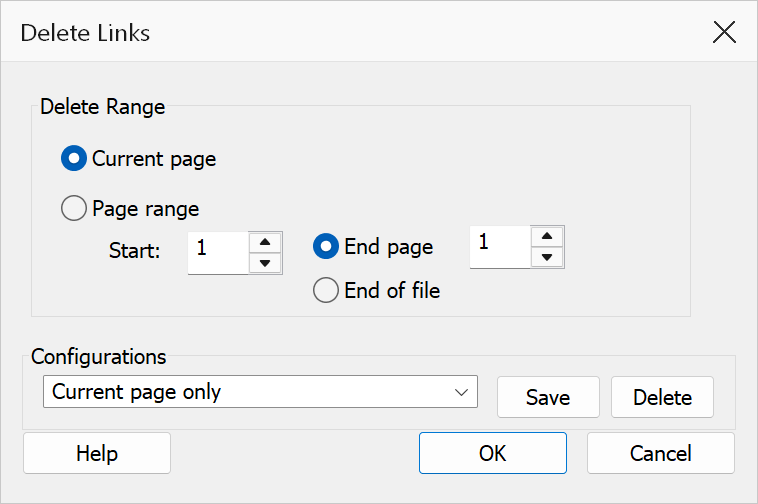
- Select Current page or Page range.
- If using a page range, enter the start page and choose an end-page option.
- Click OK. A confirmation appears reporting how many links were found in the selected pages.
- Click Yes to delete them, or No to leave the document unchanged.
Confirmation
OK does not delete anything on its own — it only applies the page scope you chose. The command then counts the link annotations in those pages and asks you to confirm, quoting the exact number and page range, for example “Delete 58 links from pages 1 to 12?”. Nothing is modified until you answer Yes; No is the default button.
If no links are found in the selected pages, the command reports that and stops without changing the document.
After deleting, a summary reports how many links were removed. Automatically detected web links on those pages are removed as well as ordinary link annotations.
Scope options
| Option | Description |
|---|---|
| Current page | Deletes link annotations only on the page currently displayed in Acrobat. |
| Page range | Deletes link annotations across multiple pages. When selected, the start page, end-page, and end-of-file controls become available. |
Page range settings
| Option | Description |
|---|---|
| Start page | The first page in the deletion range (1-based). Must be between 1 and the total page count. |
| To page | Specify a particular end page for the range. Must be greater than or equal to the start page. |
| To end of file | Extends the deletion range from the start page through the last page of the document. |
Warning
Deleting links cannot be undone in the current session. If you confirm by mistake, close the document without saving to discard the change. Save a backup copy of your document before proceeding if you may need the links later.
Tip
To delete links from the entire document, choose Page range, set the
start page to 1, and select To end of file.