Overview
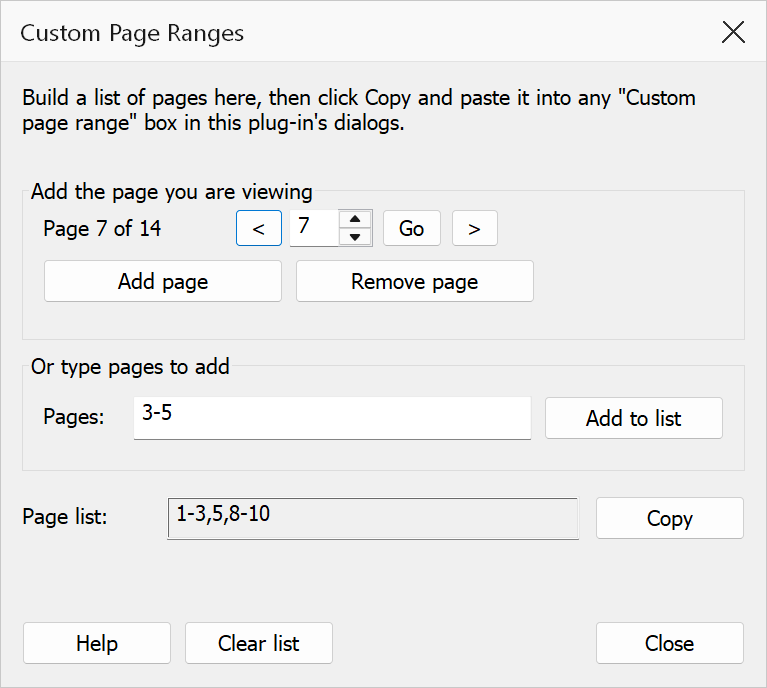
The Custom Page Ranges palette builds a list of pages, then you click
Copy and paste the result into any “Custom page range”
box in this plug-in's dialogs. It is a modeless (stay-on-top) dialog: navigate through
your PDF and add or remove pages interactively, or type pages directly, and the palette
keeps a combined page list such as 3,5-7,9,11-14 up to date.
How to use
- Open a PDF in Acrobat.
- Open the Custom Page Ranges palette from the menu.
- Navigate to a page in Acrobat, then click Add page N (the button always shows the page you are viewing) to include it in the list.
- Click Remove page N to take the page you are viewing out of the list.
- Optionally type pages in the Pages box — a single page
(
5), a range (3-5or3..5) or a comma-separated list (3,5-7,9) — and click Add to list or press Enter. - Click Copy to place the page list on the clipboard.
- Paste the list into any dialog that accepts a custom page range. Use Clear list to start again.
Controls
| Control | Description |
|---|---|
| Add page N / Remove page N | Add or remove the page you are viewing in Acrobat. The buttons update as you navigate, so they always name the page they act on. If the page is already in the list (or not in it), a message appears below the page list. |
| Pages / Add to list | Type pages to add: a single page (5), a range (3-5 or
3..5), a comma-separated list (3,5-7,9), or
-14 to extend from the last added page. Pressing
Enter in the box also adds them. The box accepts exactly what
the Page list field shows, so a copied list can be pasted back in. |
| Page list | Read-only field showing the combined result. Pages are kept sorted, duplicates
are dropped, and consecutive pages collapse into ranges (e.g. 5,6,7
becomes 5-7). |
| Copy | Copies the page list to the Windows clipboard, ready to paste into a “Custom page range” box in another dialog. |
| Clear list | Empties the page list so you can start again. |
| Page status | Displays the current page and total pages (e.g. “Page 5 of 20”). Updates automatically every 250 ms. |
| Navigation (< / > / Go) | Quick page navigation controls. Enter or spin a page number and click Go, or use </> to step through pages one at a time. |
Tip
The palette remains open while you work in Acrobat — pressing Enter never closes it (Esc or Close does). Status and validation messages appear inline below the page list instead of as pop-ups, and clear themselves after a few seconds.
Note
The palette tracks the active Acrobat document. If you switch documents, the page status display updates accordingly, but the accumulated page list is preserved. The list is discarded when the palette closes, so Copy it first.