Overview
Reverse Pages flips the order of pages within a selected range of the current PDF. Use it to reverse an entire document or just a subset of pages while preserving all other pages outside the range.
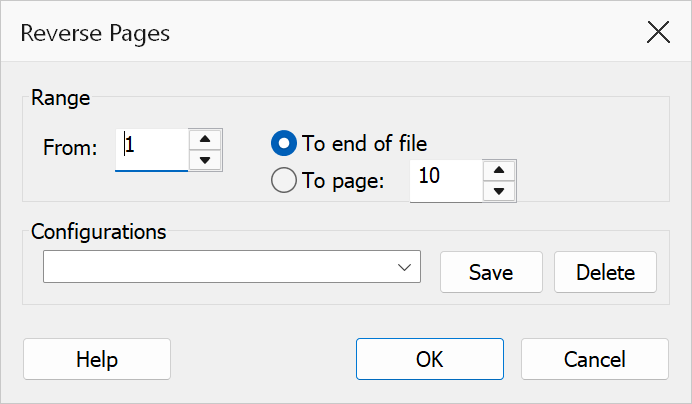
How to use
- Open a PDF document in Acrobat.
- Go to Plug-Ins > Pages > Reverse Pages.
- Enter the starting page number in the From field.
- Select To end of file to reverse through the last page, or select To page and enter a specific end page number.
- Click OK to reverse the selected range.
Dialog options
| Option | Description |
|---|---|
| From | The first page number in the range to reverse (1-based). Defaults to 1. Use the spin control to adjust the value. |
| To end of file | Reverses pages from the start page through the last page in the document. |
| To page | Reverses pages from the start page to the specified end page. The end page must be greater than or equal to the start page. |
| To | The last page number in the range (enabled when To page is selected). Defaults to the total page count. Use the spin control to adjust. |
Examples
| Scenario | Settings |
|---|---|
| Reverse the entire document | Set From to 1 and choose
To end of file. |
| Reverse a chapter (pages 25–48) | Set From to 25, choose To page,
and enter 48. |
Note
Page numbers must be greater than zero and within the document page count. The start page cannot be greater than the end page.
Tip
If you are unsure of the exact page range, use the PDF page thumbnails panel in Acrobat to verify the start and end pages before applying the reversal.