Overview
Extract by PDF Elements scans each page in the document for the presence of specific PDF structures and collects all matching pages into a single output file. Use this to extract pages that contain images, form fields, annotations, JavaScript actions, transparency, or any of 18 detectable element types.
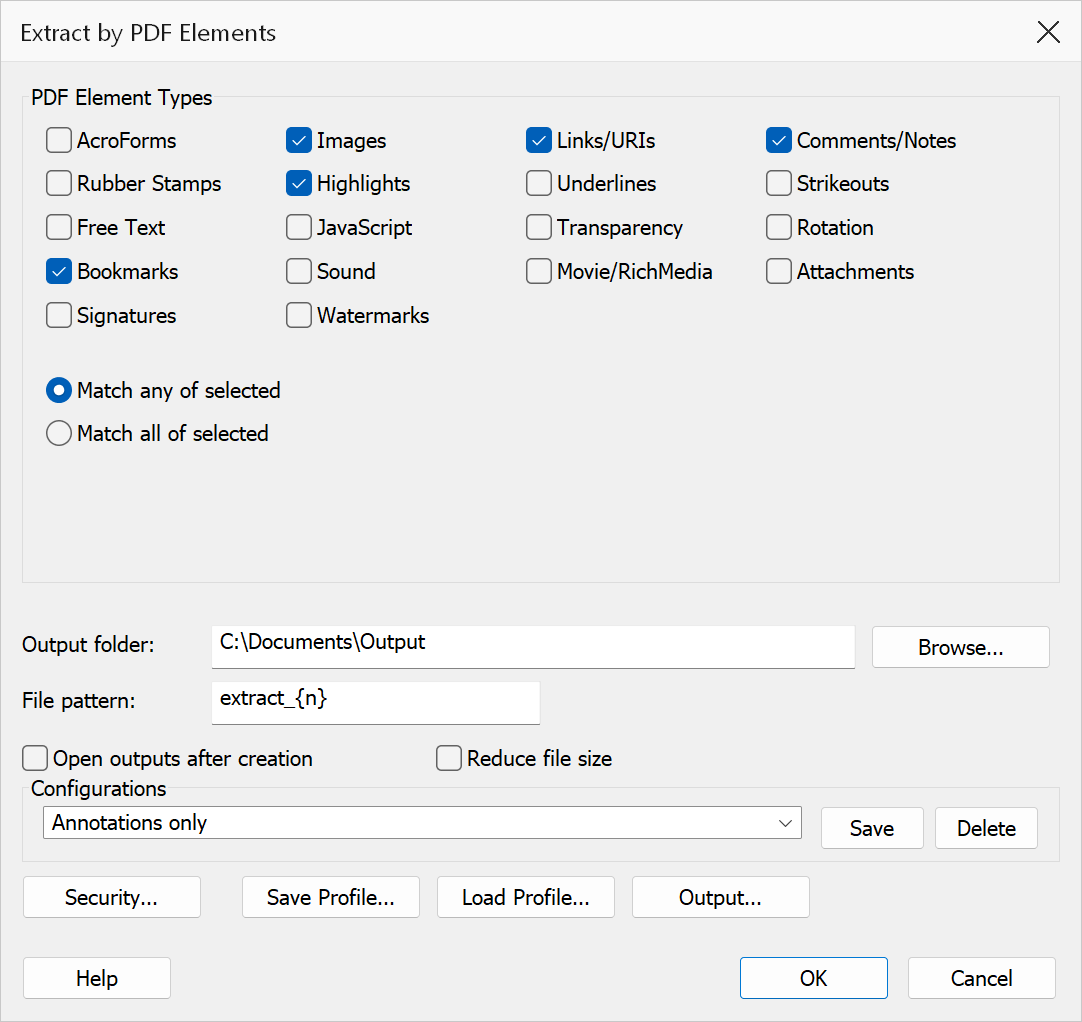
How to use
- Open the PDF you want to analyse.
- Go to Plug-Ins > Split > Extract by PDF Elements.
- Check one or more element types from the list of 18 checkboxes.
- Choose the matching logic: Match any or Match all.
- Set the output folder and file-name pattern.
- Click OK to extract matching pages.
Element types
| Element | What is detected |
|---|---|
| AcroForms | Pages that contain interactive form fields. |
| Images | Pages with at least one raster image XObject. |
| Links / URIs | Pages with link annotations or URI actions. |
| Comments / Notes | Pages with text or note annotations. |
| Rubber Stamps | Pages with rubber-stamp annotations. |
| Highlights | Pages with highlight annotations. |
| Underlines | Pages with underline annotations. |
| Strikeouts | Pages with strikeout annotations. |
| Free Text | Pages with free-text (typewriter / callout) annotations. |
| JavaScript | Pages with JavaScript actions in the page dictionary. |
| Transparency | Pages whose ExtGState resources contain opacity values below 1. |
| Rotation | Pages with a non-zero rotation value. |
| Bookmarks | Pages that are targets of at least one bookmark. |
| Sound | Pages with sound annotations or actions. |
| Movie / Rich Media | Pages with movie or rich-media annotations. |
| Attachments | Pages with file-attachment annotations. |
| Signatures | Pages with digital signature fields. |
| Watermarks | Pages with watermark annotations. |
Matching logic
| Option | Description |
|---|---|
| Match any of selected | A page is included if it contains at least one of the checked element types. This is the default. |
| Match all of selected | A page is included only if it contains every checked element type. |
Output options
| Option | Description |
|---|---|
| Output folder | The destination folder for the extracted file. Click Browse to select a folder. |
| File pattern | Controls the output filename. Use {n} for a sequential index
or a descriptive literal name. The default pattern is
extract_{n}. |
| Open outputs after creation | Opens the generated file in Acrobat after the operation completes. |
Tip
Use Match all when you need pages that satisfy multiple criteria simultaneously — for example, pages that contain both images and form fields.