Overview
Extract by Text Pattern scans page text for keywords or regular expressions and collects every matching page into separate output files — one file per criterion. Pages collected for a single criterion can be non-contiguous within the source document.
This is useful for pulling all pages that mention a particular client name, project code, or legal term from a large PDF.
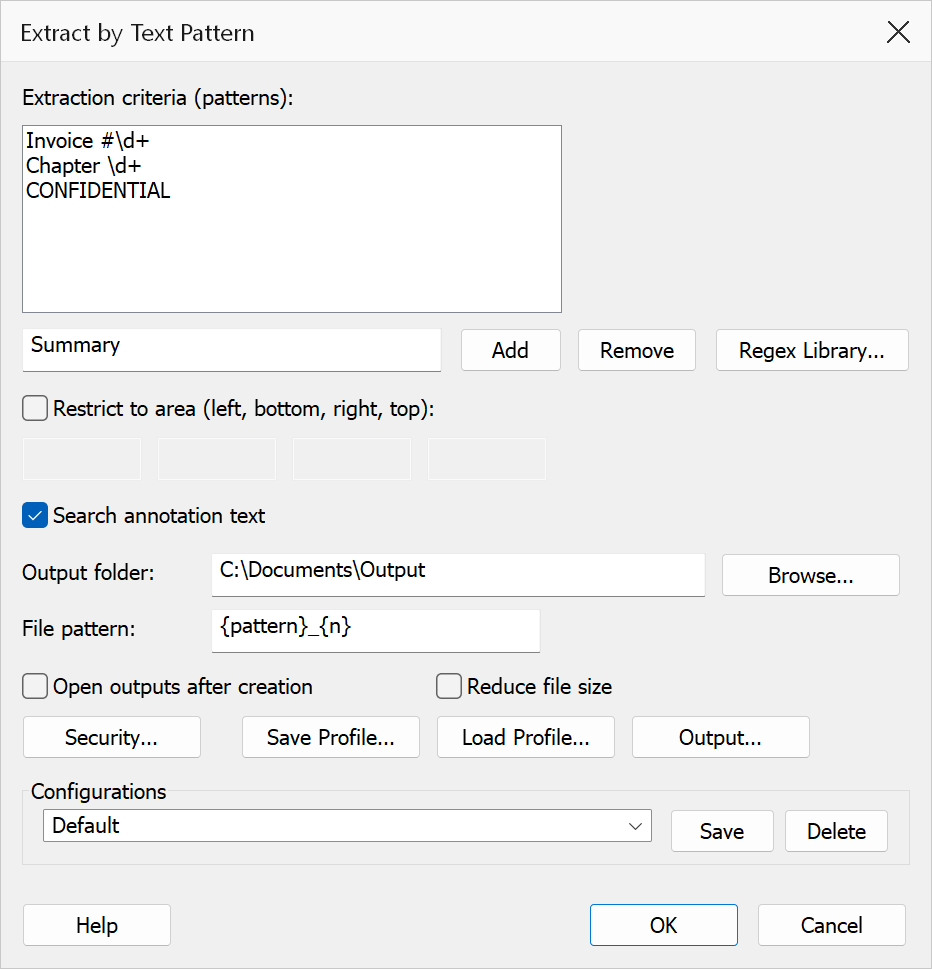
How to use
- Open the PDF you want to search.
- Go to Plug-Ins > Split > Extract by Text Pattern.
- Type a pattern in the text box and click Add to build the criteria list. Repeat for additional patterns.
- Optionally click Regex Library to insert a saved regular expression into the pattern field.
- Choose the output folder and file-name pattern.
- Click OK to run the extraction.
Options
| Option | Description |
|---|---|
| Criteria list | One or more regular expressions (or plain text strings). Each criterion produces a separate output file containing all pages that match it. Use Add to append and Remove to delete the selected entry. |
| Regex Library | Opens the Regex Library dialog so you can insert a saved pattern into the pattern field. |
| Search annotation text | When checked, annotation content (comments, sticky notes, free-text annotations) on each page is also searched in addition to the page body text. |
| Output folder | The destination folder for extracted files. Click Browse to select a folder. |
| File pattern | Controls the output filename. Use {pattern} to embed the
criterion string and {n} for a sequential index. The default
pattern is {pattern}_{n}. |
| Open outputs after creation | Opens each generated file in Acrobat after the operation completes. |
Tip
Extract by Text Pattern always ignores capitals — figure 12
and Figure 12 both match, and there is no option to change that. New to
patterns? See Understanding Regular Expressions.
Warning
A pattern beginning (?i) is rejected as invalid. That prefix
works in some other programs but not here. You do not need it: this feature already
ignores capitals. Where a feature does not, put the choice in the pattern itself —
[Ss]ection matches both “Section” and “section”. See
Capitals and matching.
Note
A single page may match multiple criteria and will appear in each corresponding output file. Criteria that match no pages produce no output file.