Overview
Extract Pages For Bookmarks exports pages referenced by bookmarks into new PDF files. You can choose which bookmark levels to include, whether to extract a fixed number of pages per bookmark or all pages until the next bookmark, and whether to produce a single output file or multiple files.
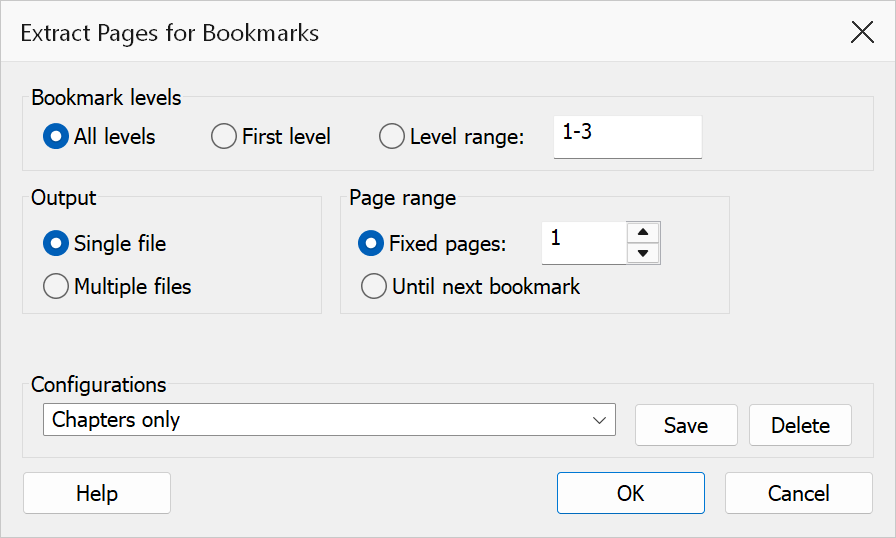
How to use
- Open the PDF that contains the bookmarks.
- Go to Plug-Ins > Bookmarks > Extract Pages For Bookmarks.
- Select the bookmark level scope.
- Choose the page range option and output mode.
- Click OK to generate the output file(s).
Bookmark level scope
| Option | Description |
|---|---|
| All levels | Includes bookmarks at every level of the tree. This is the default. |
| First level only | Includes only top-level bookmarks. |
| Level range | Includes bookmarks within a specific range of levels. Enter levels as a
comma-separated list or range, e.g. 1,2,3-4. The OK button is
disabled until a valid range is entered. |
Page range options
| Option | Description |
|---|---|
| Fixed number of pages | Extracts a set number of pages starting at each bookmark’s target page. Enter the page count in the text field (minimum 1, maximum 9999). |
| Until next bookmark | Extracts all pages from the bookmark’s target page up to (but not including) the page of the next bookmark. For the last bookmark, pages are extracted through to the end of the document. When this option is selected, the output mode is automatically set to Single file and the Multiple files option is disabled. |
Output mode
| Option | Description |
|---|---|
| Single file | Combines all extracted pages into one output PDF. |
| Multiple files | Creates a separate PDF for each bookmark’s extracted pages. This option is only available with the Fixed number of pages range option. |
Tip
Use First level only with Until next bookmark to split a document into chapter-sized PDFs based on top-level bookmarks.
Note
Bookmarks with invalid destinations are skipped during extraction. The level range
field accepts formats like 1-3, 2,4, or 1,3-5.