Overview
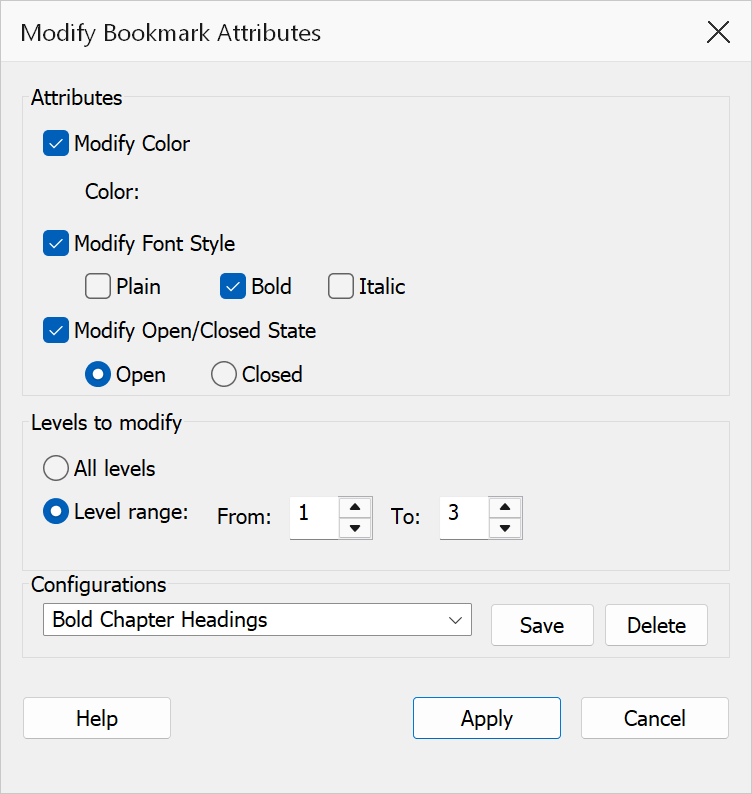
Modify Bookmark Attributes lets you change the visual appearance and expand/collapse state of bookmarks in the active PDF. You can update text color, font style (regular, bold, italic), and whether bookmarks appear open or closed in the bookmark panel. Changes can be applied to the entire bookmark tree or restricted to a specific range of levels.
How to use
- Open a PDF that contains bookmarks.
- Go to Plug-Ins > Bookmarks > Manage & Organize > Modify bookmark attributes.
- Tick the attribute categories you want to change (Color, Font Style, Open/Closed State).
- Configure the desired values for each selected category.
- Choose the scope: All levels or a Level range.
- Click OK to apply the changes.
Attribute options
| Option | Description |
|---|---|
| Color | When checked, enables the color picker button. Click the color button to open the standard Windows color dialog and choose a new text color for bookmarks. |
| Font Style | When checked, enables the style checkboxes: Regular, Bold, and Italic. Selecting Regular clears Bold and Italic. Bold and Italic can be combined; selecting either clears Regular. |
| Open/Closed State | When checked, enables the Open and Closed radio buttons. Open expands bookmarks so their children are visible; Closed collapses them. |
Scope
| Option | Description |
|---|---|
| All levels | Applies changes to every bookmark in the tree, regardless of depth. |
| Level range | Restricts changes to bookmarks within the specified start and end levels (inclusive). Level values must be 1 or higher, and the end level must be greater than or equal to the start level. |
Tip
Use a level range to style only top-level headings (e.g., level 1 to 1 for bold) while leaving sub-bookmarks in regular style.
Note
If no attribute checkboxes are selected, clicking OK will close the dialog without making any changes. Only the categories you tick will be modified; unchecked categories are left untouched.