Overview
The Edit Highlight Preset dialog lets you define or modify a highlight preset for the Annotation Highlights toolbar. Each preset controls the name, tooltip, colour, and behaviour flags for a toolbar button.
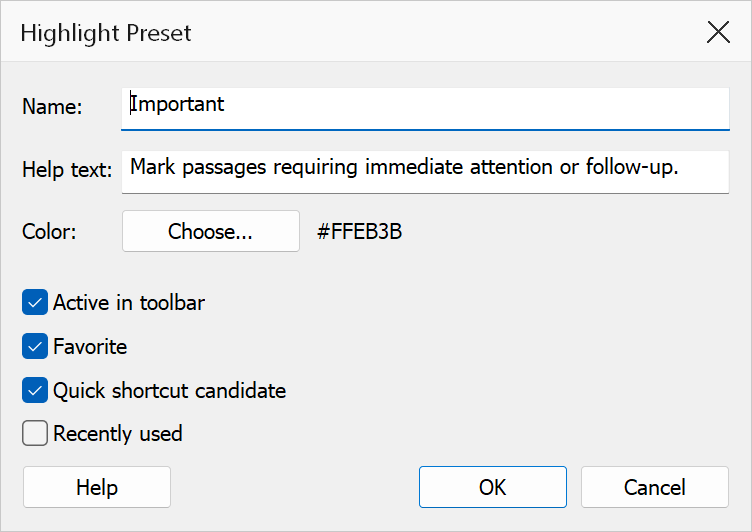
How to use
- Open the Annotation Highlights toolbar and click the edit button for a preset, or create a new preset.
- Set the name, help text, and colour.
- Toggle the behaviour flags as needed.
- Click OK to save the preset.
Options
| Option | Description |
|---|---|
| Name | The label shown for the preset button in the toolbar. |
| Help text | Tooltip text displayed when hovering over the preset button. |
| Colour | The highlight colour applied when this preset is clicked. |
| Active in toolbar | Shows or hides the preset in the Annotation Highlights toolbar. |
| Favourite | Marks the preset as a favourite. Favourites are displayed before non-favourites in the toolbar, while preserving their relative order within each group. |
| Quick shortcut candidate | Stored as preset metadata for future shortcut workflows. This flag does not currently change toolbar behaviour. |
| Recently used | Marks this preset as the last-used preset. The toolbar uses this flag to pre-select the active colour button when the toolbar opens. Only one preset can hold this flag at a time — setting it on one preset clears it on all others. |
Note
The Favourite flag affects toolbar ordering only — no separate favourites icon is currently displayed. The Recently used flag is a single “last selected” marker, not a history list.