Overview
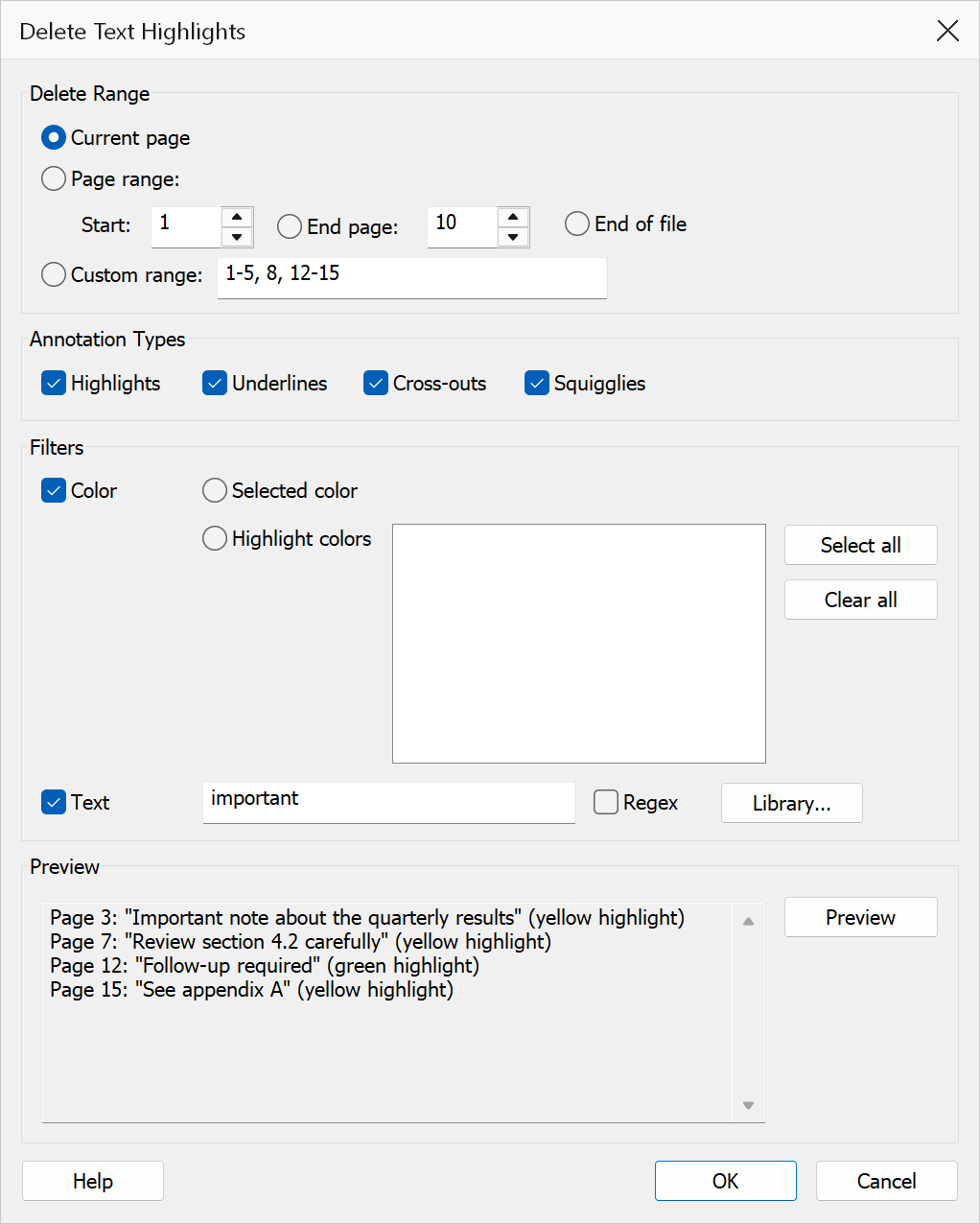
Delete Text Highlights removes markup annotations from your PDF. Supported annotation types are highlights, underlines, strikeouts (cross-outs), and squigglies. You can filter which annotations to delete by page range, annotation type, colour, and the text content they cover. A live preview shows matching annotations before you commit.
How to use
- Open a PDF that contains markup annotations.
- Go to Plug-Ins > Highlights > Delete Text Highlights.
- Select a page scope: current page, page range, or custom range.
- Check the annotation types you want to target.
- Optionally enable colour and/or text content filters.
- Review the Preview pane to verify which annotations will be deleted.
- Click OK to delete the matching annotations.
Page scope
| Option | Description |
|---|---|
| Current page | Deletes annotations on the currently viewed page only. |
| Page range | Deletes annotations across a range of pages. Enter a start page and either specify an end page or choose To end of file. |
| Custom range | Enter a comma-separated list of pages and ranges, e.g.
1-3,5,8-10. |
Annotation type filter
Check one or more of the following types. At least one type must be selected.
- Highlight
- Underline
- Strikeout (cross-out)
- Squiggly (wavy underline)
Colour filter
Enable Filter by colour to restrict deletion to annotations of a specific colour. Two modes are available:
| Mode | Description |
|---|---|
| Selected colour | Opens a colour picker so you can choose an exact colour to match. |
| Document colours | Displays a checklist of highlight colours already present in the document. Check the colours you want to target. Use Select All / Clear All to toggle the entire list. This mode is disabled when the document contains no markup annotations. |
Text content filter
Enable Filter by text to delete only annotations whose covered text matches a pattern. Enter the pattern in the text box.
| Option | Description |
|---|---|
| Use regex | When checked, the text pattern is interpreted as a C++ ECMAScript regular expression. When unchecked, a plain substring search is performed. |
| Regex Library | Opens the Regex Library dialog to insert a saved pattern. Enabled only when both the text filter and the regex toggle are active. |
Preview
The preview pane at the bottom of the dialog shows a live summary of matching annotations: total match count, pages with matches, per-page counts, and sample text snippets (up to 8). Click Preview to refresh manually, or the preview updates automatically as you change filters.
Tip
Use the text content filter to delete only annotations that cover a specific
keyword — for example, remove all highlights on the word
EXPIRED without touching other highlights.
Note
Colour matching uses a small tolerance (2 units per channel) to account for rounding differences between colour spaces.
Confirmation
This command changes the document irreversibly, so it asks you to confirm before anything is modified. The prompt states what will be affected — where the command can count the items in advance, it quotes the exact number. Nothing is changed until you accept it, and choosing Cancel leaves the document untouched.