Overview
Lock/Unlock Links sets or clears the locked flag on every link annotation in the document. A locked link cannot be moved, resized, or deleted with Acrobat’s Link tool, so a finished document’s navigation cannot be disturbed by an accidental drag while reviewing or commenting.
Locking does not change what a link does — every link keeps working exactly as before. It only protects the link annotations from editing.
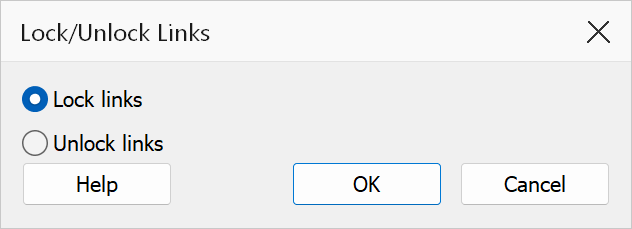
How to use
- Open the PDF whose links you want to protect (or release).
- Go to Plug-Ins > Links > Lock/Unlock Links.
- Choose Lock links or Unlock links.
- Click OK. The change applies to every link in the document.
Options
| Option | Description |
|---|---|
| Lock links | Sets the locked flag on all link annotations. The Link tool can no longer select, move, resize, or delete them. |
| Unlock links | Clears the locked flag so links can be edited with the Link tool again. |
Note
The operation always applies to the whole document. To protect only some links, lock everything and unlock afterwards once editing is finished.
Tip
Lock links as the last step before distributing a document that reviewers will open with editing tools available.