Overview
The Regular Expression Library lets you store, organise, and reuse regex patterns with friendly names and group categories. When a dialog accepts a regular expression (such as bookmark creation or text highlighting), you can open this library to pick a pre-built pattern instead of writing one from scratch.
How to use
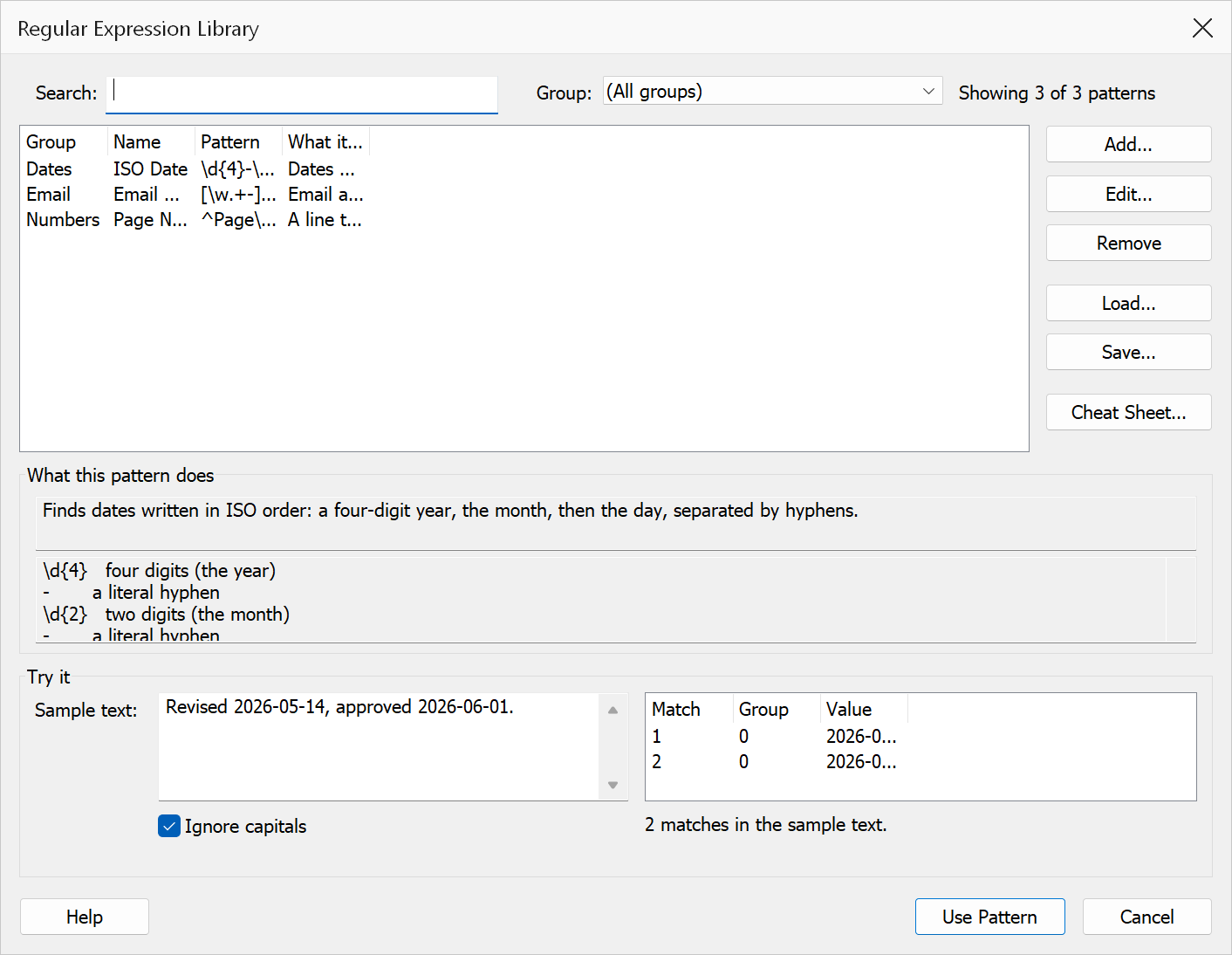
- Open the Regular Expression Library dialog (from a regex-enabled feature, or via Plug-Ins > Utilities > Open Regex Library, Ctrl+Shift+O).
- Narrow the list with the Search box, the Group list, or both. The count on the right says how much of the library you are currently looking at.
- Select a pattern. The panes below show what it finds, read the pattern back in plain English, and try it against the entry’s own example.
- Type into Sample text to try the pattern against your own text. Every match appears beside it with the value of each capture group.
- Click Use Pattern (or double-click the row) to take it.
- Use Add, Edit or Remove to manage entries, and Load / Save to import or export the library as a CSV file.
List columns
| Column | Description |
|---|---|
| Group | A category label to organise related patterns (e.g. “Page References”, “Labels”, “Numbers”). |
| Name | A human-readable name describing what the pattern matches. |
| Pattern | The pattern itself. New to these? See Understanding Regular Expressions, or the Cheat Sheet for a one-page summary of what each symbol means. |
| What it finds | A sentence describing the pattern in plain English — what it matches, and which part it keeps. Every supplied pattern has one; entries you add yourself have one only if you write it. |
Click any column header to sort the list by that column. Clicking the same header again toggles between ascending and descending order.
Editing items
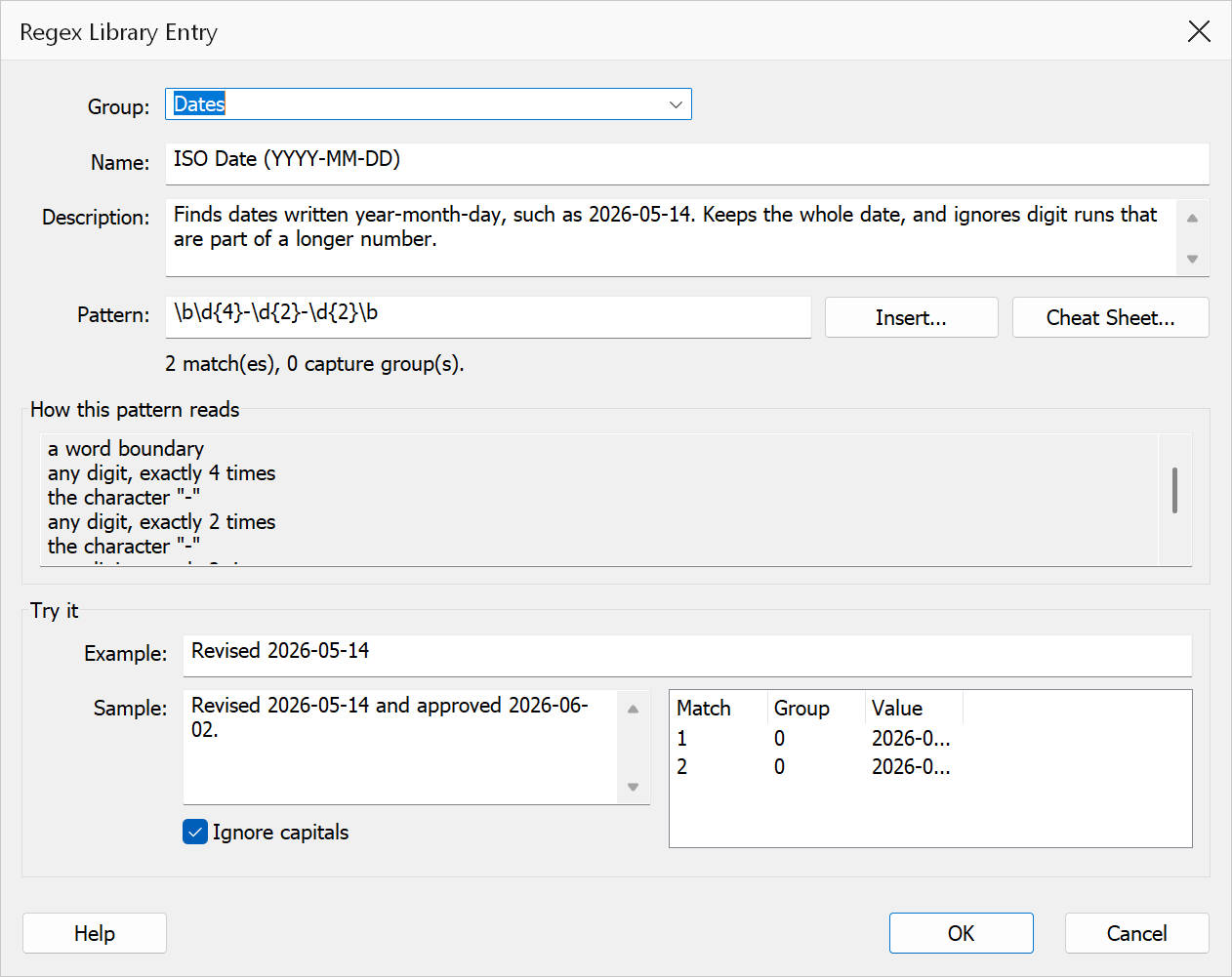
When you click Add or Edit, an editor opens. It shows what the pattern means in plain English and runs it against sample text as you type, so you can tell whether a pattern works before saving it.
| Field | Description |
|---|---|
| Group | A category label to organise related patterns (e.g. “Page references”). Pick an existing group from the list, or type a new one. |
| Name | A short human-readable label describing what the pattern matches. |
| Pattern | The pattern itself. It is checked as you type, and if something is wrong you are told what and roughly where — for example “Unmatched ( — every group must be closed with ) (at character 5)”. |
| Description | A sentence saying what this pattern finds and what it keeps. This is what the next person sees in the What it finds column and in the details pane, so it is worth writing. |
| Example | A piece of text this pattern is expected to match. It is saved with the entry and checked automatically: if the pattern does not match its own example you are warned before saving. |
Building a pattern without memorising the syntax
Two buttons sit beside the Pattern box:
- Insert… drops down a menu of every symbol, grouped by what it does, and inserts the one you pick at the cursor. If you have text selected and choose something with two halves — a capture group, for instance — it wraps the selection instead. Ctrl+Z undoes it.
- Cheat Sheet… opens the same list as a searchable window with an example beside each symbol.
How this pattern reads
Underneath, the pattern is read back to you one piece at a time. For
see\s+page\s+(\d+) it shows the text “see”, one or more spaces,
the text “page”, one or more spaces, the start of capture group 1, one or more
digits, and the end of the group. This works on any pattern, including one you have just
typed yourself.
Try it
Type into Sample and every match appears in the list beside it, together with the value of each capture group. With the sample box empty the pattern is tried against the Example field instead.
Ignore capitals is on by default, because most features that use these patterns ignore capitals. Note that this is a setting of the tester only — a library entry carries no capitals setting of its own, and behaviour differs per feature. See Capitals and matching.
Click OK to save the entry, or Cancel to discard changes.
Toolbar actions
| Button | Description |
|---|---|
| Add | Opens a dialog to create a new library entry with group, name, and pattern fields. |
| Edit | Opens the selected entry for modification. Enabled only when a row is selected. |
| Remove | Deletes the selected entry after confirmation. Enabled only when a row is selected. |
| Load | Replaces the current library with entries from a CSV file. The expected column order is Group,Name,Pattern. Invalid regex patterns are skipped with a warning. |
| Save | Exports all current entries to a CSV file. If the library was previously loaded from a file, the same path is reused; otherwise a Save dialog appears. The supplied library normally lives under Program Files, which most accounts cannot write to, so saving there falls back to Save As. |
| Cheat Sheet… | Opens a searchable list of every symbol TOC Builder understands, with an example of each. The same list is available as the Insert… menu when editing an entry. |
Adding, editing or removing an entry changes only the list in front of you. Use Save to keep those changes; if you close without saving you are asked first.
The patterns supplied with TOC Builder
TOC Builder ships with 128 ready-made patterns, loaded automatically the first time you open the library. Every one carries a description of what it finds and an example of text it matches.
| Group | For example |
|---|---|
| Basics | Simple building blocks, written to be read rather than just used — start here if patterns are new to you |
| Page references | “see page 12”, “pg. 7”, “pages 12–18” |
| Page labels | A-12, IV-7, Annex A-3 |
| Sections | Section 3.4, Clause 5.2.1, § 3.4.5, Part II |
| Figures, Tables, Equations, Boxes, Listings | Figure 12, Table A-2, Eq. (3), Box 2.1 |
| Appendices, Cross-refs | Appendix A, “as shown in Figure 7” |
| URLs/Files/IDs | web addresses, e-mail, file names, paths, DOI, UUID, ORCID |
| Legal/Standards | ISO 19005-1, CFR 21 § 11.10, RFC 5322 |
| Dates/Times, Numbers, Codes | 2026-03-14, 1,234.56, IBAN, EAN-13 |
| Citations, Notes, Lists | [12], footnote markers, numbered and lettered lists |
| Addresses/Phones, Cross-document, General | UK postcodes, “see manual.pdf page 12” |
Tip
Look here before writing a pattern of your own. One of the 128 is usually close to what you need, and editing a working pattern is far easier than writing one from scratch.
Search and filter
Type one or more keywords into the Search field to filter the list in real time. The filter matches against the Group, Name, Pattern and description columns simultaneously, so plain-English words such as “postcode” or “invoice” find the right entry even when the name uses different wording. All keywords (space-separated) must match for a row to appear, and the search is case-insensitive.
The Group list narrows to a single category, and combines with whatever is typed in the search box.
CSV file format
The library CSV uses standard comma-separated format with an optional header row. The current format has five columns:
Group,Name,Pattern,Description,Example
Quoted fields, escaped double-quotes and line breaks inside quoted fields are all supported, and the file is read and written as UTF-8.
Older three-column files still load. A library exported by an earlier
version, with just Group,Name,Pattern, is read exactly as before — those
entries simply have no description or example until you add one. Saving always writes the
five-column form.
Tip
Double-click any row to immediately select its pattern and close the dialog — this is the fastest way to pick a pattern.
Warning
Rows that cannot be used are skipped when loading a CSV, and the load now reports the reason for each one — too few columns, an empty pattern, or exactly what is wrong with the expression — rather than just a row number. The commonest causes are an unclosed bracket and an (?i) prefix, which is not supported here.
Note
On startup the library attempts to load Docs/regex_library.csv from the
application directory. If that file does not exist it falls back to the current working
directory.