Overview
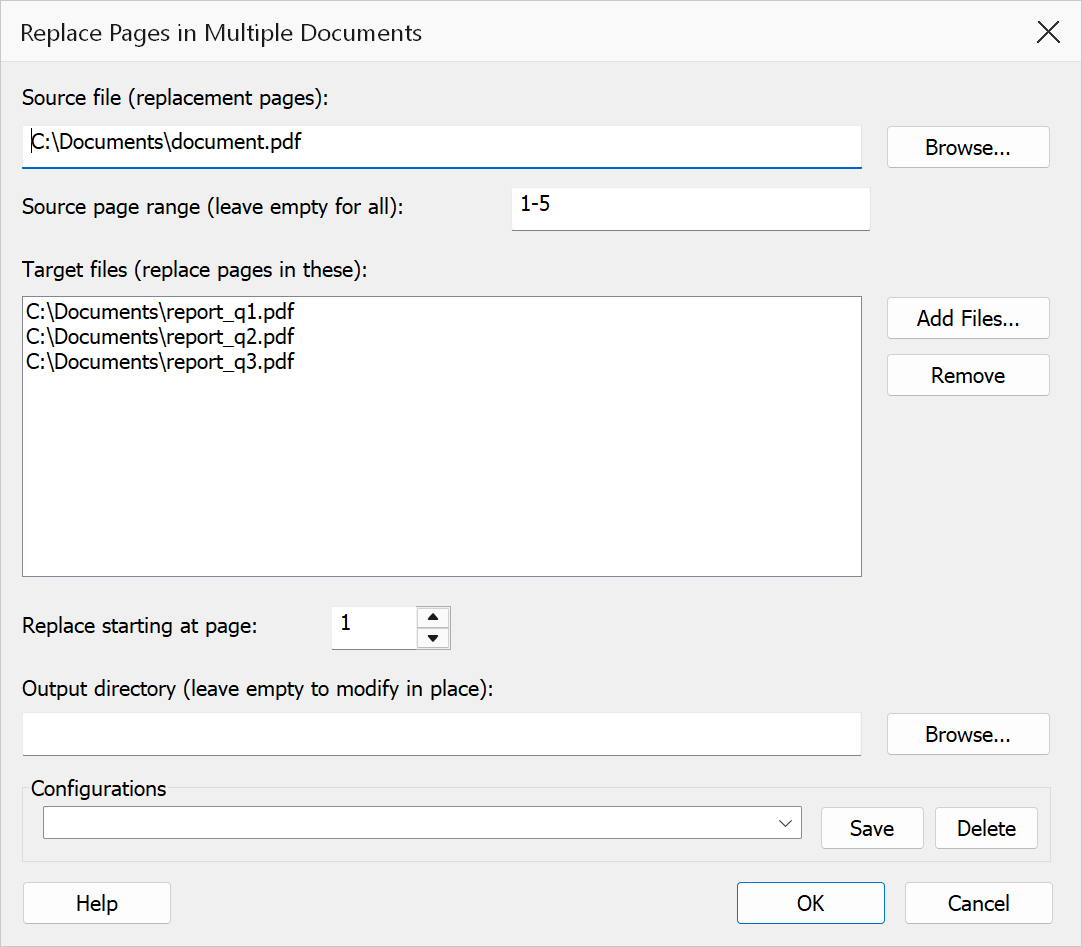
Replace Pages replaces pages in multiple target PDF documents with pages from a single source PDF. This is useful when you need to update a common page (such as a cover page, terms and conditions, or header page) across many documents at once.
You specify which pages from the source file to use and the starting page number in each target document where the replacement begins. The corresponding pages in the target are replaced one-for-one with the source pages.
How to use
- Go to Extensions > Mapsoft > Merge & Rename > Replace Pages in Multiple Documents.
- Select the Source file containing the replacement pages.
- Specify the Source page range (e.g.
1-3or1,3,5-7) to use from the source file. - Build the Target file list with Add Files.
- Set the Starting page number in the target documents where the replacement begins.
- Click OK to perform the replacement.
Options
| Option | Description |
|---|---|
| Source file | The PDF file containing the replacement pages. |
| Source page range | The pages to use from the source file, for example 1-3 or
1,3,5-7. If omitted, all pages from the source file are used. |
| Target file list | The list of PDF files in which pages will be replaced. Use Add Files to build the list. |
| Output directory | The folder where the modified target files are saved. Leave it empty to rewrite the original files in place; the command asks for confirmation before it does. |
| Starting page number | The page number in each target document where replacement begins. For example, if
set to 1 and the source range contains 3 pages, pages 1, 2, and 3 of each
target document are replaced. |
Warning
Replacement is not limited by the target's length. If a target document is shorter than the starting page number plus the number of source pages, the command replaces the pages it can and appends the rest, so a short target grows rather than being skipped.
Tip
To update the cover page of many documents, create a one-page source PDF and set the
starting page number to 1.