Overview
Insert Pages inserts pages from a source PDF into multiple target PDF documents in a single batch operation. This is useful when you need to add a common cover page, disclaimer, or appendix to many documents at once.
You can choose to insert the source pages before the first page, after the last page, or after a specific page number in each target document.
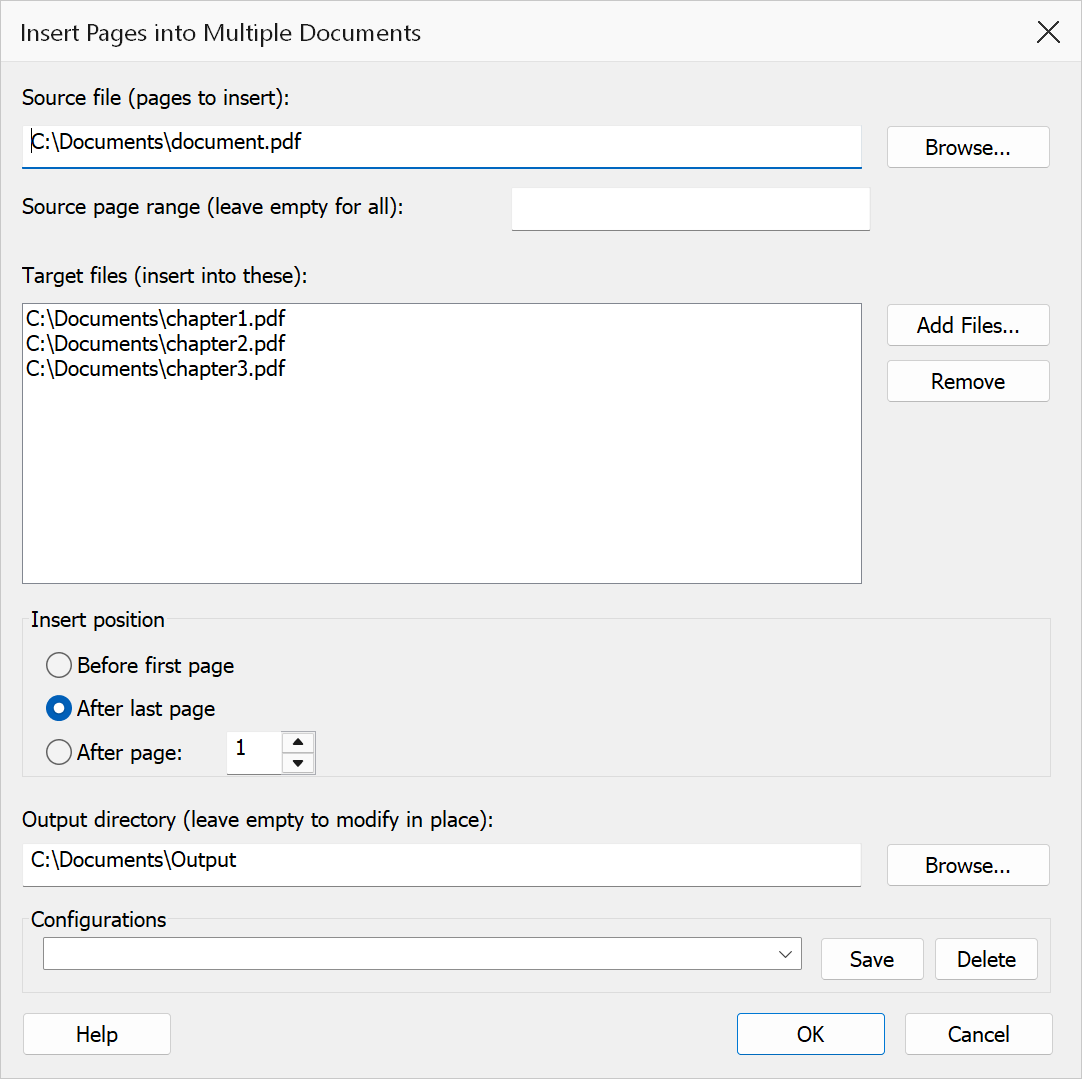
How to use
- Go to Extensions > Mapsoft > Merge & Rename > Insert Pages into Multiple Documents.
- Select the Source file containing the pages you want to insert.
- Optionally set a Source page range to insert only part of it.
- Build the Target file list by adding individual files or an entire folder of PDFs.
- Choose the Insert position: before the first page, after the last page, or after a specific page number.
- Set the Output directory where modified files will be saved (or choose to overwrite originals).
- Click OK to perform the insertion.
Options
| Option | Description |
|---|---|
| Source file | The PDF file whose pages will be inserted into each target document. |
| Source page range | The pages to take from the source file, for example 1-3 or
1,3,5-7. Leave it empty to insert every page. |
| Target file list | The list of PDF files that will receive the inserted pages. Use Add Files to build the list. |
| Insert position | Where to insert the source pages within each target document:
|
| Output directory | The folder where modified target files will be saved. If not specified, the original files are overwritten. |
Tip
To insert a single cover page at the start of many documents, create a one-page PDF with your cover content and select Before first page as the insert position.
Warning
If no output directory is specified, the original target files will be overwritten. Make sure you have backups if you need to preserve the originals.